.svg)
Overview
The Mend Platform Activity Log report gives administrators a centralized view of important activity across their organization. Use it to understand who performed an action, what changed, when it happened, where it occurred, and which Mend Platform capability generated the event.
The Activity Log helps teams monitor platform usage, investigate changes, review activity related to security and legal findings, and support compliance or operational reviews.
Prerequisites
-
Access to the Mend Platform for your organization.
-
An administrator role, or another role with permission to view activity log data.
-
Permission to view the relevant applications, projects, and organization-level resources included in the log results.
-
For API access, a valid API token with permissions to read organization activity log data.
Getting it done
The activity log is accessible via Admininstration → Activity Log. Click + Create Report to generate an activity log report or generate it via Reports → Create → (Operational) → Activity Log
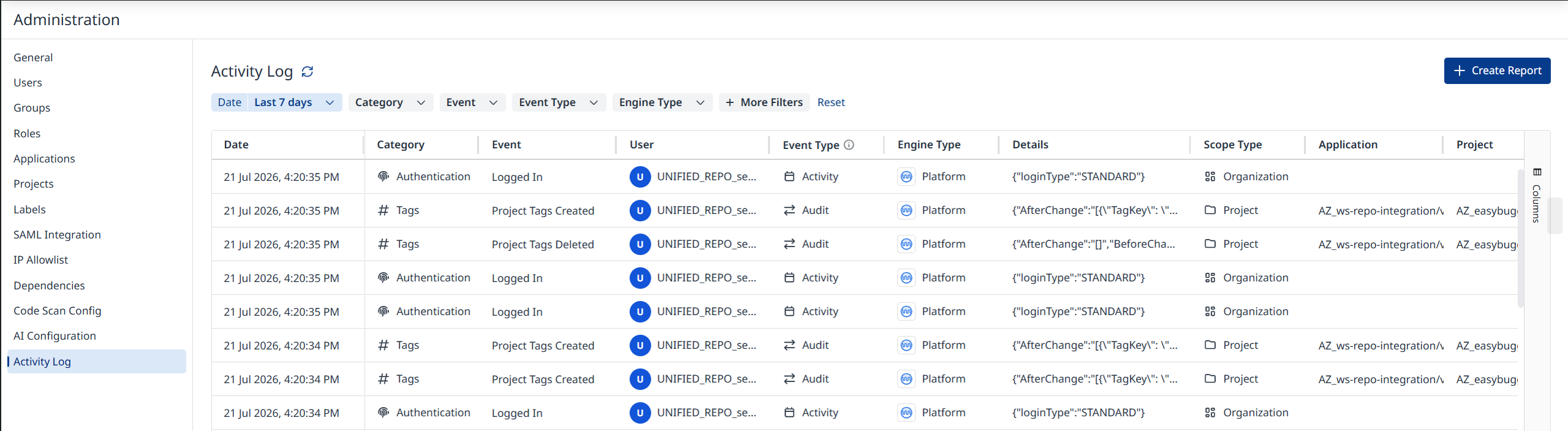
Review the table of events. By default, events are sorted by date in descending order, so the newest events appear first.
Note:
-
The report is available at the Organization, Application/Project or Label level.
-
The report is available in EXCEL and CSV formats.
-
The report can be downloaded from the Reports page.
-
The report always contains all available fields, regardless of UI filters.
Activity Log Columns
Each Activity Log record represents an event that occurred in the Mend Platform. Events may be triggered by a user (or service user) in your organization, by Mend System automated processes, or by a Mend Expert assisting with support or operations.
Activity Log records can include the following information:
-
Date — when the event occurred.
-
Category — the functional area related to the event, such as Authentication, Reports, Scans, Security Findings, Legal Findings, Projects, Applications, Users, Groups, Integrations, Workflows, Tags, Labels, or Settings.
-
Event — a human-readable description of the action, such as Logged in, Scan Triggered, Scan Config Changed, Project Tags Deleted, Project Created, Wokrflow Triggered, Finding Suppressed, etc.
-
User — the actor that performed the action. This can be a named user or service user, Mend System, or Mend Expert.
-
Event Type — whether the event is an activity event or an audit event.
-
Activity events capture operational actions and platform usage, such as triggering a scan, logging in, or downloading a report.
-
Audit events capture changes to data, configuration, or findings state, such as suppressing a finding, creating a project, or updating settings.
-
-
Engine Type — the Mend engine that generated the event, e.g., Platform, Dependencies, etc.
-
Details — additional context for the selected event.
-
Scope Type — Organization / Application / Project
-
Application — the scope related to the event, when applicable.
-
Project — the scope related to the event, when applicable.
Event Types
The Activity Log includes two event types:
-
Activity — operational actions or usage events, such as signing in, downloading a report, or triggering a scan.
-
Audit — events that represent a change to stored data, configuration, or finding state, such as creating a project, updating a workflow, assigning a license, or suppressing a finding.
Filter Events
Use filters to narrow the Activity Log to the events most relevant to your investigation.
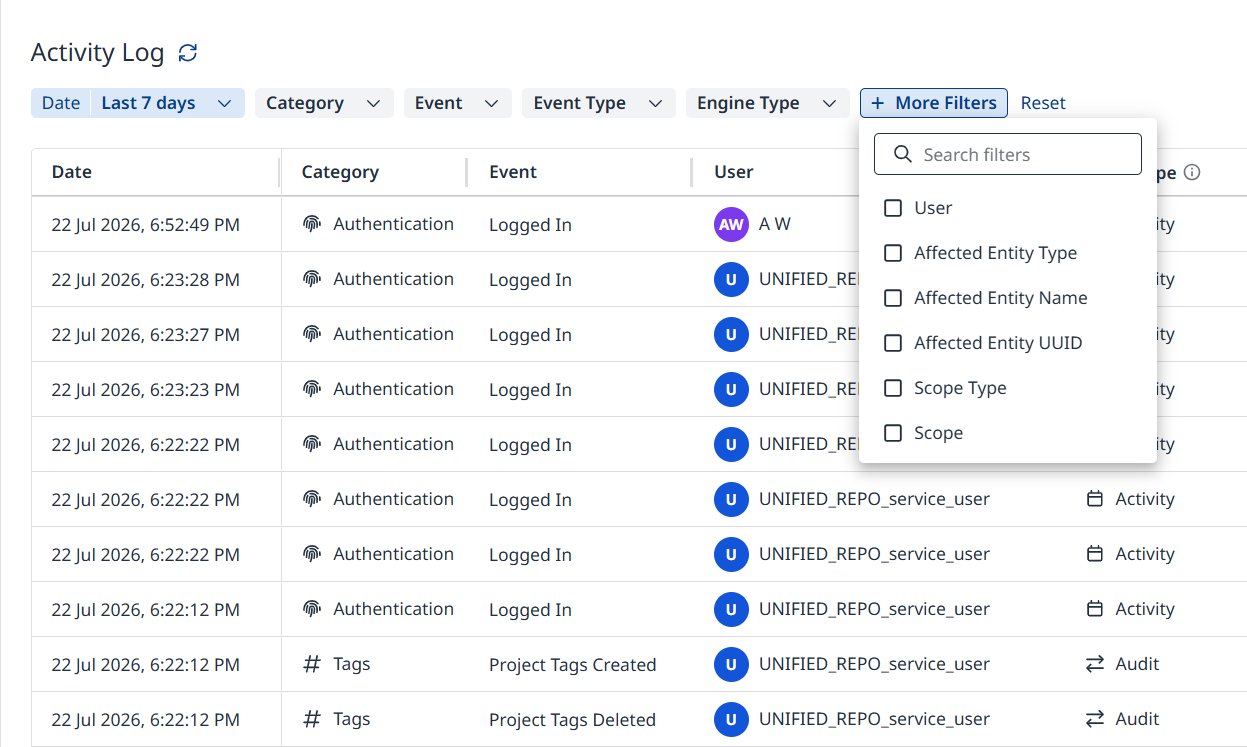
Note: Some filter values are only visible to Account Administrators.
Default Filters
-
Date
-
Quick Select – Available presets: Last Hour, Today, Last 7/30/90/180 days
-
Custom Date Range
-
-
Category
-
Applications
-
Assignments
-
Authentication
-
Configuration
-
Groups
-
Integrations
-
Labels
-
Legal Findings
-
Projects
-
Reports
-
Roles
-
Scans
-
Security Findings
-
Settings
-
Tags
-
Users
-
Violations
-
Workflows
-
-
Event
-
Application Changed
-
Application Created
-
Copyright
-
Entity
-
Finding Status
-
Finding Suppressed
-
Group Changed
-
Group Created
-
Integration Created
-
Label Created
-
Library Copyright Changed
-
Library Notice Changed
-
License
-
Logged In
-
Logged Out
-
Marked as Proprietary
-
Project Created
-
Project Labels Assigned
-
Project Tags Created
-
Report Created
-
Report Deleted
-
Report Downloaded
-
Role Created
-
Role Deleted
-
SAML Changed
-
Scan Triggered
-
Settings Changed
-
Violation SLA Changed
-
Workflow Changed
-
Workflow Created
-
Workflow Deactivated
-
Workflow Deleted
-
Workflow Triggered
-
-
Event Type
-
Activity
-
Audit
-
-
Engine Type
-
Containers
-
Dependencies
-
Code
-
IaC
-
AI
-
Platform
-
Legacy
-
+ More Filters
-
User
-
Contains
-
Search by user
-
-
Affected Entity Type
-
Group
-
Integration
-
Label
-
Library
-
Product
-
Project
-
Report
-
Role
-
SAML
-
Scan
-
Settings
-
User
-
Violation
-
Workflow
-
-
Affected Entity Name
-
Contains
-
Search by affected entity name
-
-
Affected Entity UUID
-
Contains
-
Search by affected entity uuid
-
-
Scope Type
-
Account (available to account administrators only)
-
Organization
-
Application
-
Project
-
-
Scope
-
by Label
-
by Application
-
by Project
-
Sort Events
Sort the Activity Log table to change how results are displayed. The default sort is by date, descending. Depending on the available columns in your environment, you can sort by fields such as date, event, category, user, event type, engine type, application, or project.
Only one sort column is applied at a time.
Review Event Details
-
Find the event you want to investigate in the Activity Log table.
-
Select the event row.
-
Review the details panel for the selected event.
The details panel provides structured information about the event, including the timestamp, actor, category, engine type, event type, related application or project, and additional metadata.
For Audit events, the details panel can show Before and After values so you can understand what changed. For Activity events, the panel shows structured event metadata that describes the action.
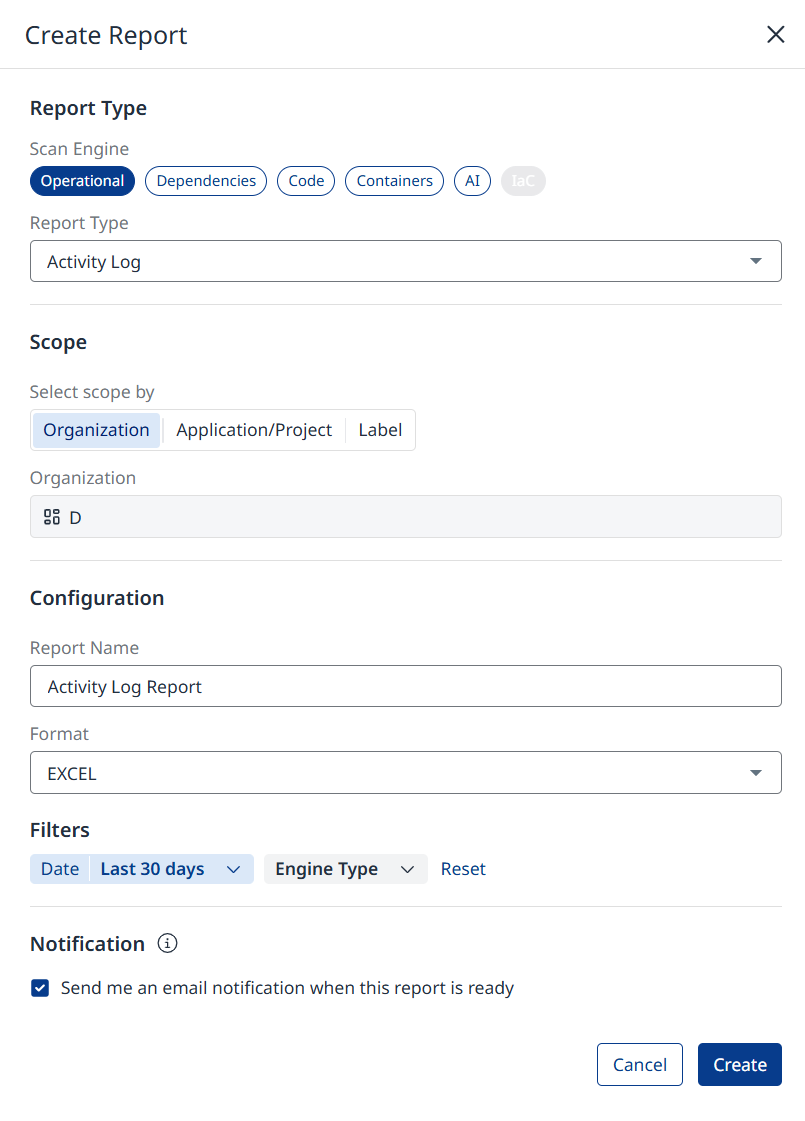
Generate an Activity Log Report
Create an Activity Log report from the Reports area or from the in-page Create Report action.
Note: The report is not an export of the data currently displayed in the UI. It includes all available data based on your permissions, regardless of applied filters.
Retrieve Events by API
You can also retrieve Activity Log events programmatically by using the Mend Platform API:
GET /api/v3.0/orgs/{orgUuid}/activity-logs
The API supports retrieving activity log records with filtering, timestamp sorting, and cursor-based pagination. Use it when you need to integrate Activity Log data with reporting, monitoring, or compliance workflows.
Retention
Activity Log records are retained for 18 months. Events remain accessible during the retention period, subject to your permissions and the scope of data you are allowed to view.
Limitations
-
The Activity Log is read-only. It is intended for reviewing activity and changes, not for modifying events.
-
The Activity Log does not expose data outside the scopes you are permitted to access.
-
Internal Mend employee details are represented as Mend Expert; internal email addresses are not exposed.
-
Automated platform actions are represented as Mend System.
-
Some Legacy SCA events may be translated into Mend Platform terminology before they are shown. Events that cannot be translated may be hidden by default and shown only if you choose to include legacy events.
-
The Activity Log does not provide a standalone CSV export from the page. Export is available through the Activity Log report, when enabled.
-
The API is read-only and does not create, update, or delete Activity Log records.
-
Activity Log records are available for the defined retention period only. Records older than 18 months are outside the supported retention window.
-
The Activity Log focuses on platform activity, security finding actions, legal finding actions, and configuration changes. It is not intended to replace detailed scan results, vulnerability reports, license reports, or other product-specific reports.
-
The Developer Platform is out of scope of the Mend Platform Activity Log.