.svg)
Overview
OS Inventory shows the copyright status for each library, including whether copyright notices were detected, not detected, or not specified. It helps you quickly understand the copyright information detected for each open source library in your project, without opening each library individually.
Copyright Statuses
Use copyright status to understand how complete the detected copyright information is for each library.
|
Status |
Meaning |
Recommended action |
|---|---|---|
|
Has Copyrights |
Copyright notices were detected for the library. |
Review the notices as part of your standard legal review process. |
|
No Copyrights |
No copyright notices were detected for the library. |
Confirm whether this matches your organization’s open source review policy. |
|
Unspecified Copyrights |
Copyright information is not available or has not been specified for the library. |
Prioritize the library for review if your policy requires complete copyright information. |
Copyright Actions
Filter by Copyright Status
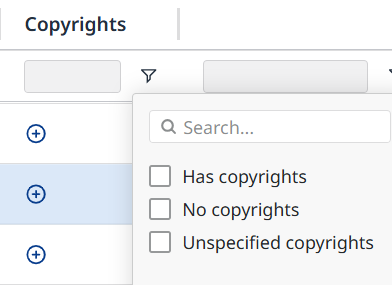
You can filter OS Inventory to focus on libraries with a specific copyright status.
-
Open OS Inventory.
-
Open the Copyrights filter.
-
Select one or more statuses:
-
Has copyrights
-
No copyrights
-
Unspecified copyrights
-
-
Review the filtered list of libraries.
-
Clear or change the filter to adjust the results.
Filtering by Unspecified Copyrights is useful when you want to find libraries that may require additional legal review because copyright information is missing or unavailable.
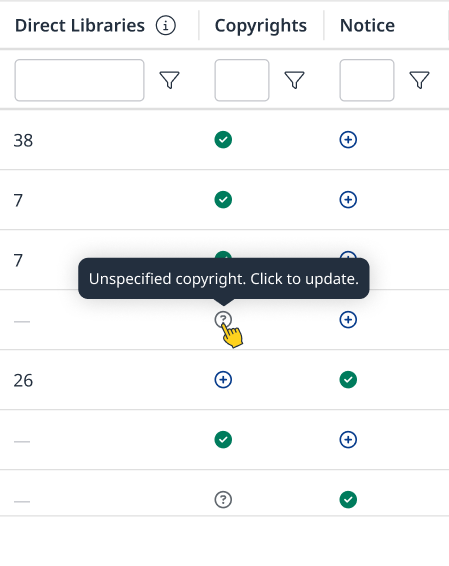
Note: It is recommended to review libraries with missing or unavailable copyright information according to your organization’s legal review process.
Copyright Assignment
Follow the steps in the parent Legal and Compliance Workflows article to assign or override a copyright.