.svg)
Overview
Mend.io enables you to import an SBOM file, to update an existing project in the application or create a new one.
An SBOM file traditionally specifies the libraries, code packages, and other third-party components that are used in your project.
Once imported, licensing and vulnerability data will be associated with your project’s dependencies, like any other project scanned into the application. Projects created or updated via SBOM imports will be regularly monitored for new vulnerabilities and updates.
What’s Supported?
Mend.io allows you to import SBOM files exported by the following tools:
Supported Standards and Schema Requirements
The supported SBOM standards are CycloneDX (versions 1.4, 1.5, 1.6) and SPDX (versions 2.2, 2.3).
Note: For CycloneDX 1.6, only semantic support is available.
CBOM, CDXA, and AI/ML are not supported.
The supported formats are JSON and XML.
Read more about the schema requirements for SPDX and CycloneDX to ensure a smooth import, especially when creating and importing a self-generated SBOM.
CPE Support
When a package in your SBOM has no Package-URL (PURL), the importer will attempt to identify it using CPE (Common Platform Enumeration) as a fallback.
-
PURL always takes precedence when present.
-
For best coverage, Mend.io recommends ensuring your SBOM generation tool produces PURL identifiers. CPE is a useful fallback but PURL provides unambiguous package identification. Tools like Syft, Trivy, and Black Duck typically produce PURLs for most packages.
Note: Both CPE 2.2 and CPE 2.3 formats are supported.
CPE Best Practices
Mend.io resolves packages from CPE by using the vendor field to determine the package ecosystem. A well-formed CPE looks like:
cpe:2.3:a:<vendor>:<product>:<version>:*:*:*:*:*:*:*
For best results, the vendor field should identify the organization or ecosystem that publishes the package — not the package name itself.
Multiple CPE entries
When a package has multiple CPE entries (common in Black Duck SBOMs), the importer will pick the first one with a recognized vendor. This means even if one CPE is ambiguous, a second CPE with a known vendor will work.
Java/Maven Special Handling
For Java packages, Mend includes a built-in lookup table that maps CPE vendor+product pairs to Maven coordinates (groupId and artifactId). This covers popular libraries from Apache, Spring, Eclipse, and many others. For example:
-
cpe:2.3:a:pivotal_software:spring-boot:2.7.0:*:*:*:*:*:*:*resolves toorg.springframework.boot:spring-boot -
cpe:2.3:a:apache:struts:2.5.30:*:*:*:*:*:*:*resolves toorg.apache.struts:struts
Limitations
-
Vendor = Package Name: The importer will not import a package when the vendor is just the package name repeated, e.g.,
cpe:2.3:a:bash:bash:5.2.15:*:*:*:*:*:*:* -
Vendor Ambiguity: The importer will not import a package when the vendor exists across multiple ecosystems, e.g.,
cpe:2.3:a:protobuf:protobuf:1.4.2:*:*:*:*:*:*:*(Go, Java, etc.) -
Native C/C++ Libraries: The importer will not import a package that isn't distributed through a supported package manager, e.g.,
pcsc-lite. -
Invalid CPE Strings: The importer will not import a package where file paths or other non-CPE values are specified in the CPE field.
Supported Vendors by Ecosystem
|
Ecosystem |
Supported CPE vendors |
Example |
|---|---|---|
|
Maven (Java) |
|
|
|
Go |
|
|
|
PyPI (Python) |
|
|
|
npm (Node.js) |
|
|
|
NuGet (.NET) |
|
|
|
Gem (Ruby) |
|
|
|
Rust |
|
|
|
Composer (PHP) |
|
|
|
Deb (Debian/Ubuntu) |
|
|
|
RPM (Red Hat/Fedora) |
|
|
|
APK (Alpine) |
|
|
Prerequisites
-
Only users with the Product Admin or Organization Admin role can access the product’s Configuration Page and upload a previously generated SBOM file.
Getting it done
Create a new Project by Uploading an SBOM File via the Add Project Wizard
To create a new project out of an existing SBOM file, you will need the relevant Product Admin (or an Organization Admin) to upload the SBOM file to the product in which you would like the new project created, via the Product Configuration Page. Here’s how to do it:
-
Navigate to the Products menu and select the product in which you would like to create the new project:

-
On the product page, click the “Add Project” button:

-
A. In the Project Details wizard, specify a Project Name and Description.
B. Check the “Import SBOM” box, to reveal the option to upload an SBOM file.
C. Click “Choose File” to browse your file system and select the desired SBOM file which meets the required specifications.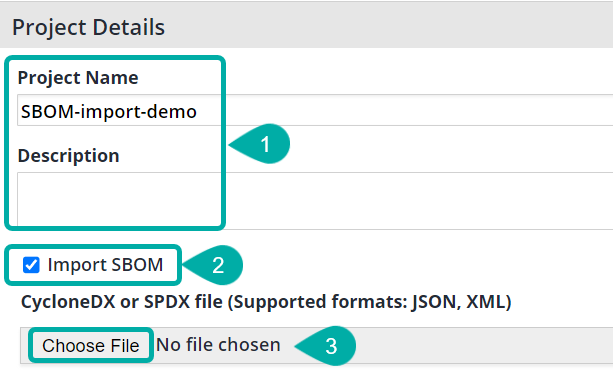
-
Click the “Create” button (

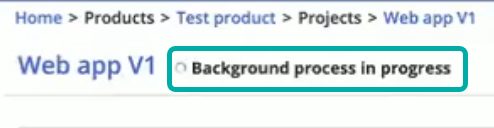
At this stage, you may see a “Background process in progress” message at the top of the project page, indicating that the new project is being set up.
Update an Existing Project by Uploading an SBOM File via the Project Administration Screen
To import an SBOM report, you will need the relevant Product Admin (or an Organization Admin) to upload the SBOM file to the SCA application via the Project Administration page:
-
Find your project in the Projects menu and click it:
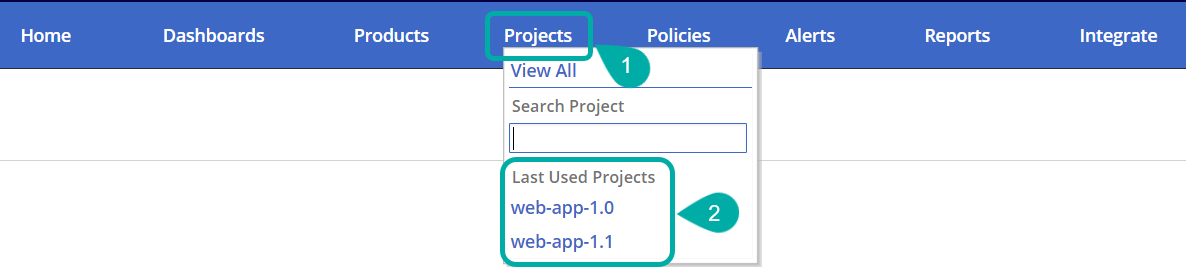
Alternatively, you can navigate to the relevant product and locate the project under “Project Summary”.
-
Clicking the cogwheel button (

-
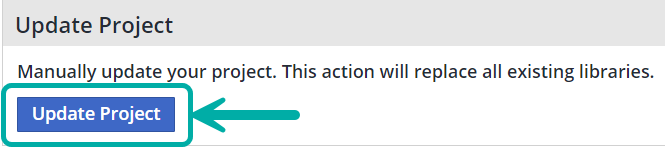
Click “Update Project”:
-
In the Update Project window, click “Choose File” to browse your file system for the SBOM file. Click “Update” to upload the selected file.
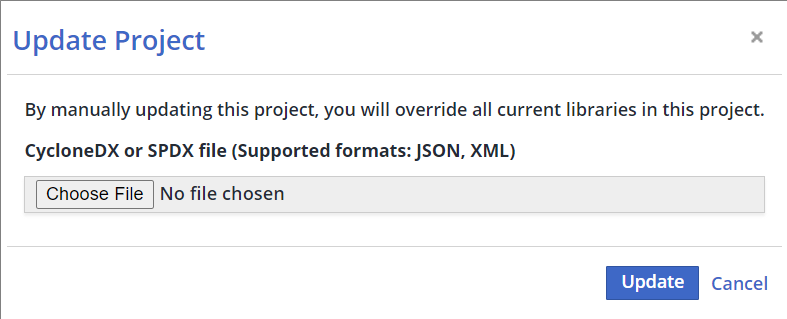
Note: The SBOM import will override the project’s existing inventory.
Compare your SBOMs
A common use case following the SBOM import process is to compare projects, e.g., comparing different versions of a project represented through SBOM files. This comparison helps in identifying changes in dependencies, vulnerabilities, and licensing information across project versions.
Mend.io recommends using the existing “Project Comparison” capability, to compare different projects' inventories and licenses.
On the project page, click the “Compare to another Project” button:

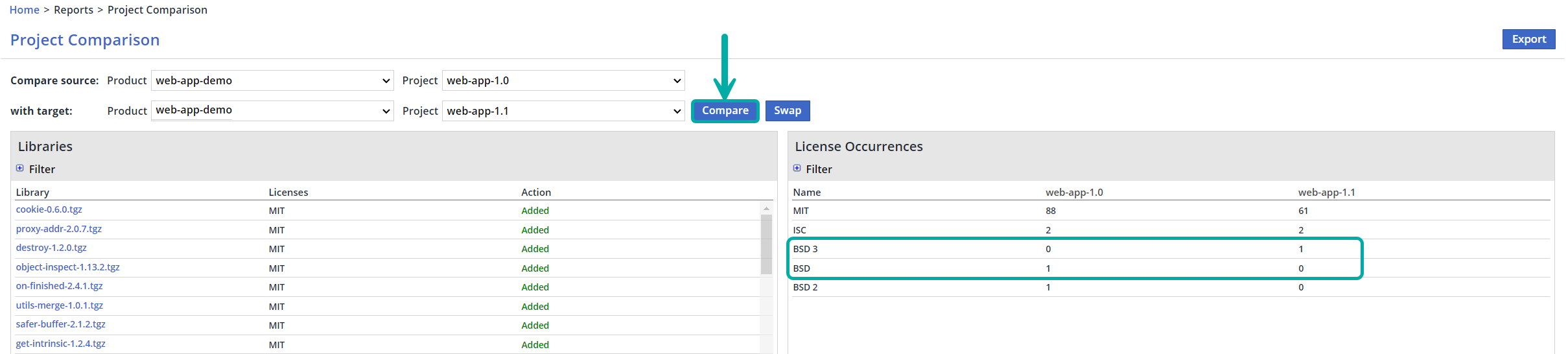
That will take you to the Project Comparison screen, allowing you to select the two projects you wish to compare.
Note that the Licensing Occurrences table on the right lists license differences, which may be handy, for example in case you wish to identify unwanted licenses added/removed in the new version of your project:
Limitations
-
Source libraries in SBOM Export files generated by Mend.io are ignored.
-
Keywords support limitations:
-
For SPDX, Mend.io supports the properties below:
"DEPENDS_ON", "DYNAMIC_LINK", "STATIC_LINK", "CONTAINS", "DESCRIBE" -
For CycloneDX, Mend.io supports the “dependsOn” property.
Example:"ref": "pkg:maven/com.google.apis/google-api-services-ml@v1-rev20210212-1.31.0?type=jar", "dependsOn": [ "pkg:maven/com.google.api-client/google-api-client@1.31.1?type=jar" ]
-