
Overview
The SAST Adoption Wizard in the Mend Platform walks you through your first SAST scan, step by step. It is intended for organizations that use Mend to scan open-source dependencies (SCA) but don't scan their own code yet. The wizard runs a pilot scan on one repository or project, so you can see real Code findings before rolling SAST out more widely.
SCA checks the open-source libraries your code uses. SAST (Static Application Security Testing) checks the code your team writes. It detects issues such as SQL injection, path traversal, hard-coded secrets, and unsafe use of cryptography. Mend SAST reads your source code without running it and tells you which file and line has the problem, how serious it is, and how to fix it.
Your Mend subscription plan already includes SAST. Turning it on doesn't change your bill.
There are two ways to start:
-
With the wizard (easiest). Follow Run your first SAST scan with the wizard.
-
Without the wizard. If you don't see the wizard's button, or you prefer to set things up yourself, see Turn on SAST without the wizard.
How the Pilot Scan affects your Organization
The pilot starts small: you turn on SAST for one repository or project, and your builds are not blocked. However, the pilot is a real scan, and its findings count like those of any other SAST scan:
-
They show up in project, application, and organization statistics.
-
They show up in code reports.
-
They can trigger workflow and policy rules for code findings.
Note: If your organization has workflow or policy rules for code findings, the pilot's findings can trigger them (for example, notifications). Check your rules before the pilot if this matters to you.
Getting it done
Prerequisites
-
A Mend organization that has SAST in its plan and hasn't run a SAST scan yet.
-
An organization admin or scan manager role. Only these roles see the wizard's button.
-
An existing Mend integration with your code: the Mend Developer Platform, a Classic repository integration, or the Mend CLI.
Notes:
-
If you don't see the button, either your organization already runs SAST or your role isn't Admin or Scan Manager. You can still turn on SAST yourself. See Turn on SAST without the wizard.
-
If you're not the right person to set this up, you can invite a colleague to run the pilot for you. See Invite a colleague to run the pilot scan.
Identify your integration type
The pilot scan setup differs depending on how Mend scans your code today. Mend detects this for you and shows the right instructions. If your organization uses more than one integration type, the button opens a short menu so you can choose.
If you're not sure which one you use, answer these questions:
|
Ask yourself |
If yes, you use |
Wizard option |
|---|---|---|
|
Do you use the Mend Developer Platform to configure your repository integrations? |
Developer Platform |
Pilot with Developer Platform |
|
Do your repositories contain a |
Repository integration (Classic) |
Pilot with your repository integration |
|
Do you scan by running a |
Mend CLI |
Pilot with the Mend CLI |
Still not sure?
-
Open one of your repositories and look for a file named
.whitesourcein the root folder. If it's there, you most likely use the classic repository integration. -
Search your pipeline files for
mend dep,mend scaormend code. If you find them, you use the Mend CLI. -
Ask whoever set up Mend in your organization, or skip the question: the wizard shows only the options available to you.
Run your first SAST scan with the wizard
The wizard has three screens: Get Started, Launch Pilot Scan, and Review Results. You can close the wizard at any time. The scan keeps running, and you can come back to it from the same button.
Open the wizard
-
Log in to the Mend Platform and click Scan SAST (included in plan) in the top-left menu bar. If your organization uses multiple integration types, select the option for the integration you want to pilot.

-
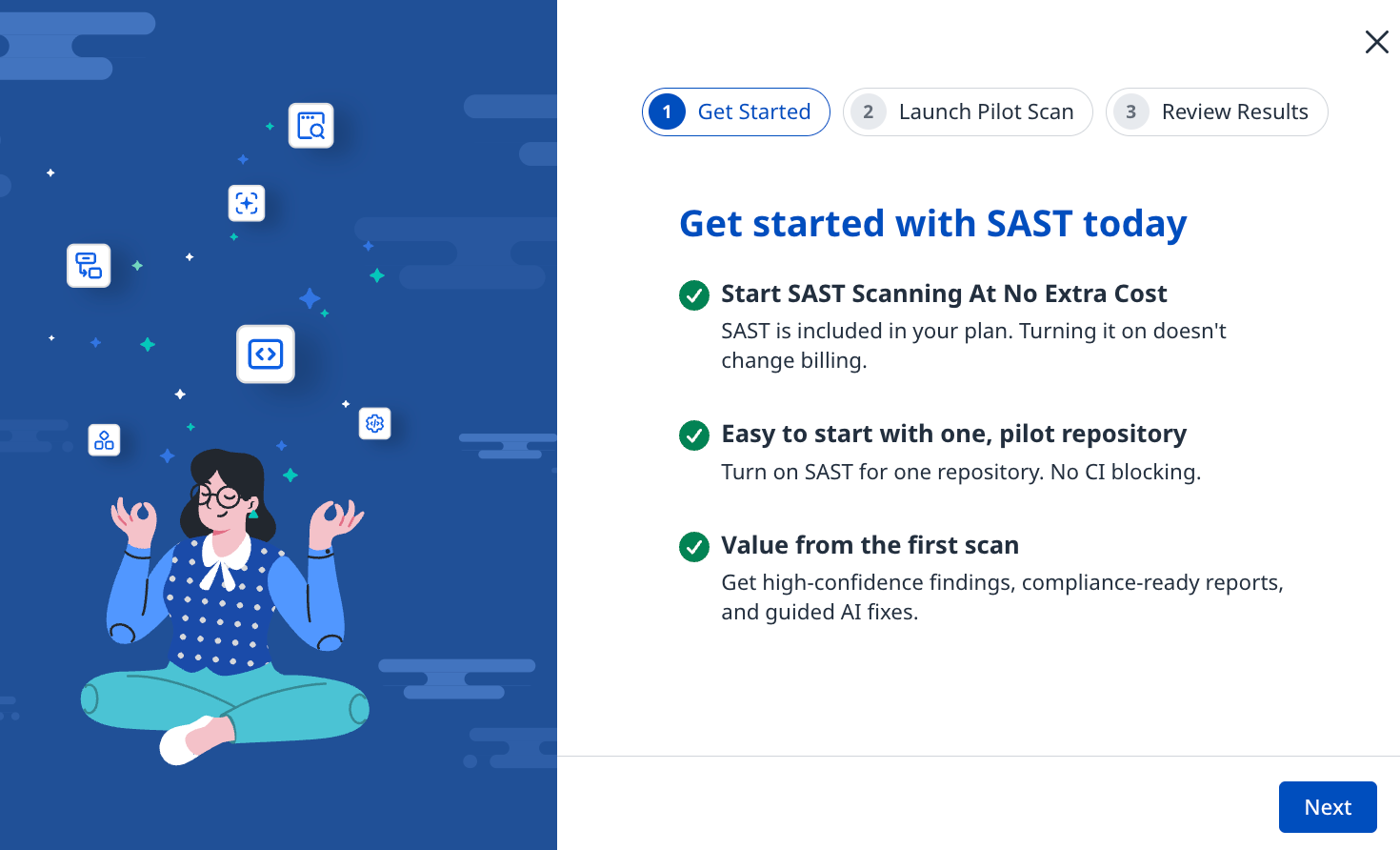
Review the Get Started screen. It is informational only, with nothing to configure, and explains what you can get with Mend SAST:
-
No extra cost. SAST is included in your plan.
-
Start small. You turn on SAST for one pilot repository. Your builds won't be blocked.
-
Value from the first scan. You get findings, compliance-ready reports and guided AI fixes.
-
-
Click Next. The Launch Pilot Scan screen opens.
Launch the pilot scan
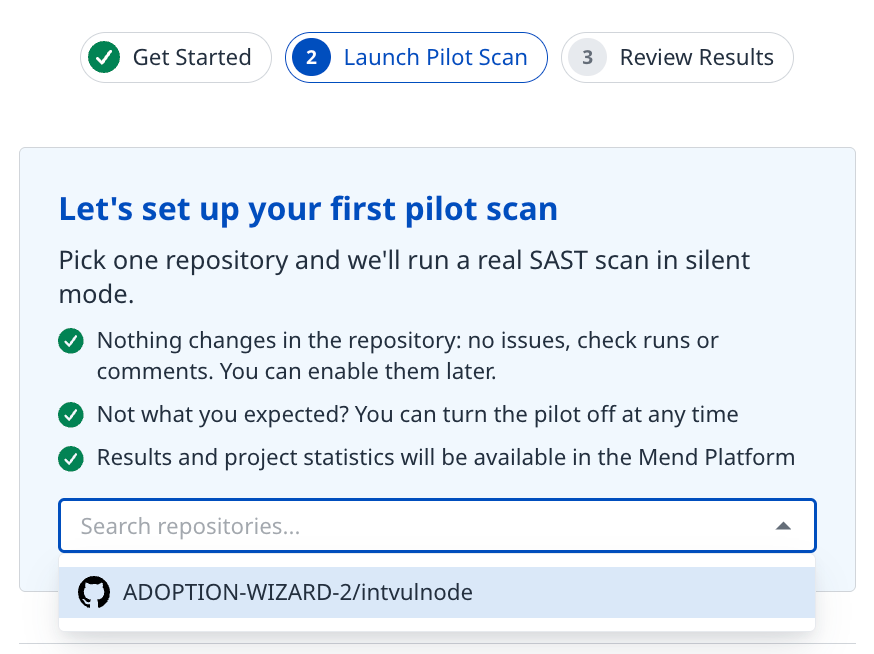
Run your first scan on one repository or project. Follow the steps for your integration type.
Mend Developer Platform
This is the easiest path: one click and no configuration. Mend turns on SAST and starts the scan for you.
-
Search for and select one repository in the list.
-
Click Run Pilot Scan.

-
Watch the progress: Preparing repository → Running the first scan → Processing results.
Nothing changes in your repository. The pilot runs in silent mode: no issues, no check runs, no pull request comments. You can turn those on later.
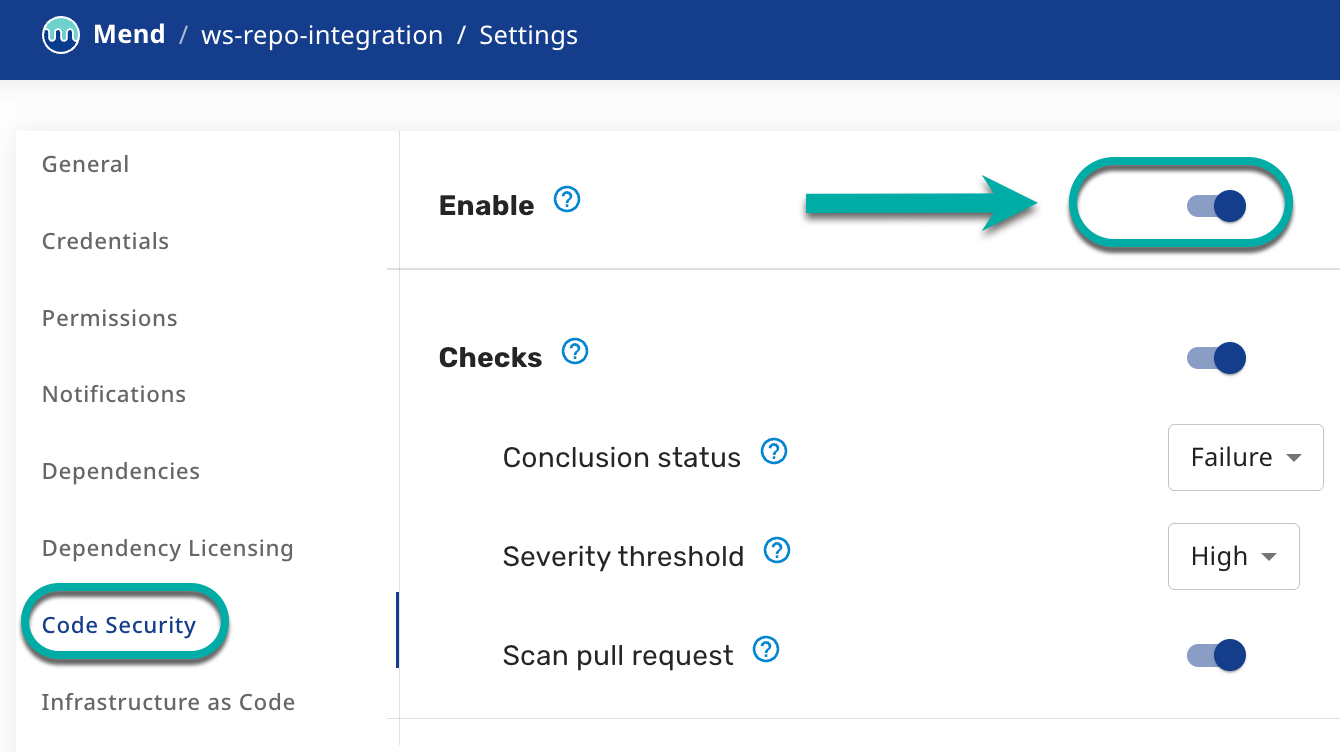
To stop the pilot, turn off SAST for the repository in the Mend Developer Platform via Settings → Code Security → Disable. You can do this at any time.
Classic Repository Integrations
With the Classic repository integrations, scans are driven by the .whitesource file in your repository, so Mend can't start the scan for you. You make one small change and Mend picks up the scan automatically.
-
Choose the repository you want to try SAST on.
-
Open its
.whitesourcefile in the repository root. -
Add the
scanSettingsSASTblock inside the top-level{ }, next to your existing settings. You can use the Copy button in the wizard.JSON{ // ...your existing settings, "scanSettingsSAST": { "enableScan": true, "scanPullRequests": true, "incrementalScan": true } }Don't paste the
// ...your existing settingsline. It only shows where the block goes. Keep a comma between your last existing setting and the new block, otherwise the file isn't valid JSON. -
Commit the change to the default branch, or open a pull request and merge it, depending on how your team works.
-
In the wizard, click I have made the changes.
-
The wizard waits for the first SAST scan and shows it automatically when it starts. You can close the window in the meantime.
The settings in the block do the following:
|
Setting |
Description |
|---|---|
|
|
Turns on SAST for this repository. |
|
|
Also scans pull requests, so developers see new issues before they merge. Set it to |
|
|
After the first full scan, only scans what changed. Later scans are much faster. |
To stop the pilot, remove the block or set "enableScan": false, and commit. SAST stops for that repository.
Mend CLI
If you scan with the Mend CLI, SAST is one more command, using the same login you already use for SCA.
Still using the Unified Agent? Mend SAST runs with the Mend CLI. Install the Mend CLI first, then follow the steps below.
-
Open a terminal in the root folder of the project you want to scan. This can be your own machine or a pipeline step.
-
Run the following command. You can use the Copy button in the wizard.
Bashmend codeThe CLI uses the same Mend credentials (
MEND_URL,MEND_EMAIL,MEND_USER_KEY) as your existingmend depscans. -
In the wizard, click I have run the command.
-
When the command finishes, the wizard picks up the scan automatically.
Tip: For the pilot, run the command once by hand before adding it to a pipeline. When you're happy with the results, add mend code as a step next to your existing mend dep step.
To stop the pilot, stop running mend code. Nothing else changes.
Invite a colleague to run the pilot scan
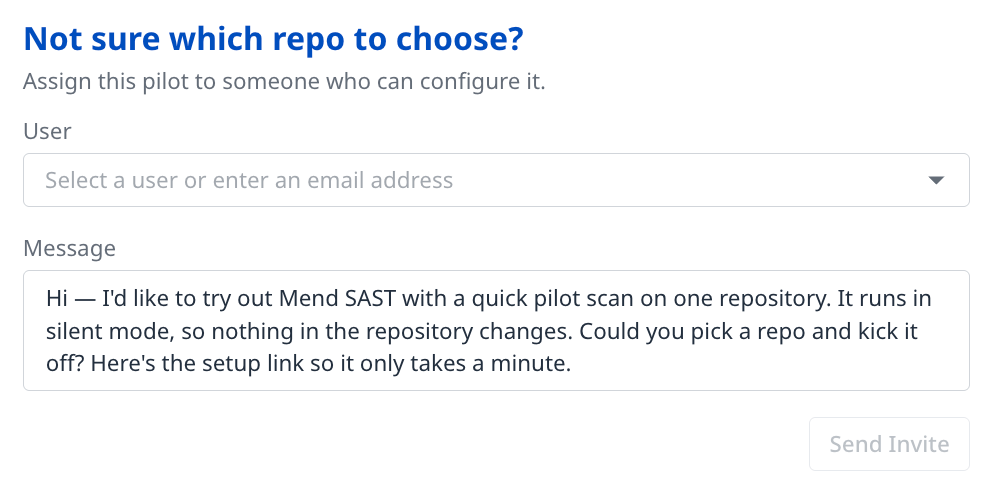
On the Launch Pilot Scan screen, you can hand the task to someone else, for example, an Admin with access to the repository or the pipeline.
-
Select a colleague from your organization or enter their email address.
-
Optionally, edit the message, and then click Send Invite.
-
Your colleague receives an email with a link that opens the wizard directly on the Launch Pilot Scan screen. They see who invited them and what they're asked to do. The wizard opens for an invited colleague even if their role is Member.
-
You're notified by email when they start the scan and when the results are ready.
You can cancel the invite at any time, invite someone else, or run the pilot yourself.
Monitor the scan
You don't have to wait for the scan to finish. Closing the window doesn't affect the scan.
-
The first scan takes longer. It analyzes the whole codebase. Depending on the size of the repository, it can take from a few minutes to much longer.
-
Later scans are much faster. These are incremental scans: they only scan what changed.
-
Mend emails you when the scan is done. When you come back, click View SAST Scan Results, which replaces the wizard's button in the menu bar.
Review the scan results
-
When the scan finishes, review the Total findings on the Review Results screen, broken down by severity: Critical, High, Medium, Low.
-
Click View Full Results to open the scan in the Mend Platform. There you can see each finding with its file, line, data flow, and fix guidance. Refer to the Review the Code Findings (SAST) within your Organization documentation for more details.
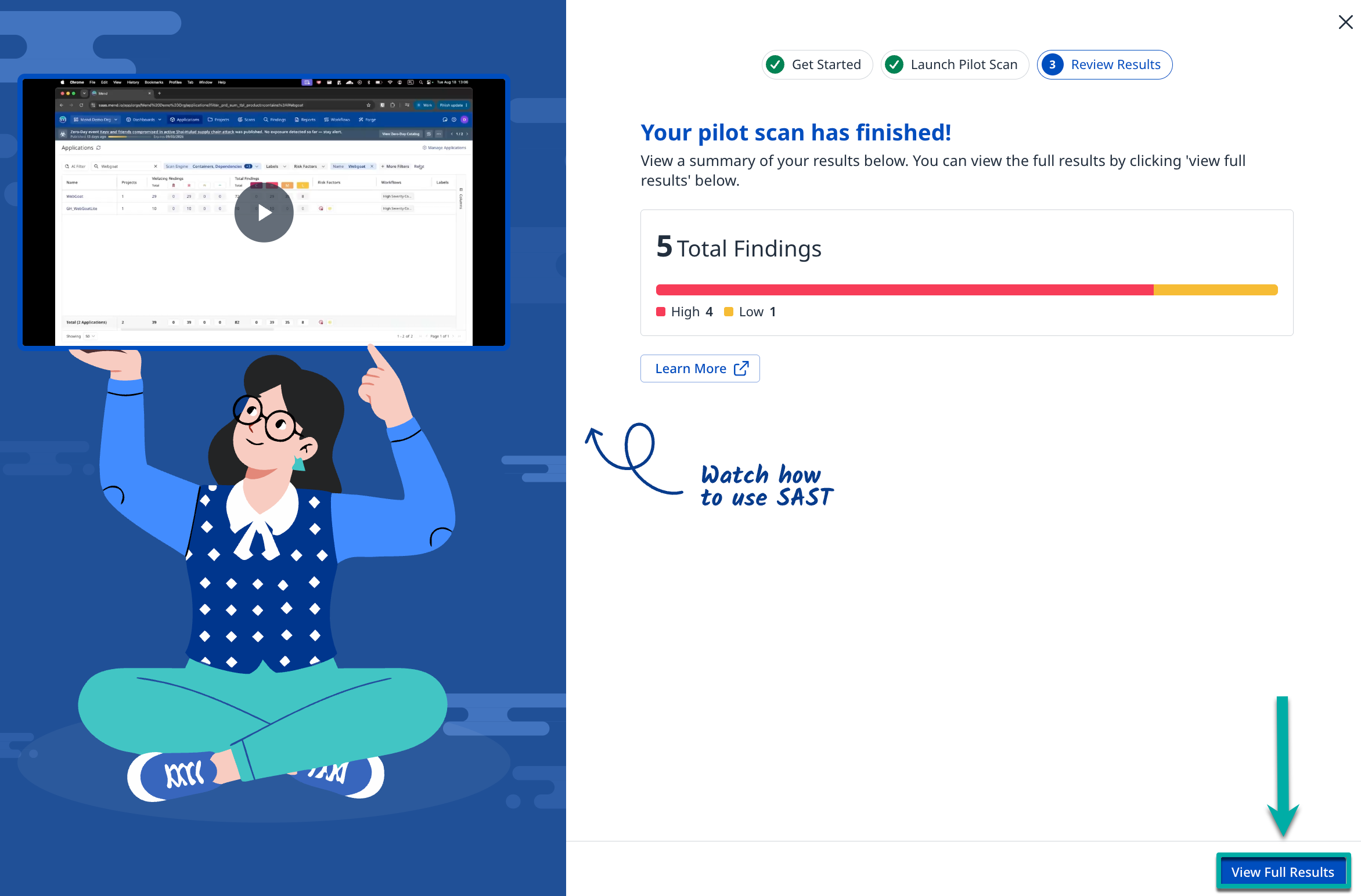
You'll also find the results in the usual places: Scans, the project's Code findings, and the code statistics widgets on the project, application and organization pages.
If the scan reports no findings, it didn't detect any issues in this repository. Try a larger or more active repository next.
Roll out SAST to more repositories
When you're happy with the pilot results, turn on SAST for more code:
|
Integration |
How to roll out |
|---|---|
|
Developer Platform |
Turn on SAST for more repositories in the Mend Platform. |
|
Repository integration |
Add the same |
|
Mend CLI |
Add |
Next, consider:
-
Pull request scanning, so developers see new issues in their pull requests before they merge.
-
AI-based triage and remediation, which tells developers whether a finding is likely a true or false positive and suggests a fix. This sends code snippets to Mend's AI models, so it needs your organization's consent.
-
Suppression requests and approvals, so developers can ask to suppress a finding and your security team reviews the request.
Turn on SAST without the wizard
The wizard is only a shortcut. You can turn on SAST yourself at any time, whether or not you see the button. Find your integration type in Identify your integration type, then follow its row:
|
Integration |
What to do |
|---|---|
|
Developer Platform |
In the Mend Platform, open the repository's settings and turn on SAST (code) scanning. Mend scans it on the next push, or you can start a scan from the repository page. 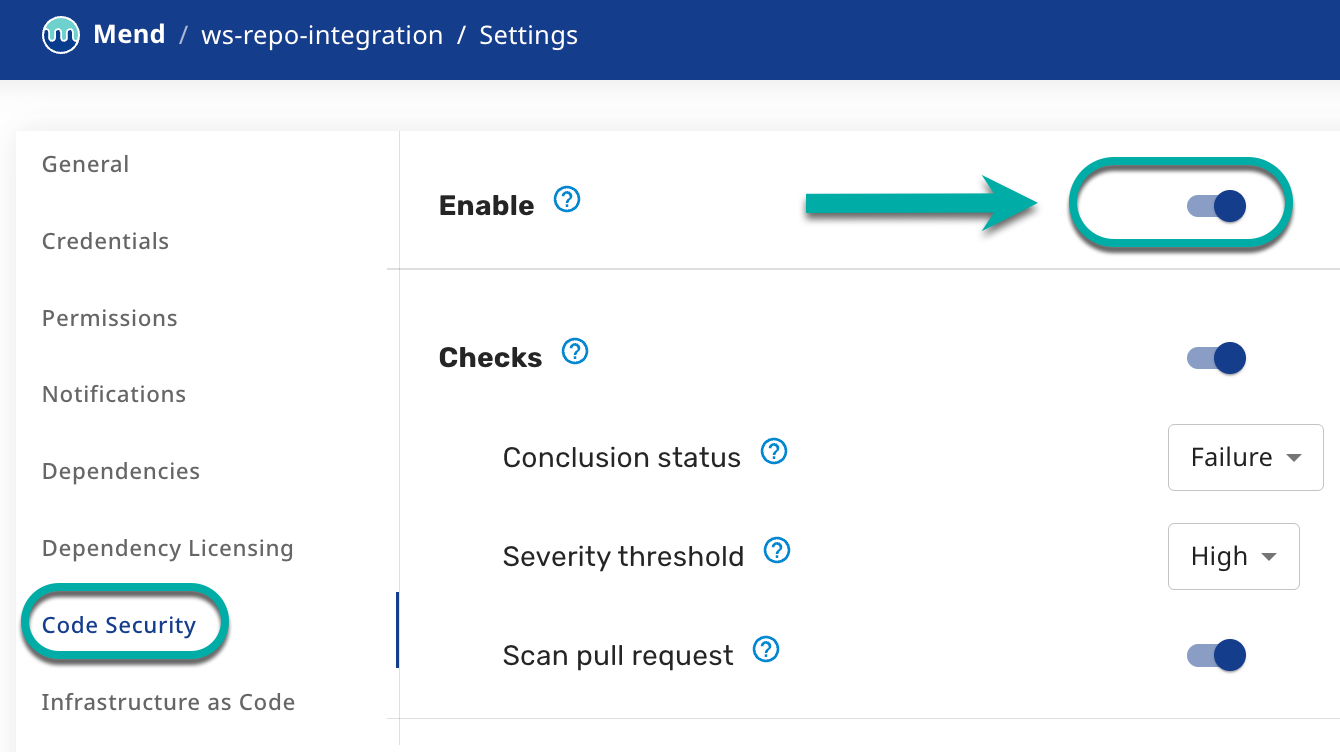
|
|
Repository integration ( |
Add the |
|
Mend CLI |
Run 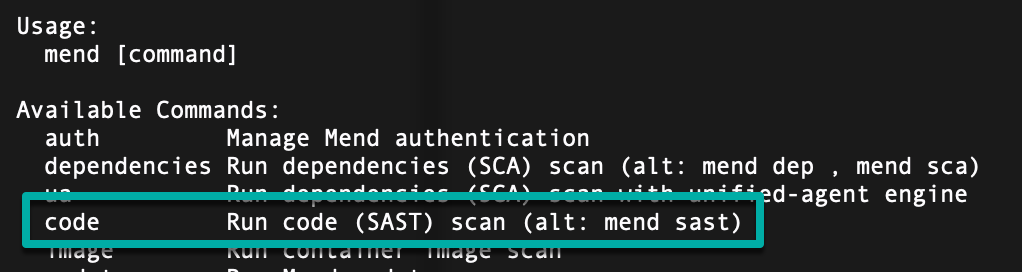
|
Your findings appear in the same places as the wizard's results: Scans, the project's Code findings, and the code statistics widgets.
Why you might not see the button
-
Your organization already runs SAST. The wizard is only for the first scan. Turn on SAST for more repositories as described above.
-
Your role isn't admin or scan manager. Ask an admin to run the pilot, or ask them to change your role.
-
The button says "SAST isn't enabled for your organization yet". Your organization doesn't have a SAST entitlement, usually because of how the account was originally set up. Mend is notified automatically when you click the button. Contact your Mend Customer Success Manager or Mend Support to get it turned on.
FAQ
-
Does this cost anything?
-
No. SAST is included in your plan. Turning it on doesn't change billing.
-
-
Will this slow down or block our builds?
-
Not during the pilot. The Developer Platform pilot runs in silent mode. With the repository integration, scans run on Mend's side. With the CLI, you decide where and when to run
mend code.
-
-
What leaves my environment?
-
The same as for any Mend SAST scan. See the Mend SAST documentation for details.
-
-
Which languages are supported?
-
Mend SAST supports all major languages, including Java, JavaScript/TypeScript, Python, C#, Go, C/C++, PHP, Ruby, Kotlin, and Swift. See the Mend SAST Supported Languages and Frameworks documentation for the full list.
-
-
Can I choose a different repository later?
-
Yes. Turn off the pilot on the first repository and run it on another one, or simply enable SAST on more repositories.
-
-
I closed the wizard. How do I get back?
-
Click the same button in the menu bar. It reopens on the step where you left off. After the scan, the button is labeled View SAST Scan Results.
-
-
Something went wrong. What should I do?
-
The wizard shows an error screen with a support token. The Mend team is notified automatically, and a support engineer will reach out to help you. You can also click Retry, or contact Mend Support and quote the support token.
-