.svg)
Overview
Custom Roles in the Mend AppSec Platform enable least-privilege access control by introducing account-defined custom roles with granular permissions, assignable via groups at the Organization or Application scope, while preserving full backward compatibility with existing roles.
This feature is intended for organizations with strict security or compliance requirements, enabling them to restrict user access beyond the platform’s predefined roles (such as Admin or Security Analyst).
Key Features
-
Account Admins define all custom roles at the Account level
-
Roles are centrally governed and immutable at the organization level
-
Organization Admins assign roles to groups only, not to individual users
-
During the assignment, the admin chooses the scope:
-
Organization
-
Application
-
-
Roles themselves are scope-agnostic; scope is defined only at assignment time
-
UI components and API endpoints are enabled/disabled based on:
-
Assigned roles
-
Selected scope
-
Effective permissions (union across all group assignments)
-
This aligns with the Mend AppSec Platform’s group-based RBAC model, while enabling granular permission control.
Step 1 - Create Custom Role
-
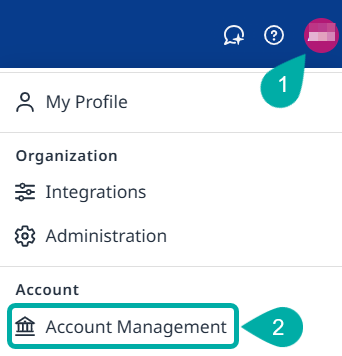
As an account admin, log into the platform and navigate to Profile → Account Management.
-
In the Account Management bar, click Roles.

-
Create the + Create Role button on the right.
This will launch the Create Role wizard:-
Step 1 - Enter a role name and description. Click Next to proceed.
-
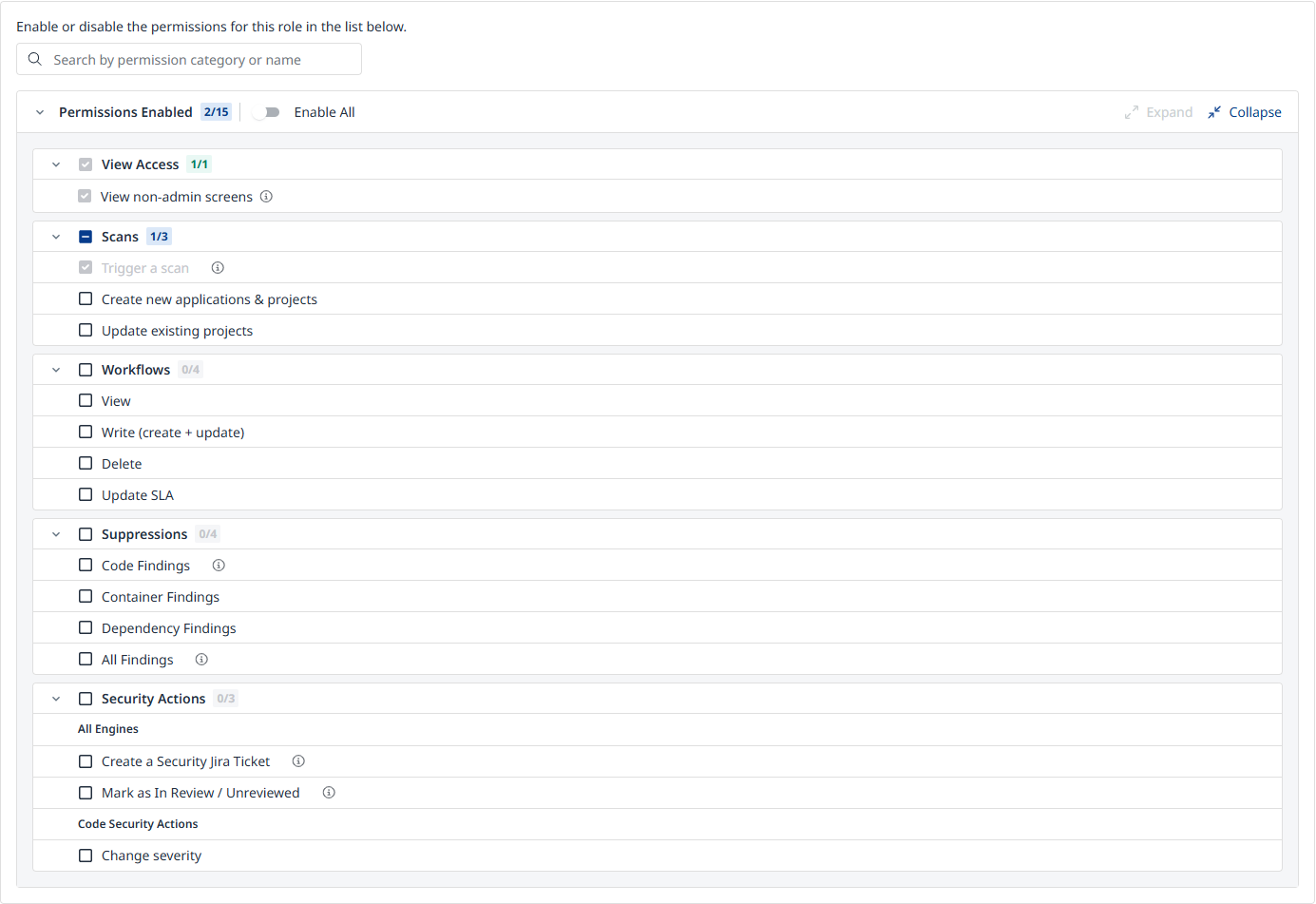
Step 2 - Add or remove the permissions for the role.
-
Step 3 - The summary of your role configuration will be displayed. Click Add Role to confirm.
-
Note: The role is saved at the Account level and is added to the global optional roles list.
Step 2 - Assign the Role
Once created, the custom role will be available for organization administrators to assign to groups, as detailed in this article.
Note: All group members inherit the role permissions within the selected scope.
Effective Permissions
-
A user’s effective permissions are the union of all roles inherited from group memberships
-
No permission escalation beyond assigned roles is possible
Permission Model
Note: All roles implicitly include Member-level access as the minimum baseline.
View permissions extend visibility beyond the Member baseline.
View Access
-
View non-admin screens
-
Excluded screens:
-
Account Management
-
Administration
-
Integrations
-
Workflows
-
-
Scans
-
Trigger a scan
-
Includes the ability to run the CLI scan command to trigger a scan
-
-
Update existing projects
-
Create new applications and projects
Workflows
-
View
-
Write (create + update)
-
Delete
-
Update SLA
Suppressions
-
Max Severity (Low / Medium / High / Critical / Any Severity)
-
Allows security managers to restrict suppression rights based on finding severity by defining a severity ceiling for SAST and SCA findings. This ensures that specific roles can only suppress findings at or below a designated level.
-
-
All Findings
-
Applies to all scan engines, including engines that are not available now but may be added in the future
-
Code Findings
-
Request Suppressions
-
Allows the user to request a suppression, but not to approve or reject it
-
-
Manage Suppressions
-
Allows the user to directly suppress a finding and approve, reject, and request more information about a suppression request
-
Other Findings
-
Container Findings
-
Dependencies Findings
-
AI Findings
Security Actions
All Engines
-
Create a Security Jira Ticket
-
Mark as In Review / Unreviewed
Code Security Actions
-
Change Severity
-
Comment on a finding
Red Teaming
-
Run a campaign
-
Manage targets
-
Delete a target
-
Manage settings
-
Suppress findings