.svg)
Note:
-
AI Runtime Protection is available only with Mend AI Premium.
-
The use of the service indicated under this page is subject to the terms and conditions set forth under our AI Supplemental Terms-of-Service.
Overview
Mend AI provides a Guardrails solution that runs within your applications, providing deterministic security and safety enforcement for AI inputs and outputs. The solution is equipped with a fully featured dedicated AI Runtime view in the Mend AppSec Platform.
Deployment Options
The solution includes two deployment options:
-
Option 1: Python SDK (in-app, runs locally): Embed the SDK directly into your Python application. Configure a policy, swap in a drop-in client, and every request is automatically validated before and after the LLM responds.
-
In Online mode, the SDK connects to the Mend Platform at init, pulls the guardrails configuration centrally, and continuously sends telemetry and events to the platform for visibility and monitoring.
-
In Offline mode, the SDK runs fully isolated with a local configuration file — no platform connection is required, and no telemetry is sent. This is ideal for air-gapped environments or teams that need to operate independently of the platform.
-
-
Option 2: API Server (Docker): Deploy Guardrails as a standalone API server using Docker — no code changes required. Your application sends requests to the server, which handles all validation. This option is ideal for non-Python environments or teams that prefer a service-based architecture.
Both options include the same guardrails: Harmful Content, PII, Jailbreak, and Prompt Injection, and integrate with the AI Runtime view in the Mend AppSec Platform.
Refer to the SDK Intro page for more details.
Install Mend AI Guardrails
-
In the Mend AppSec Platform, navigate to your profile
-
Select Integrations
-
Under the SDKs section of the catalog, click the Mend AI Guardrails integration card
-
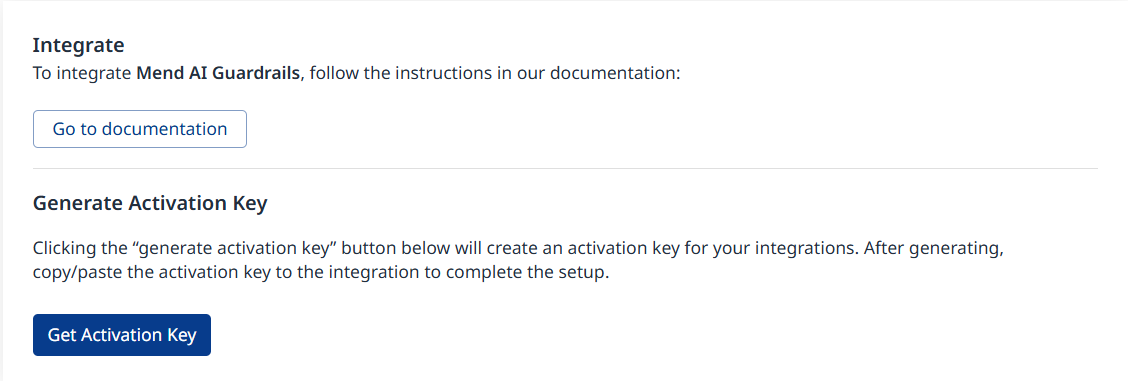
Click Get Activation Key
-
(Recommended) At this stage a Mend organization admin can configure the default guardrails behavior which will be applied by the SDK.
Navigate to AI Runtime → Configuration → Default Guardrails Policy to configure the behavior.
All guardrails are initially disabled by default.
Note: This configuration overrides SDK defaults where applicable.
Example: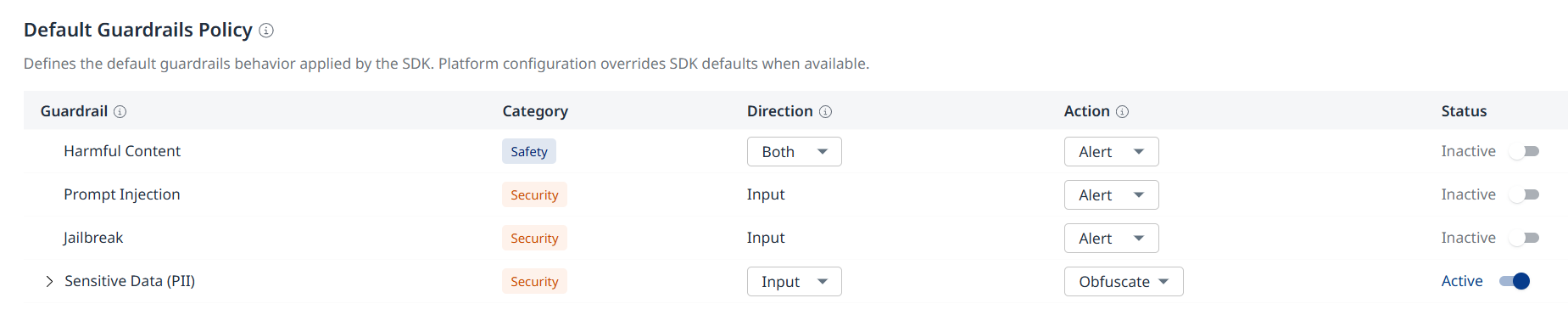
-
Proceed to the SDK Quickstart guide to continue setting up your guardrails.
View and Configure AI Runtime Protection
Once your guardrails are set up using the SDK, you can visit the AI Runtime view in the Mend AppSec Platform to consume AI runtime information and to configure your guardrails.
-
Click AI Runtime in the top menu bar of the platform UI:
-
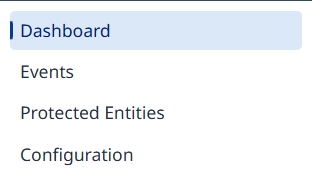
Choose the desired AI Runtime page on the left.
-
The Dashboard page will be displayed by default.
Dashboard
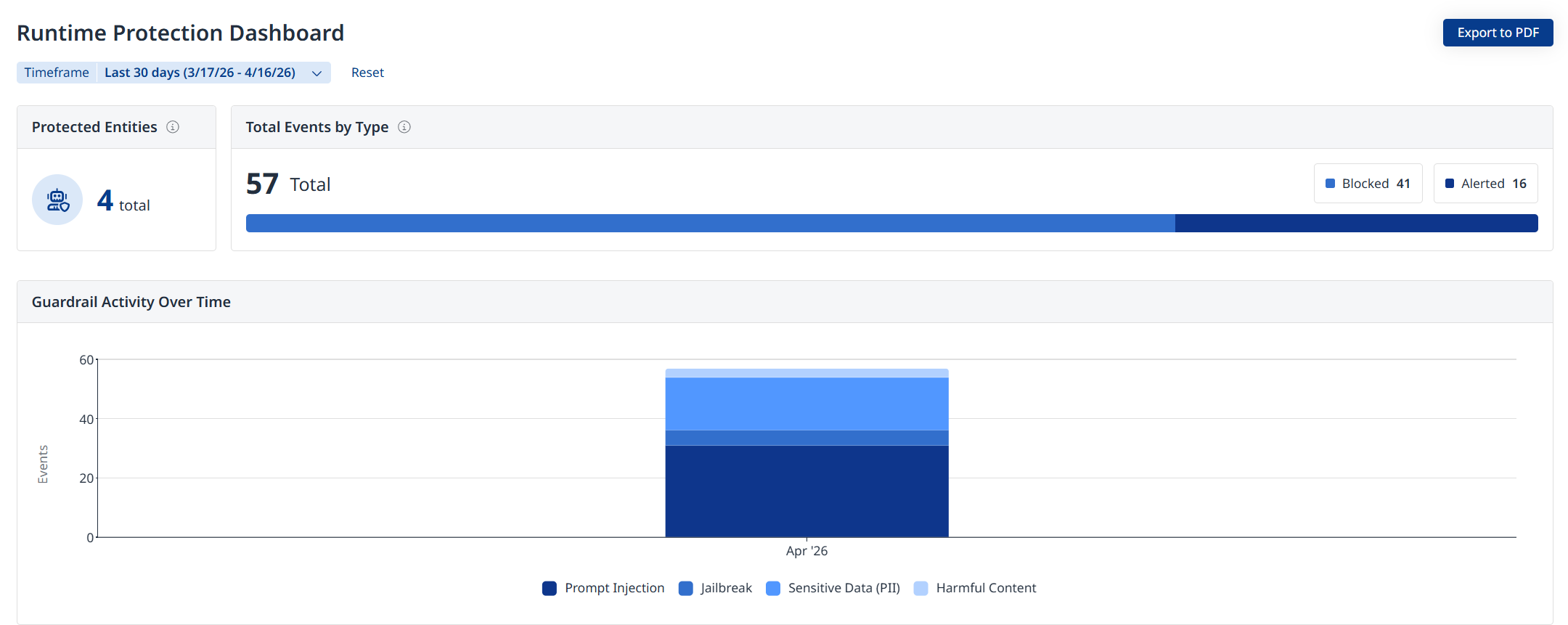
The Runtime Protection Dashboard displays
-
Protected Entities: Total number of protected entities in your organization
-
Total Events by Type: Total runtime events by action type (Alert / Block / Obfuscate)
-
Guardrail Activity Over Time: A bar-graph depicting guardrail activity by weakness type (e.g., Jailbreak, PII, etc.)
-
Actions vs. Guardrails: A table listing runtime events by action type (Alert / Block / Obfuscate)
-
Handled Events by Direction:
-
In: Inbound events
-
Out: Outbound events
-

-
Top 10 Protected Entities: Toggle between Percentage and Count on the right

Export to PDF
Export the Protection Dashboard using the Export to PDF button in the top-right corner of the page.
Events
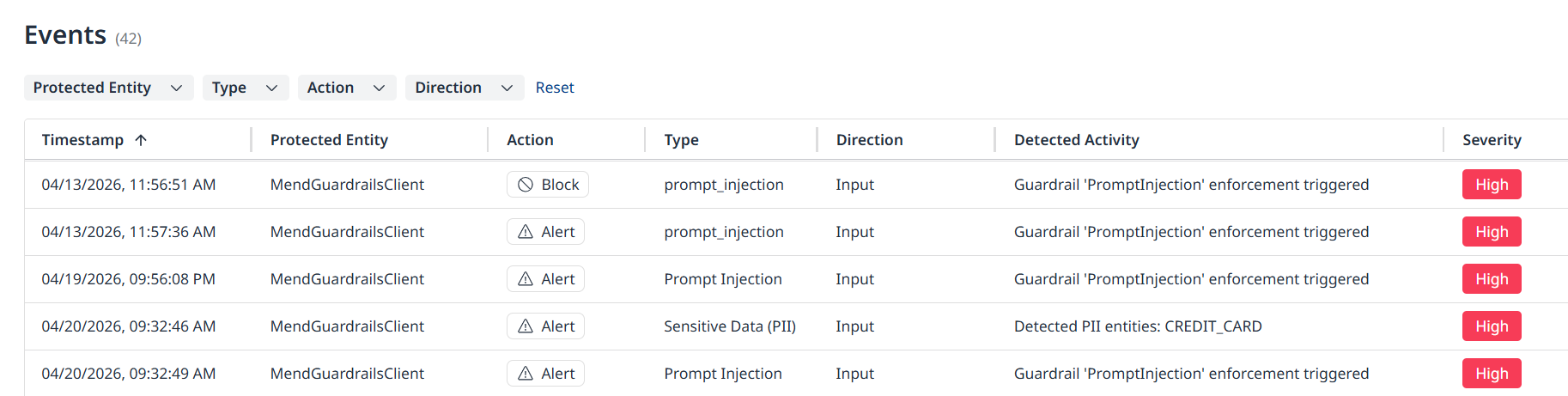
The Events page contains a table of runtime events, containing information about each event.
Events Table Columns
-
Timestamp: Format: ISO 8601 | Example: 2026-04-08T20:13:33Z
-
Protected Entity: The name of the configured entity
-
Action: Alert / Block / Obfuscate (available for PII)
-
Type: The weakness type (Prompt Injection, Jailbreak, etc.)
-
Direction: Input / Output
-
Detected Activity: Displays information on actions and guardrail activity.
Examples:-
“Guardrail 'PromptInjection' enforcement triggered”
-
“Detected PII entities: LOCATION, DATE_TIME, PHONE_NUMBER”
-
-
Severity: Low / Medium / High
-
Model: The name of the model in which the weakness was detected
Export to CSV
Export the events using the Export to CSV button in the top-right corner of the page.
Protected Entities
This page lists all of your configured entities alongside related information.
-
Protected Entity: The name of the configured entity
-
Endpoint Type: Direct / Indirect
-
Integration Type: e.g., Native SDK, Open AI Agent SDK, etc.
-
Status: Active / Inactive
-
Last Seen: ISO 8601 format of the last detected runtime weakness
-
First Seen: ISO 8601 format of the first detected runtime weakness

Export to CSV
Export the entities using the Export to CSV button in the top-right corner of the page.
Configuration
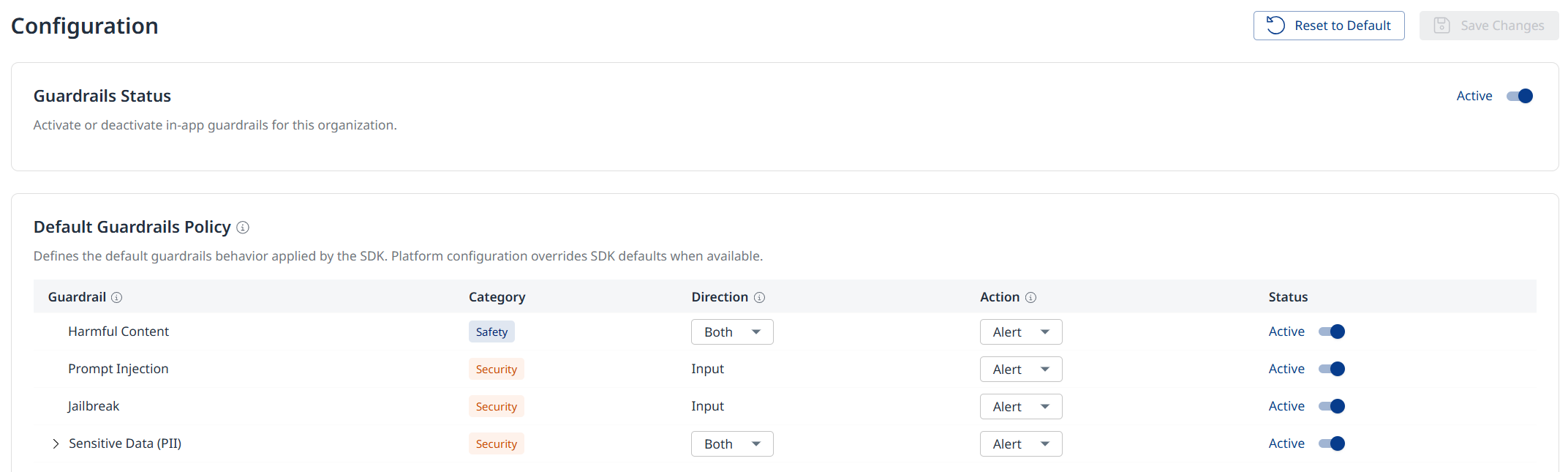
In the Configuration page you can enable, disable and configure in-app guardrails for your organization.
Note: The Save Changes button in the top-right corner will become clickable whenever you make a configuration change. Click it to apply your configuration changes.
-
Guardrail Status: Use the toggle on the right to enable or disable in-app guardrails for your organization.
-
Default Guardrails Policy: Configure the default guardrails behavior applied by the SDK.
-
Guardrail: The guardrail type (Harmful Content, Prompt Injection, Jailbreak, Secret Keys, PII, URL Filter)
-
Category: Safety / Security
-
Direction: The direction for the guardrail (Input / Output / Both)
-
Action: The desired action for when the guardrail is triggered (Alert / Block / Obfuscate)
-
Status: A toggle to enable / disable the guardrail
-
PII Guardrail Configuration
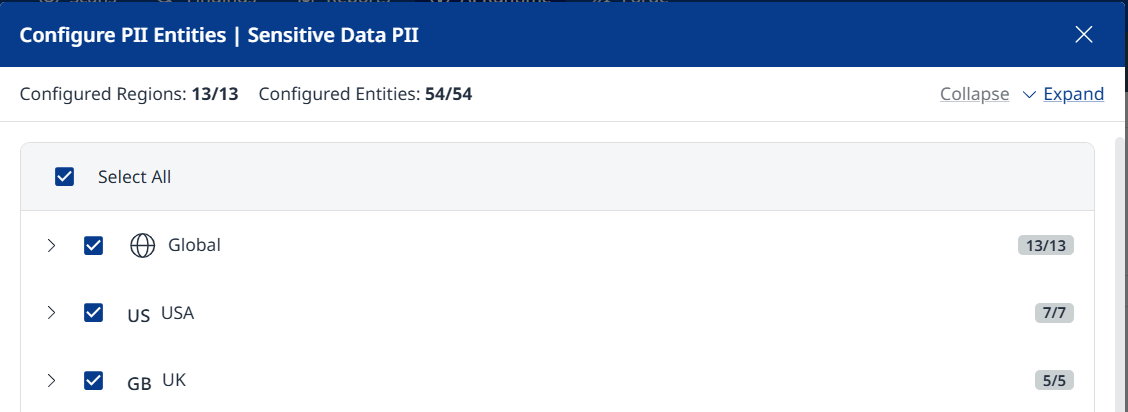
Expand the Sensitive Data (PII) guardrail policy to view the number of configured entities per region.
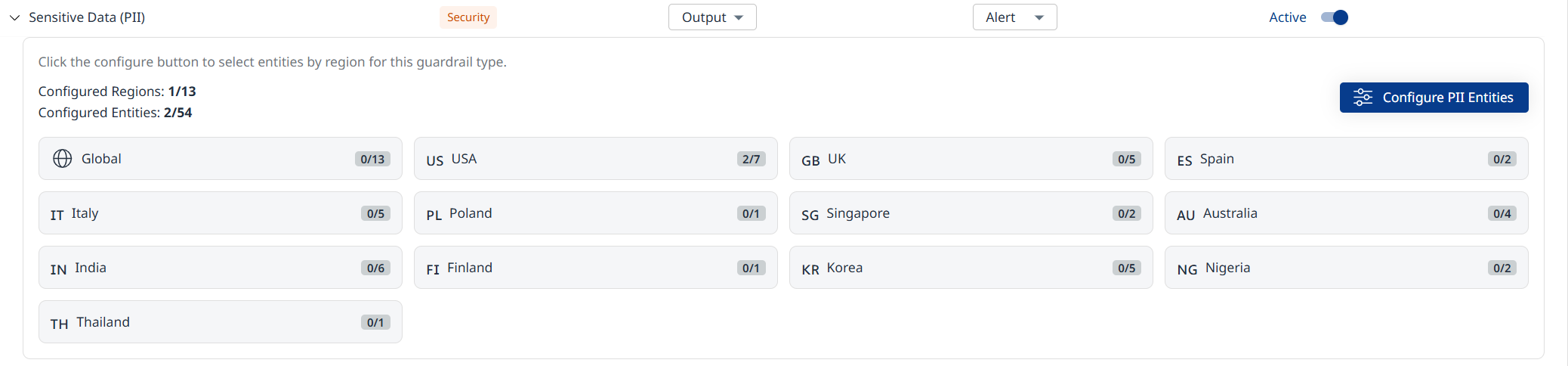
Click Configure PII Entities to add/remove entities by region.
-
Each region can be expanded/collapsed to display/hide available entities.
-
Click the checkbox next to each region to select/deselect all entities in the region.
-
Use Select All to select/deselect all entities, across all regions.
-
Click the Save button at the bottom right when you are done adding/removing entities.
URL Filter Guardrail Configuration
Expand the URL Filter guardrail policy to configure your URL allow list. Model outputs that include URLs outside of your allow list will be blocked.
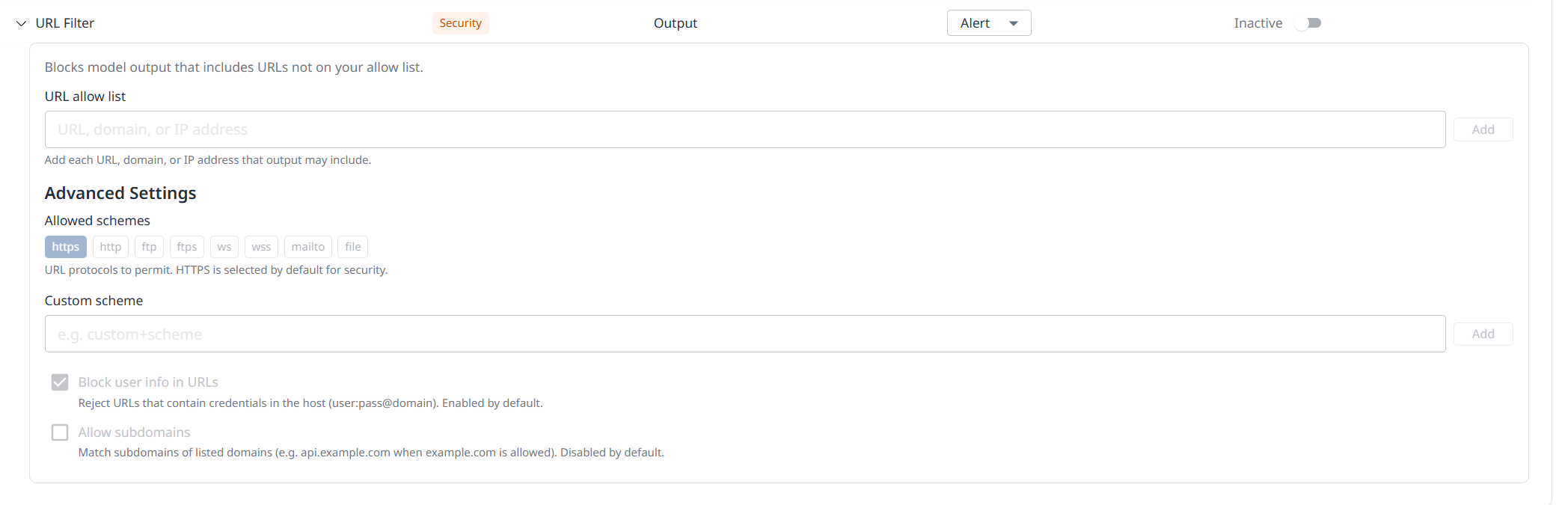
Under Advanced Settings, configure the allowed schemes using a predefined option or a custom scheme.
Default Guardrail Configuration
|
Guardrail |
Direction |
Action |
|---|---|---|
|
Harmful Content |
Output |
Alert |
|
Prompt Injection |
Input |
Alert |
|
Jailbreak |
Input |
Alert |
|
Secret Keys |
Input |
Alert |
|
Sensitive Data (PII) |
Output |
Alert |
|
URL Filter |
Output |
Alert |
Reference
Supported Languages & Integrations
-
Human Languages
|
Language |
Harmful Content (Toxicity) |
Prompt Injection |
PII (Structured)* |
PII (NER)** |
|
Arabic |
✓ |
✓ |
✓ |
✓ |
|
Chinese |
✓ |
✓ |
✓ |
|
|
Czech |
✓ |
|
|
|
|
Dutch |
✓ |
|
✓ |
|
|
English |
✓ |
✓ |
✓ |
✓ |
|
French |
✓ |
✓ |
✓ |
|
|
German |
✓ |
✓ |
✓ |
|
|
Hebrew |
✓ |
✓ |
✓ |
|
|
Hindi |
✓ |
✓ |
|
|
|
Italian |
✓ |
✓ |
✓ |
|
|
Japanese |
✓ |
✓ |
|
|
|
Korean |
✓ |
✓ |
|
|
|
Polish |
✓ |
✓ |
|
|
|
Portuguese |
✓ |
✓ |
✓ |
|
|
Russian |
✓ |
✓ |
|
|
|
Spanish |
✓ |
✓ |
✓ |
|
|
Swedish |
✓ |
✓ |
|
|
|
Thai |
✓ |
✓ |
|
|
* PII Structured refers to highly predictable, well‑formatted personal data (like SSNs, credit‑card numbers, emails) that can be detected with deterministic rules such as regex + checksums.
** NER (Named Entity Recognition) refers to machine‑learning models that detect unstructured PII (like names, addresses, organizations) that cannot be reliably found with regex.
-
Programming Languages
-
Python
-
-
Integrations
-
Native SDK
-
Open AI Agent SDK
-
Open AI Compatible API
-
Langchain
-
Langflow
-
Azure Open AI
-
Note: An API server with Docker deployment support is available as an alternative to the SDK.
Guardrail Types, Direction & Actions
-
Alert: Create an alert without blocking the prompt
-
Block: Block the prompt
-
Obfuscate: Mask the PII part before sending it to the model (or when receiving it back from the model in the response)
|
Category |
Guardrail Type |
Direction Prompt > IN > LLM > OUT > Prompt |
Supported Actions |
|---|---|---|---|
|
Security |
Prompt Injection |
Input |
Alert, Block |
|
Security |
Jailbreak |
Input |
Alert, Block |
|
Security |
Sensitive Data (PII) |
Input & Output |
Alert, Block, Obfuscate |
|
Safety |
Harmful Content |
Input & Output |
Alert, Block |
High-Level Architecture
Application → Guardrails SDK (inspect input) → LLM → Guardrails SDK (inspect output) → Application
Extended SDK Documentation
Extended SDK dcoumentation is available here. It contains robust documentation including examples and API references.