.svg)
Overview
Once your Mend Developer Platform IaC engine scans are completed, there are multiple resources provided to help you review, analyze, and triage your results.
Viewing Details of the Scan
Results can be viewed in the following places:
-
The Issue Tracker section in your Bitbucket Cloud repository.
-
The Commits tab shows build statuses for each commit to the specified base branch.
-
Code Insight report in the Pull Requests.
Viewing the Issues section
If you do not see the Issues section in the left panel of Bitbucket, please go to Repository settings → Issue tracker and enable issue tracker for this repo. Admin rights for this repository are required.
If you are performing Pull Requests or push commands via the Web browser, refresh your Web browser in order to view the issues that were generated by Mend.
Note: It may take a number of minutes for the issues to be scanned and displayed after a valid push command is initiated.
The Issues section displays all the issues that the Mend Integration detected.
As part of your workflow, you have the option to close issues that were resolved. Issues manually closed will not be re-opened during future Mend scans unless their tag and/or name are changed.
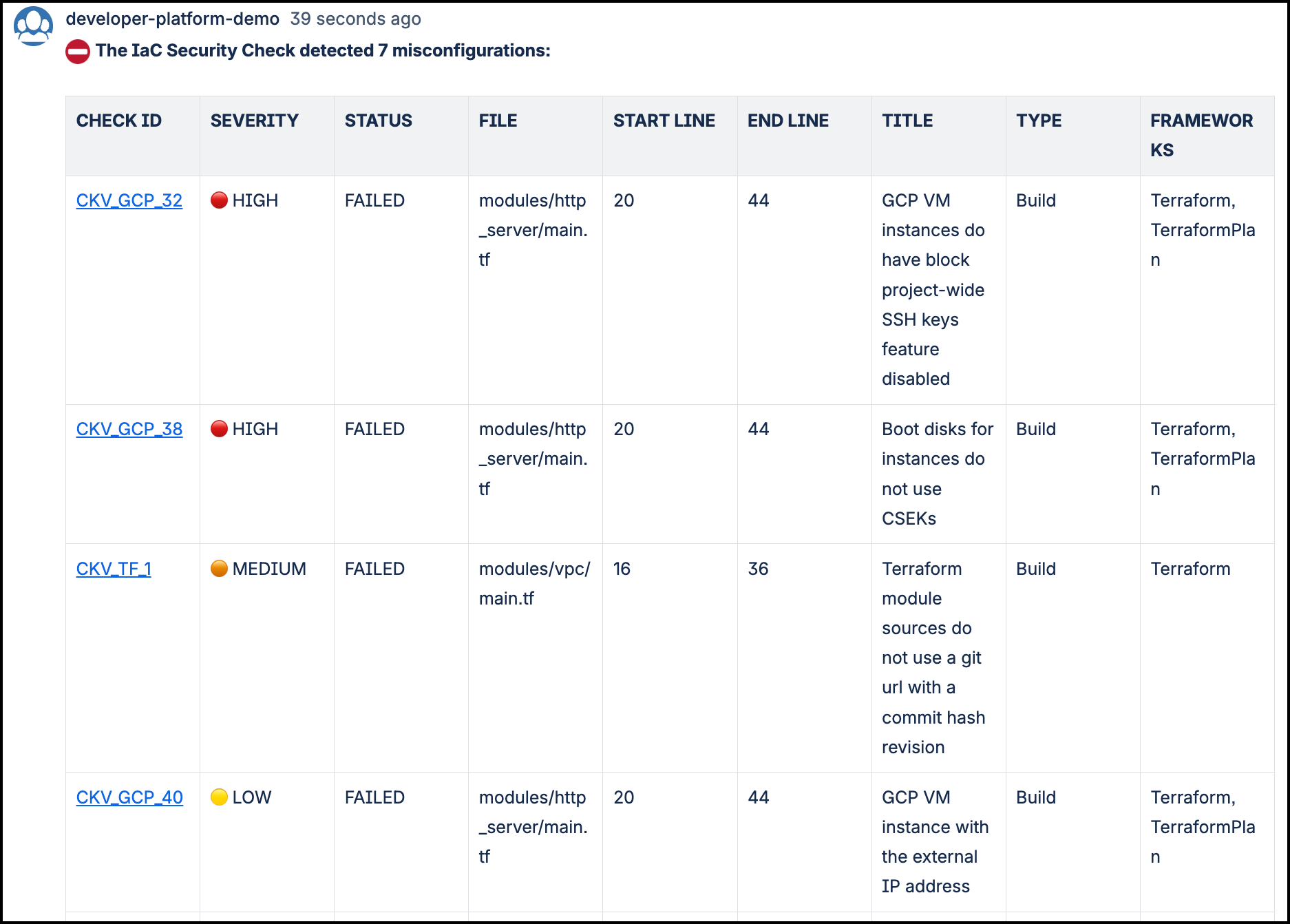
Viewing Mend IaC Check
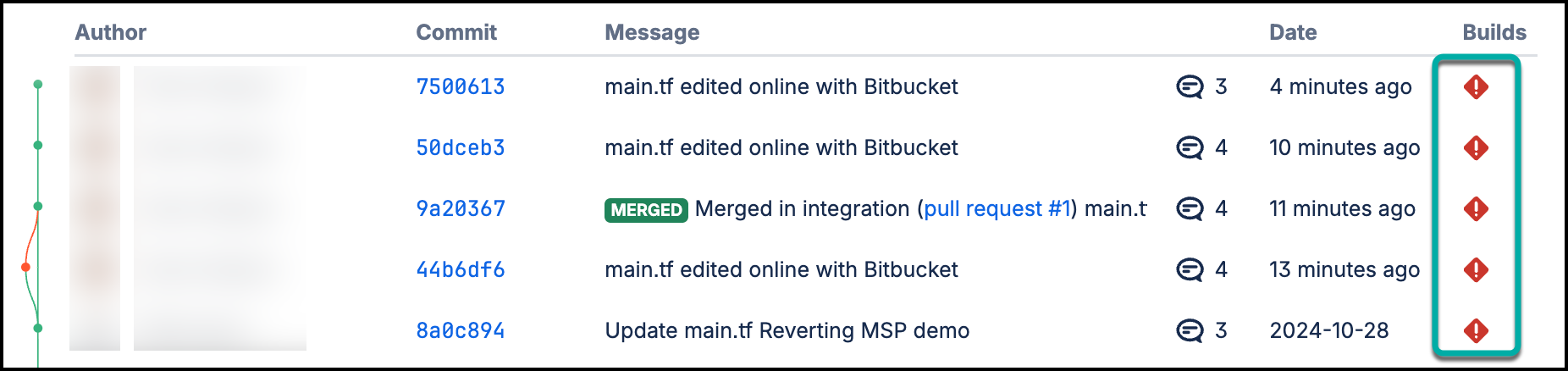
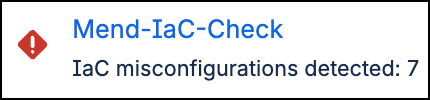
Once IaC Check is running, Status Check messages are displayed for each commit. Clicking a specific security check message opens a related head commit with detailed information about detected findings:
IaC Check
The IaC Check report displays each CWE to see the code snippet in your project and the details of each vulnerability. The following information is displayed for each vulnerability:
-
CHECK ID: The unique identifier for the specific security or compliance rule that was violated.
-
SEVERITY: Indicates the impact level of the configuration issue (
High, Medium, Low). -
STATUS: Displays whether the configuration passed or failed the check (e.g.,
Failed, Passed). -
FILE: The file name and relative path in which the misconfiguration was detected.
-
START LINE / END LINE: The specific line numbers in the file where the configuration block was detected.
-
TITLE: A short description of the issue or policy violation identified by the scanner.
-
TYPE: Indicates the scanning phase or lifecycle stage (e.g.,
Build, Deploy). -
FRAMEWORKS: Specifies the IaC technologies or frameworks used.
Types of Indicators
The following status indicators are available as feedback on a head commit:
-
Queued: Scan has not begun and is scheduled to begin.
-
In progress: Scan is in progress.
-
Completed: Scan completed with one of the following conclusions:
-
Success: No IaC findings were found. The code contains no IaC misconfigurations
-
Failure: The scan was completed successfully, and IaC misconfigurations were found (at least 1).
-
Neutral: No IaC files were found; run appropriate checks.
-
Samples of Check Status Indicators
In Progress
The following is a sample of a 'Running' status, which indicates that the IaC check is currently scanning the head commit.

Completed with Success Conclusion
When no misconfigurations and findings are found and no errors occurred during the scan, Mend will display the following commit status and an IaC report indicating that no misconfigurations were detected.

Completed with Failure Conclusion
All head commits that fail the scan due to the IaC check detecting misconfigurations or due to an error that occurred during the scan, will display a failed commit status. The following screenshot displays a failure indicator for a head commit.
Viewing Details in the Mend Developer Platform
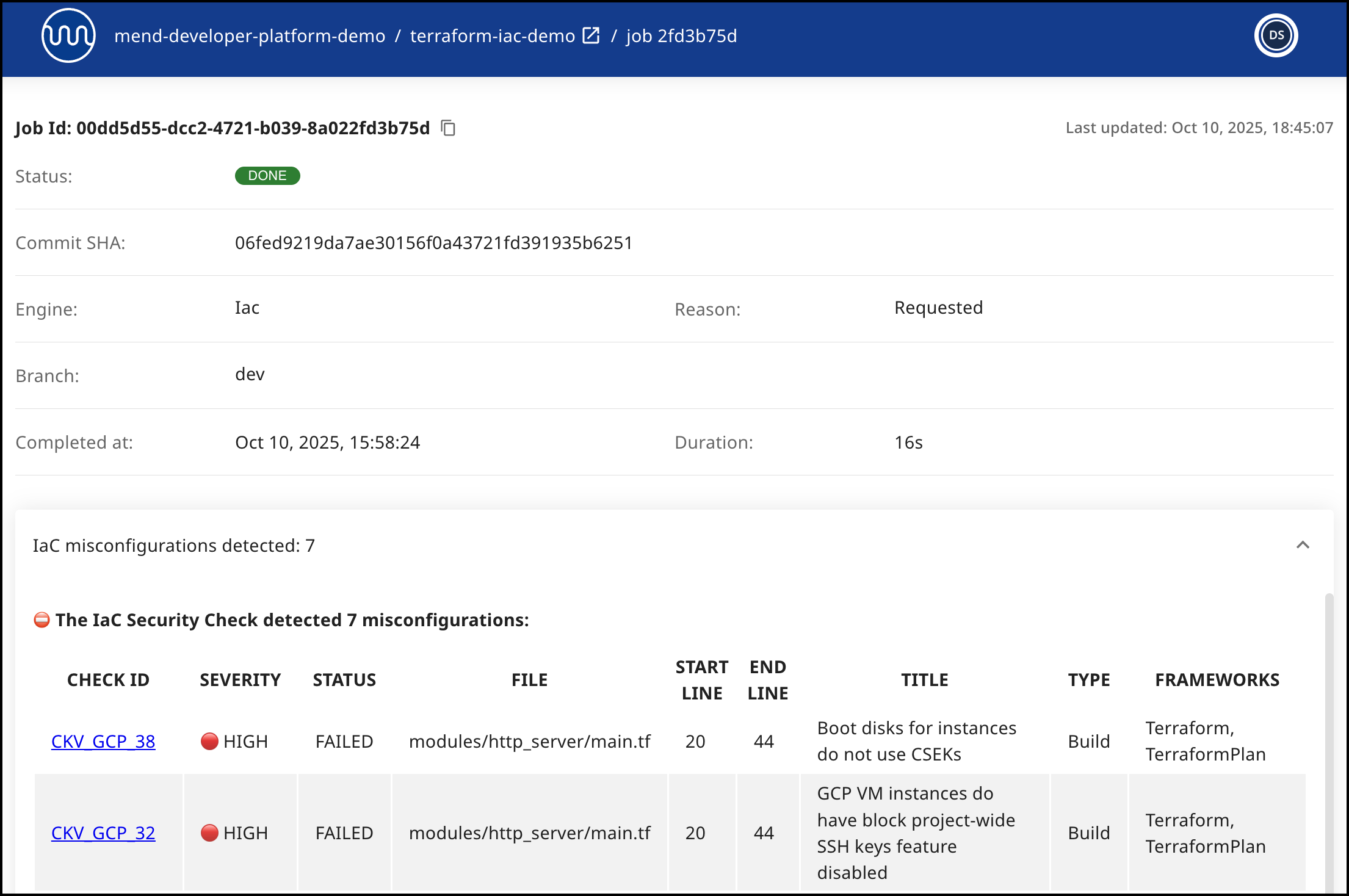
Once an IaC scan job is complete, you can access the Mend IaC Check and review the detected findings within the Mend Developer Platform, by clicking a specific scan in the Recent jobs view.
The following information is displayed for each finding:
-
CHECK ID: The unique identifier for the specific security or compliance rule that was violated.
-
SEVERITY: Indicates the impact level of the configuration issue (
High, Medium, Low). -
STATUS: Displays whether the configuration passed or failed the check (e.g.,
Failed, Passed). -
FILE: The file name and relative path in which the misconfiguration was detected.
-
START LINE / END LINE: The specific line numbers in the file where the configuration block was detected.
-
TITLE: A short description of the issue or policy violation identified by the scanner.
-
TYPE: Indicates the scanning phase or lifecycle stage (e.g.,
Build, Deploy). -
FRAMEWORKS: Specifies the IaC technologies or frameworks used.
Viewing Details in the Mend Application
In the Mend Application, Mend Projects will have the same name as the corresponding Bitbucket Cloud repository, with a "BB_" prefix. The name of the Mend Application will be your Bitbucket Cloud Project name preceded by "BB_".
When a scan is completed for each branch defined in your baseBranches parameter, a Mend project is created for that branch with a “BB_" prefix. Let’s look at an example:
Bitbucket hierarchy:
-
vulnerable-node repository
-
mainbranch [default branch]-
Mend Developer Platform settings for
"baseBranches": ["main", "dev"]
-
-
devbranch
-
We run a scan on both the main and dev branches. The Mend hierarchy appears as:
Mend Platform hierarchy:
-
Application: BB_vulnerable-node
-
Project: BB_vulnerable-node_main
-
Project: BB_vulnerable-node_dev
-
Project Naming with Monorepo Mapping
When a monorepo mapping JSON file is configured, the Mend project name includes the project name defined in the mapping file.
Note: When scanning with Monorepo Mapping, newly created projects use an updated naming convention:
-
Previously, project names were in the format
BB_repoName_branchName. -
Now, they include the project name from the mapping file, for example:
BB_repoName_projectName(from the mapping file)_branchName
For example, if a mapping file defines a project first_mend_project, and a scan runs on the main branch, the project name will appear as: BB_repoName_first_mend_project_main.
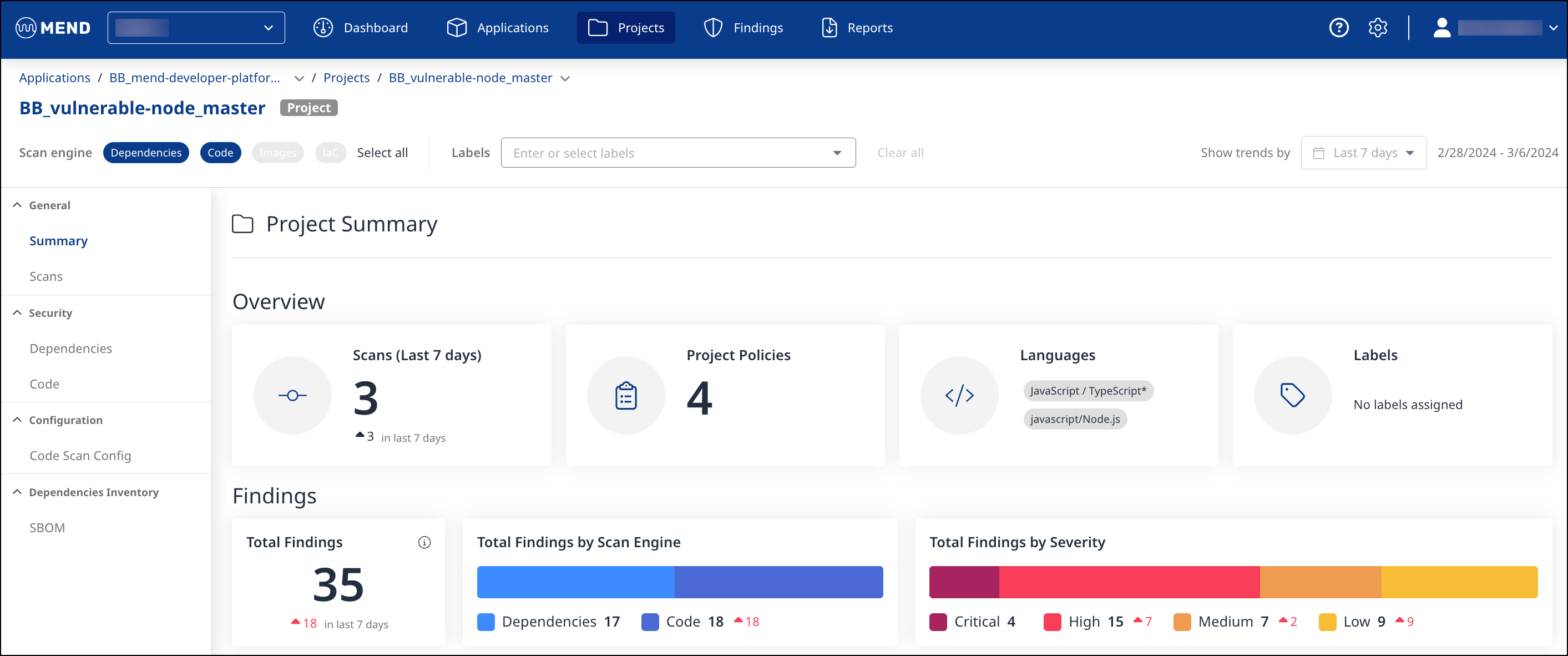
Within the Mend Application, you can filter the results by engine type:
(1) Dependencies -> Open-Source Security
(2) Code -> Code Security
(3) Containers → Containers Security
(3) IaC → Infrastructure-as-Code Security

Scan and Project Tags
The Mend AppSec Platform will automatically have tags for your repository scans and projects. These tags include:
commitId - A unique identifier for the commit associated with the scan.
CTX - Identifier for logs.
repoFullName - The name of the repo, including workspace/org/project (bitbucket, github, azure devops).
repoId - Unique identifier for the repo.
sourceUrl - Full URL of the scanned repo. This is especially useful for binding different scans to the same project in the Mend AppSec Platform.
-
Key: sourceUrl
-
Value Examples: