.svg)
Overview
This article explains how to migrate your Azure DevOps projects from legacy Azure DevOps OAuth (OAuth 2.0) to Microsoft Entra ID app authorization. It highlights the key considerations for connecting your projects: you will learn how to authorize the app, understand which settings are shared during migration, and avoid common issues involving personal Microsoft accounts, tenant consent, and project onboarding.
Signing Into the Developer Platform
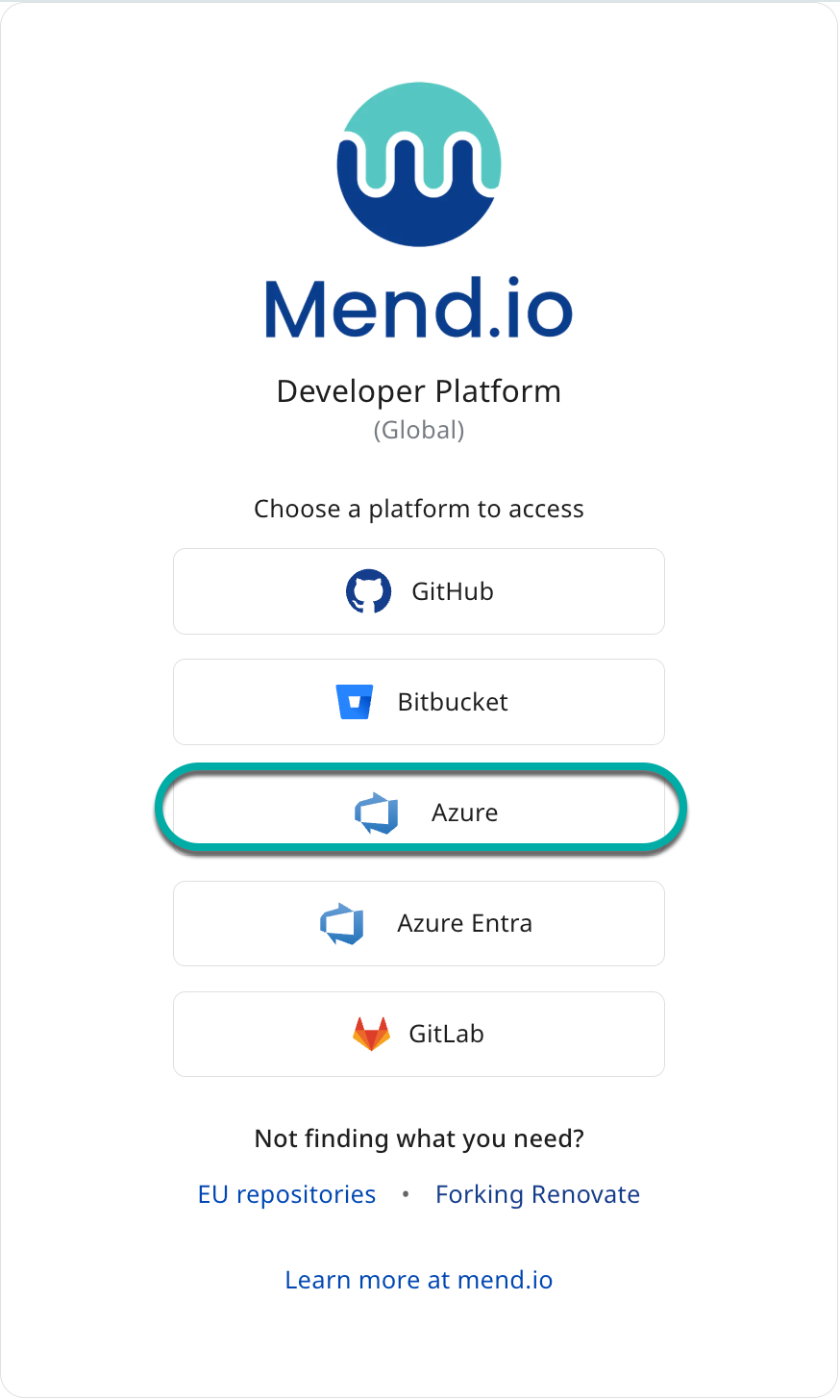
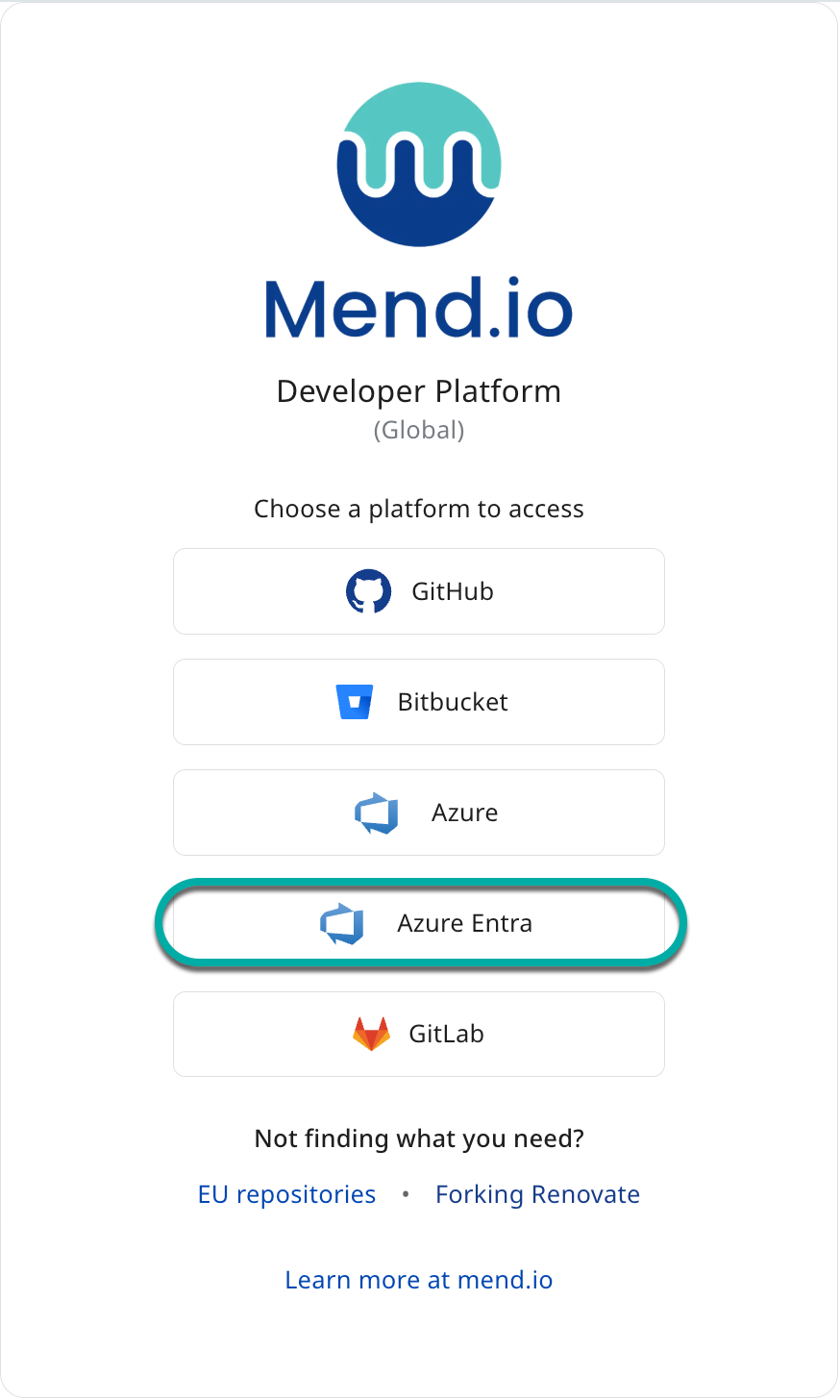
The Developer Platform login page now displays two login options for Azure DevOps:
-
Legacy
-
Entra
Legacy Azure DevOps OAuth Sign-In
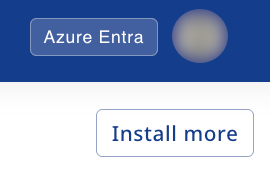
Upon signing into the Developer Platform using the legacy Azure option, a banner at the top of the UI highlights the change and allows you to sign in using Entra instead:

Note: Clicking the Sign in with Entra button will sign you out and back in using Entra. Being signed in with Entra is indicated at the top right corner of the UI.
Important Notes
-
As of September 2026, projects can be onboarded using Legacy OAuth. In the future, this option will be blocked and force users to sign in using Entra to onboard new projects.
-
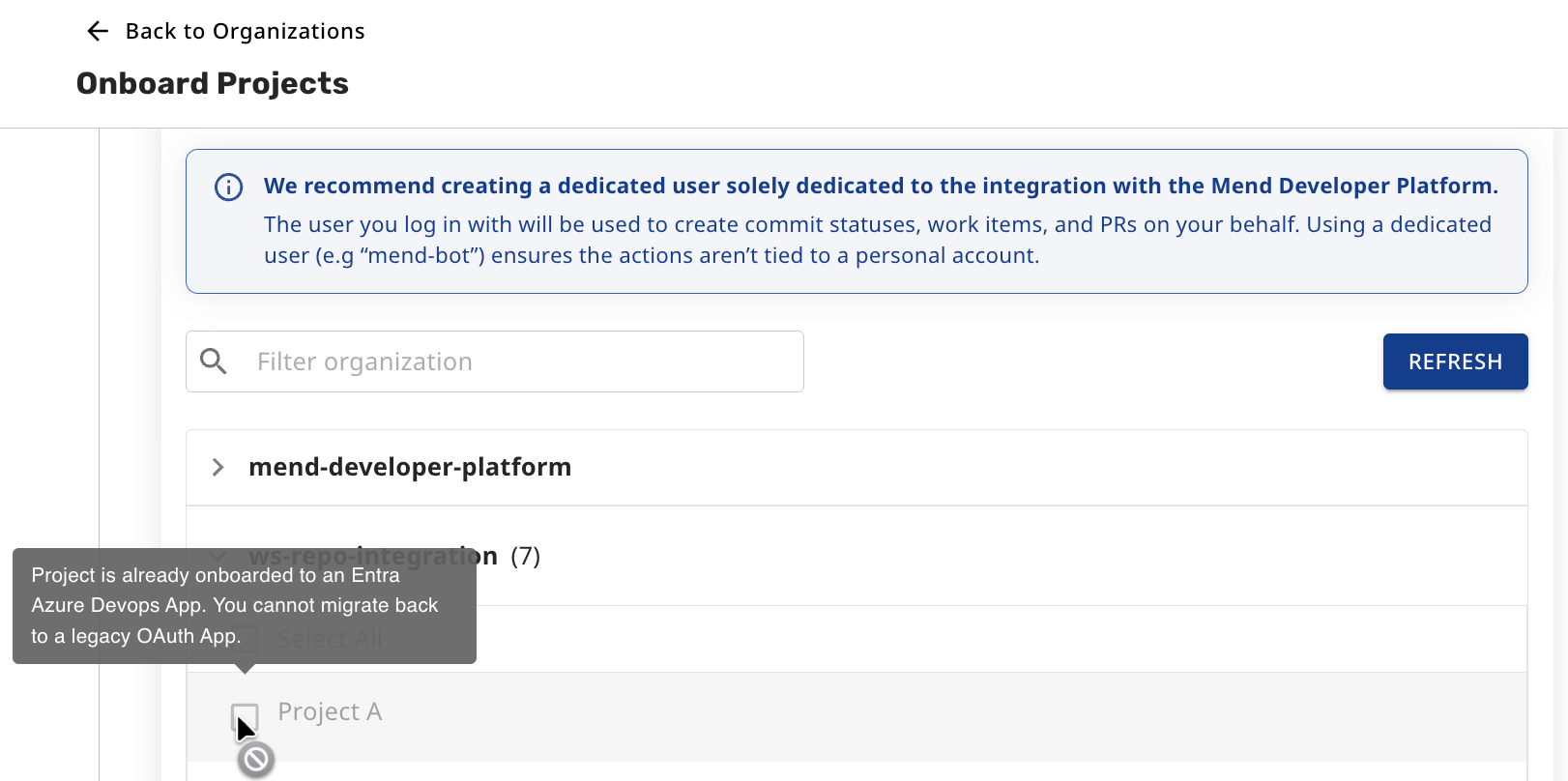
Projects already onboarded into Entra are greyed out and cannot be onboarded into Legacy OAuth.
Microsoft Entra ID Sign-In
If some projects in your organization have not been migrated from Legacy OAuth to Azure Entra, this will be indicated in a banner, specifying the number of projects that fall under this category:
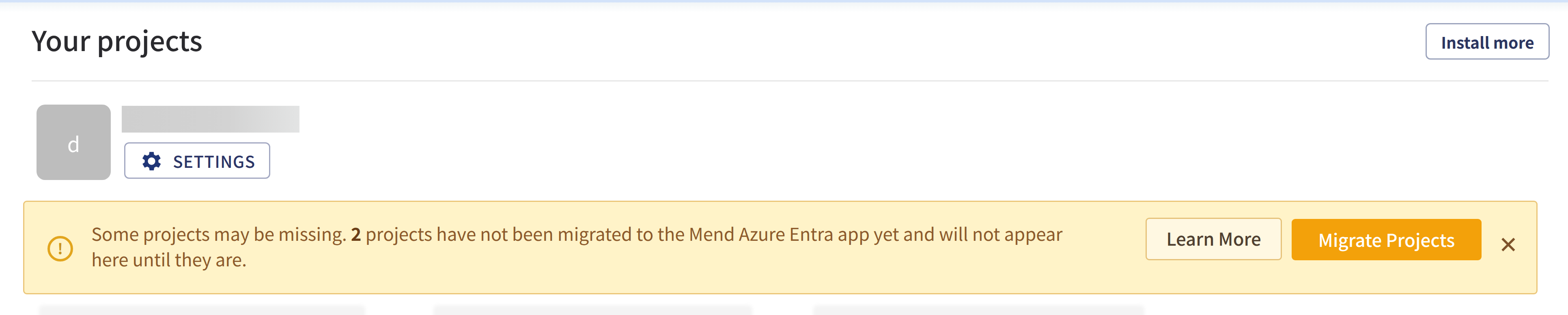
At this stage, clicking either the Migrate Projects button within the banner or the Install more button at the top right will take you to the Onboard Projects menu.
The aforementioned Legacy OAuth projects that have not been migrated to Entra yet will be indicated by an exclamation mark on the right.
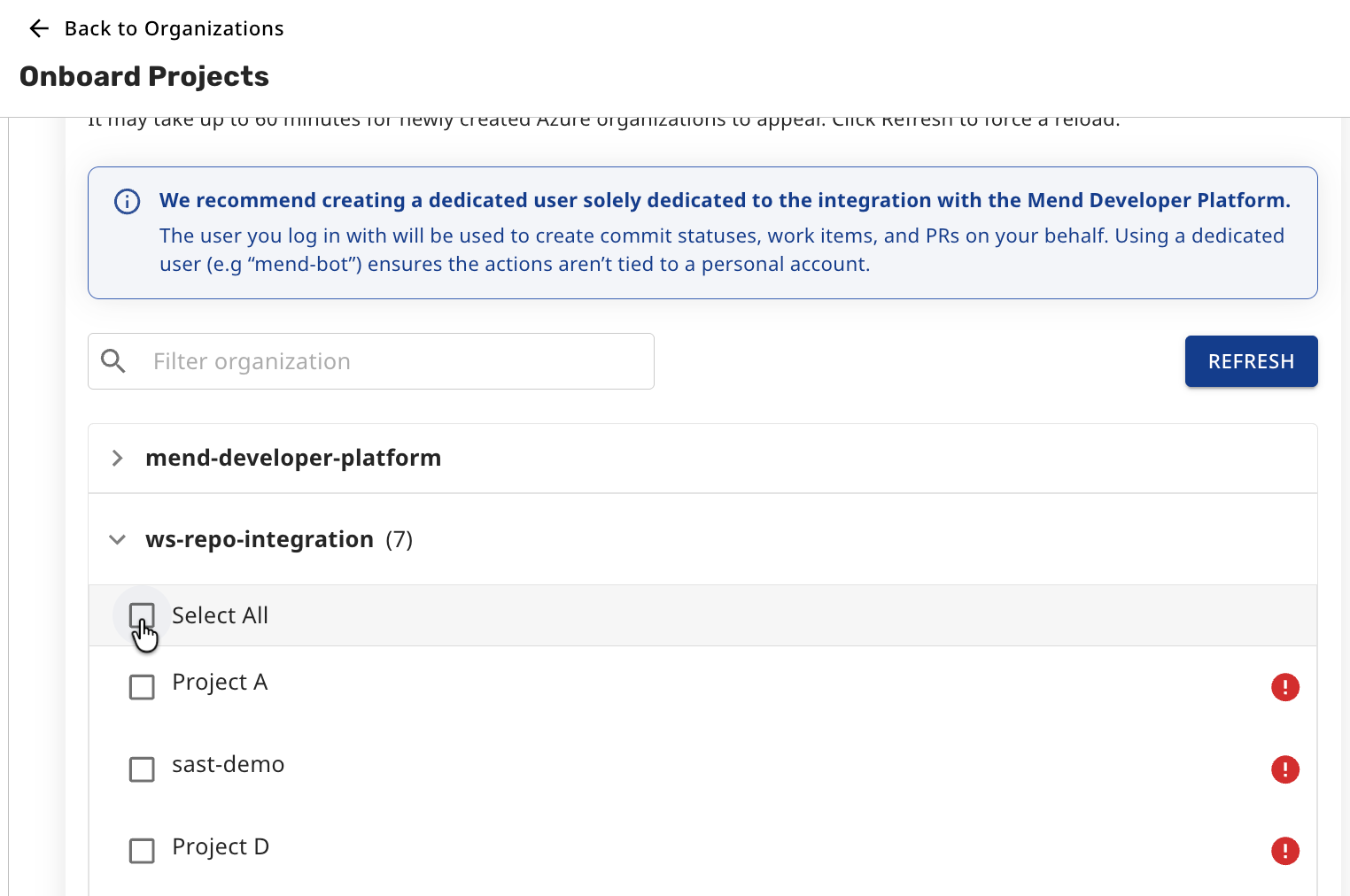
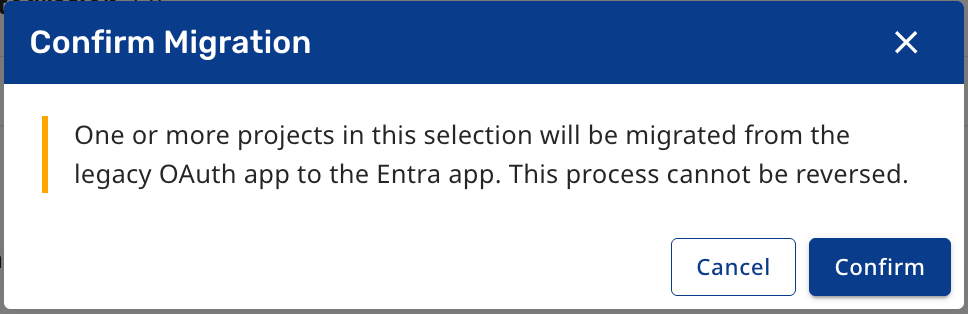
Selecting the checkbox next to the project you wish to migrate will prompt you to confirm the migration. Note: The migration is irreversible.
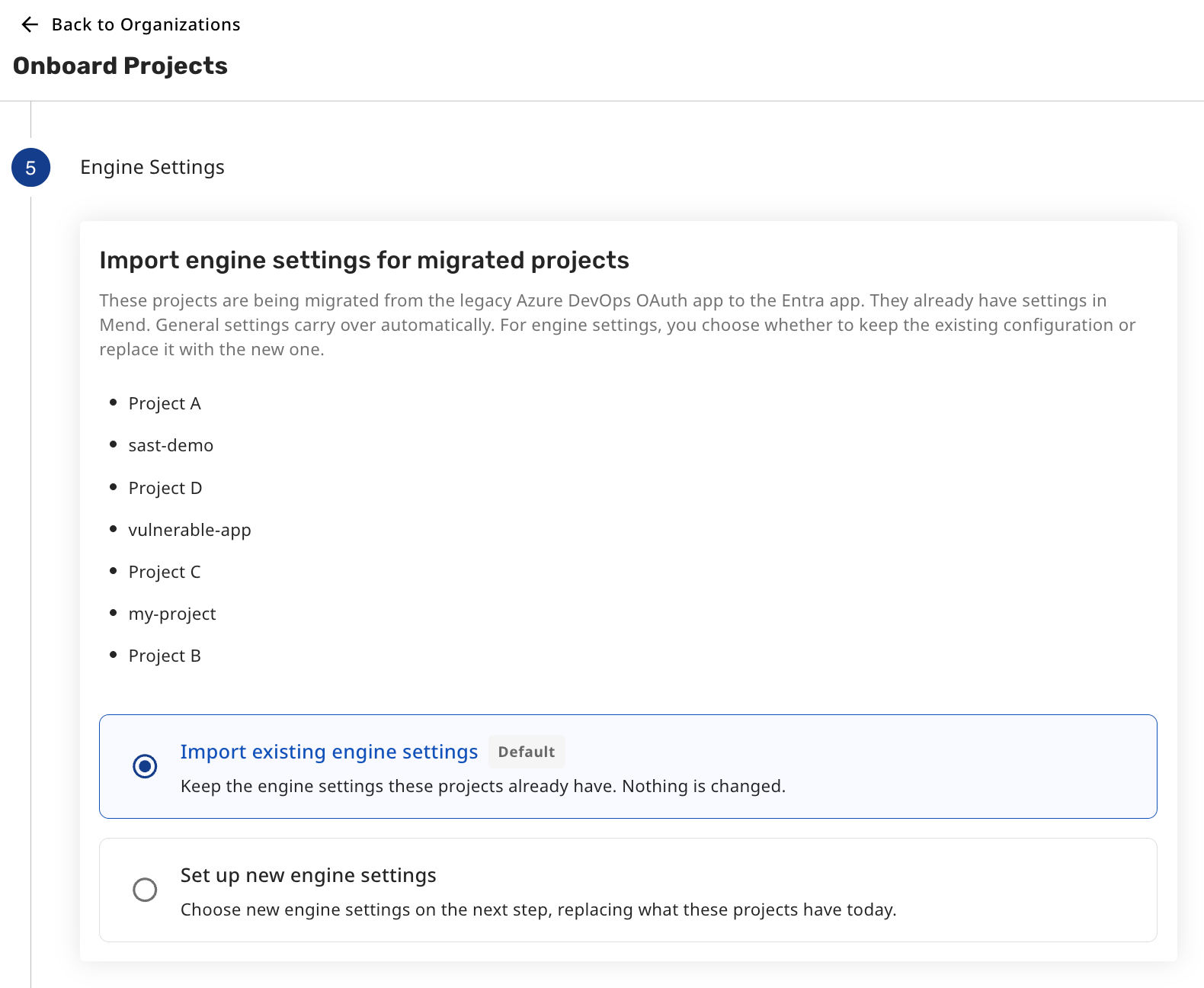
The migration includes an Engine Settings step, allowing you to choose whether to import the existing engine settings (default) or alternatively set up new engine settings.
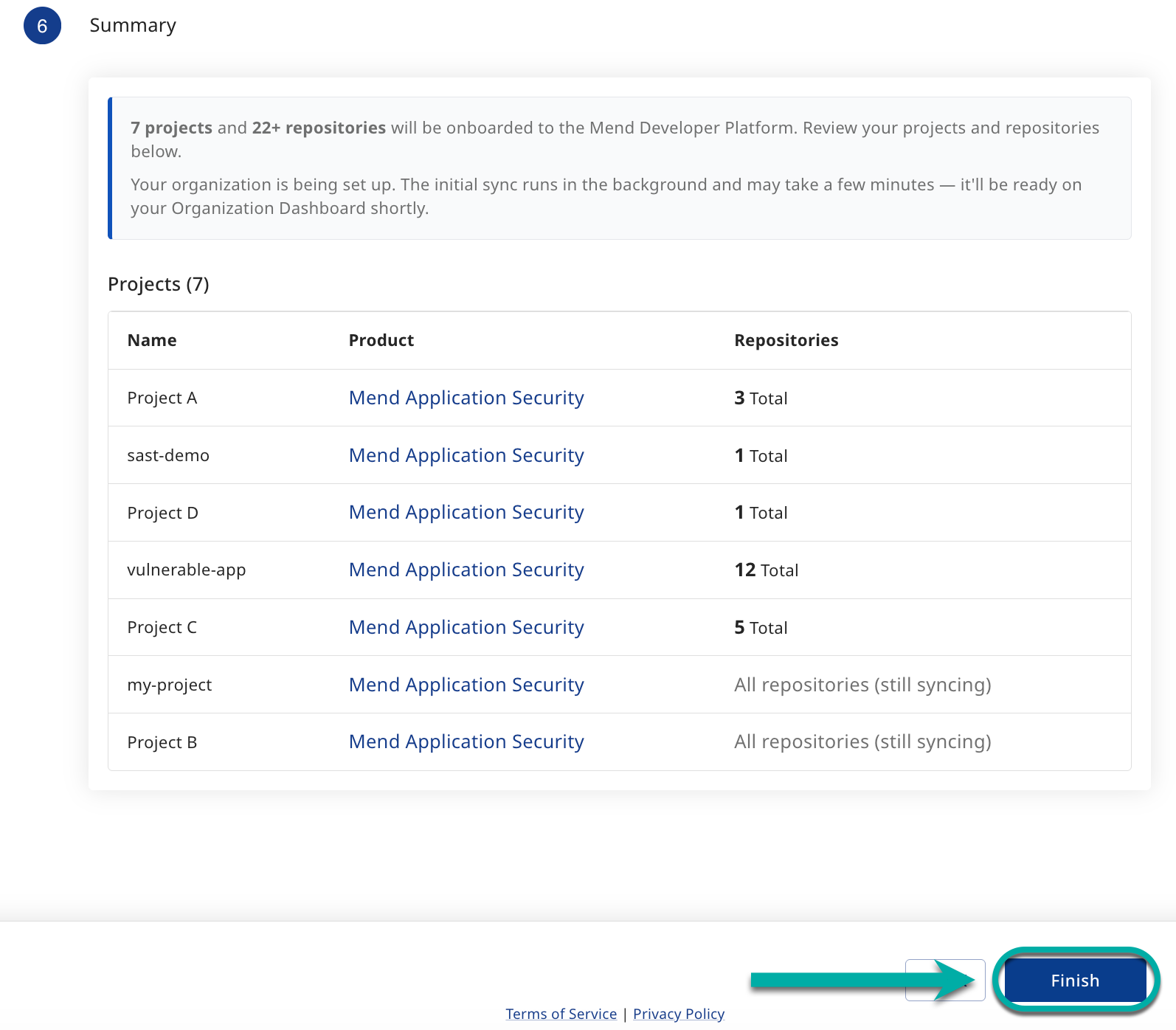
After you select projects to migrate to Azure Entra, a summary appears. Click Finish to complete the migration.
Required Permissions
Mend uses two Microsoft Entra ID applications to connect to Azure DevOps. Both request delegated permissions only: Mend acts on behalf of the signed-in user and never has more access than that user.
Mend Read app: requested when you first install and sign in.
|
Permission |
API |
Purpose |
|---|---|---|
|
|
Microsoft Graph |
Sign in and read the user’s basic profile |
|
|
Azure DevOps |
Read source code, branches, commits, and pull requests |
|
|
Azure DevOps |
Read the user’s Azure DevOps profile |
|
|
Azure DevOps |
Read projects and teams |
|
|
Azure DevOps |
Read work items, queries, and boards |
Mend Read_Write app: requested when you onboard your first project.
|
Permission |
API |
Purpose |
|---|---|---|
|
|
Microsoft Graph |
Sign in and read the user’s basic profile |
|
|
Azure DevOps |
Read and write code, and create and update pull requests (for example, remediation pull requests) |
|
|
Azure DevOps |
Read the user’s Azure DevOps profile |
|
|
Azure DevOps |
Read projects and teams |
|
|
Azure DevOps |
Read, create, and update work items (for example, issues for findings) |
Note: If your tenant requires administrator consent for delegated permissions, a tenant administrator must grant consent for both apps. To avoid interrupting onboarding, request consent for the Read_Write app before you onboard your first project.
General Notes about Migrating to Microsoft Entra ID
-
Confirm that you are using a work or school account in the Microsoft Entra tenant. Personal Microsoft accounts are not supported for Entra authorization.
-
Start the Entra app authorization flow from the product or integration setup page, then sign in to the appropriate Microsoft tenant.
-
Review the requested permissions and approve the app installation if your account is allowed to provide consent.
-
If consent is blocked, ask a tenant administrator to approve the app. After the administrator pre-authorizes the app, users in the tenant can install it in accordance with the tenant's application-consent settings.
-
Complete the project connection or migration, and review the resulting project and organization settings.
-
If you use the Detect and Install New Projects setting, verify its behavior after authorization. The setting determines whether newly detected projects are onboarded through Entra or legacy OAuth based on whether the user already has any Entra-connected projects.
Limitations
-
Personal Microsoft accounts are not supported. Entra authorization supports organizational accounts in a Microsoft Entra tenant. This is a Microsoft platform restriction. See Microsoft's guidance on Entra OAuth migration for more information.
-
Tenant consent policies may prevent installation. By default, users may be able to install a publisher-verified app that does not request permissions requiring administrator consent. Tenant administrators can change these settings. If the tenant requires administrator approval, a tenant administrator must pre-authorize the app.
-
Administrator consent may be required. If your tenant requires administrator approval for the permissions Mend requests, a tenant administrator must grant consent before users can complete onboarding. See Required Permissions for the full list.
-
Organization settings are shared across authorization methods. If projects in the same organization use both legacy OAuth and Entra, organization-level settings apply to projects connected through both methods. Changes made to organization settings affect both integrations.
-
Project configuration migration should be verified. Most configuration is expected to migrate, but the exact result can depend on the configuration in use. After migration, review the project settings and confirm that the required configuration is present.
-
Detect and Install New Projects does not migrate existing legacy OAuth projects automatically. Enabling this setting does not convert existing legacy OAuth projects to Entra.
-
New-project onboarding depends on existing Entra connections. When the setting is enabled, a user who already has at least one Entra-connected project onboards newly detected projects through Entra. If the user has no Entra-connected projects, newly detected projects continue to onboard through legacy OAuth.