.svg)
Overview
In this article, you will find step-by-step instructions for installing Mend Renovate and the Mend Developer Platform for Azure DevOps Repos.
Getting it done
Prerequisites
-
Access to an Azure DevOps Repos organization, and an onboarding user holding the permissions described in Required Azure DevOps permissions below.
-
The Azure DevOps Repos organization must allow Third-Party Access Via OAuth (more details in the ensuing Installation section).
-
If your workspace has conditional access to certain IP addresses, add the IP addresses listed under “developer-platform” in this file to your allowlist.
-
As of February 2025, saas-eu.mend.io customers need to allow only 52.31.29.228
-
Also, for paid Mend customers only:
-
Mend Account with SCA/SAST entitlement on the Mend Platform
-
Admin Access to Mend Platform to generate Activation Key
Notes:
-
The Azure DevOps user who will onboard the organization will be the one that will be used to create commit statuses, work items, and PRs from their own account. We recommend creating a dedicated user solely dedicated to the integration with the Mend Developer Platform. Doing so also avoids the group membership conflicts described in Required Azure DevOps permissions below.
-
When an Azure Repos project is onboarded with a Mend Activation Key, this key will be applied to all other projects of this organization (including projects that were onboarded before this connection).
-
Mend Activation Key is used for the entire Azure Repos organization, and in order to change it, it’s required that the Azure Repos organization admin does that in the Organization Settings.
-
A GitHub.com token is recommended for running scans. Without it, GitHub release notes won’t be retrieved, which will result in a warning message.
Required Azure DevOps permissions
Before onboarding, the Azure DevOps user must have both of the following permissions evaluated as Allow in every organization you intend to onboard:
|
Azure DevOps scope |
Permission |
Why Mend requires it |
|---|---|---|
|
Git repositories |
Delete repository |
Confirms the user holds administrative access to repositories |
|
Service hooks |
Delete subscriptions |
Confirms Mend can create the webhooks the integration depends on |
Membership in Project Administrators or Project Collection Administrators normally grants both. Membership alone, however, is not sufficient — see the following warning.
In Azure DevOps, a Deny overrides an Allow
Azure DevOps applies an explicit Deny ahead of any Allow, including an Allow inherited from an administrator group. If the onboarding user also belongs to a group that denies either permission above — most commonly Project Contributors, which denies Delete repository — the Deny takes effect even though the user is a Project Administrator.
When this occurs, the affected organization does not appear in the Install more list and no error message is displayed. See the Troubleshooting section of this article if you encounter this.
To avoid it, ensure the onboarding user belongs to Project Administrators or Project Collection Administrators and to no group that denies these two permissions.
Mend EU Environment
If your Mend organization is hosted in EU (e.g., saas-eu.mend.io), you will be able to link the integration to your Mend organization only if you use the Mend Developer Platform in the EU environment: https://developer-eu.mend.io/. By doing this, all of the org and user data that Mend.io processes will stay in the EU zone.
Installing Mend Developer Platform for Azure DevOps Repos
For users who are migrating from the old Mend for Azure Repos integration, please refer to the instructions in our Transition Guide for Mend Developer Platform documentation.
-
Log into the Mend Developer Portal and authorize with your Azure DevOps user.
Note: It is recommended to choose the Azure Entra login option, as explained here. -
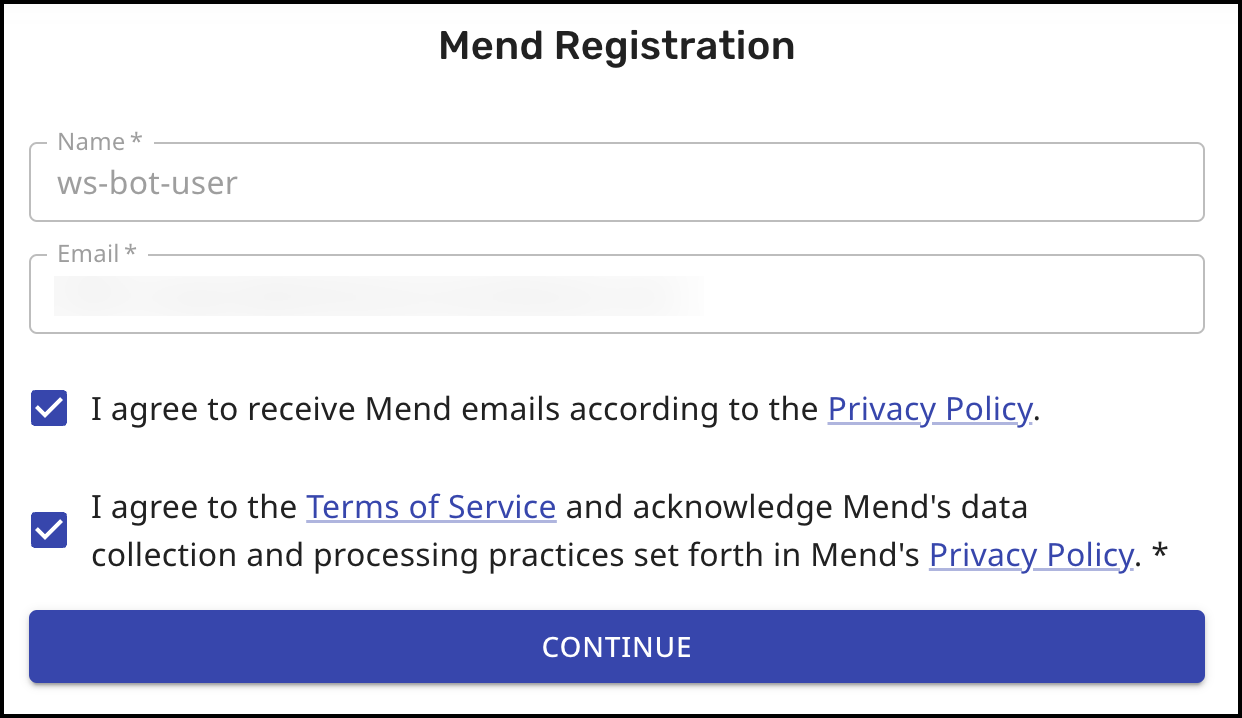
Complete the Mend Registration step and click CONTINUE.
-
After registration is completed, you’ll be navigated to the Mend Developer Platform main dashboard.
Renovate-only: Users of the free Renovate-only plan should skip to step 6.
Paid Mend customers: Follow all steps below.
-
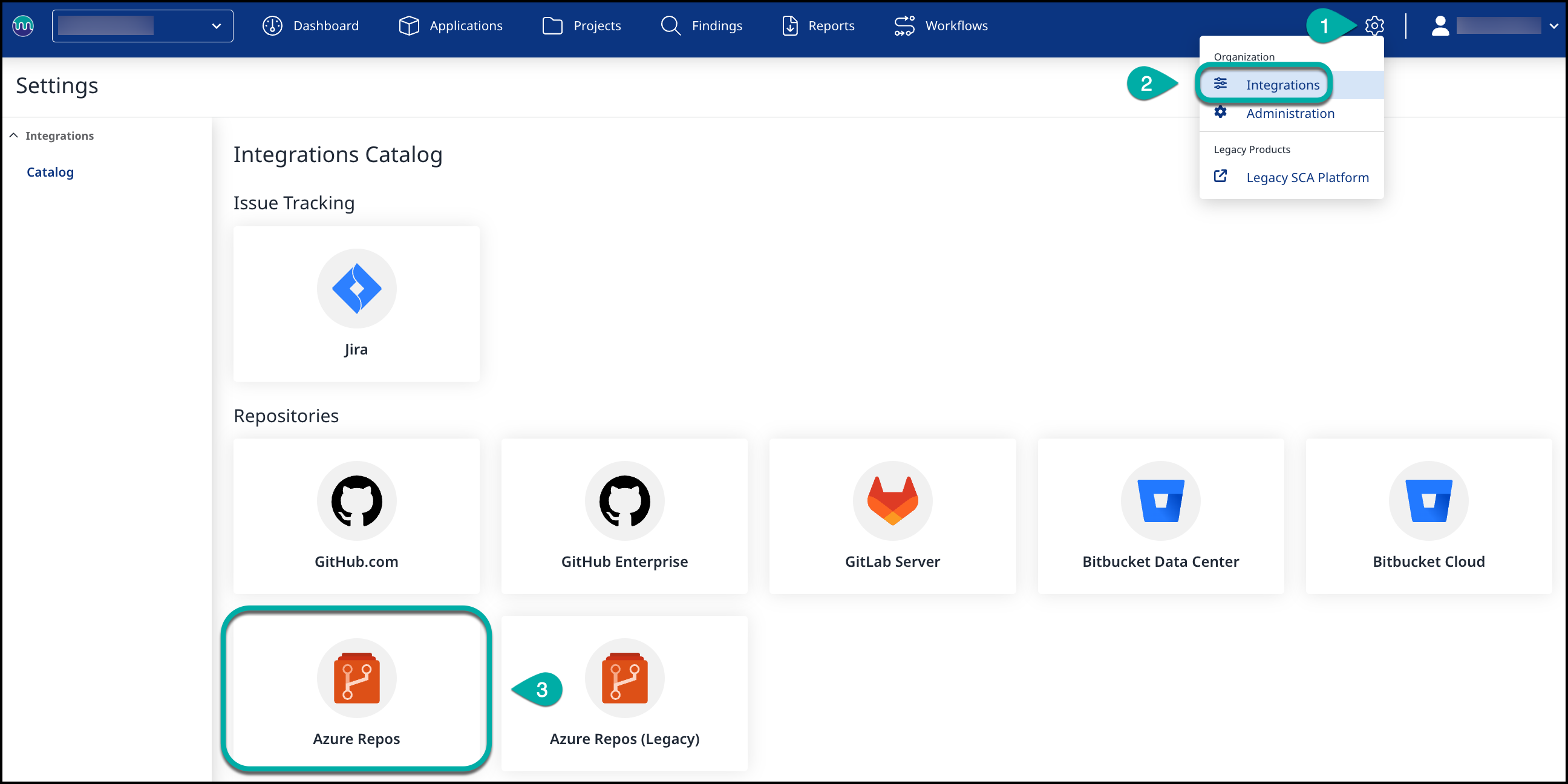
Open the Mend Platform and navigate to Integrations under the Settings toggle, then select the Azure Repos integration.
-
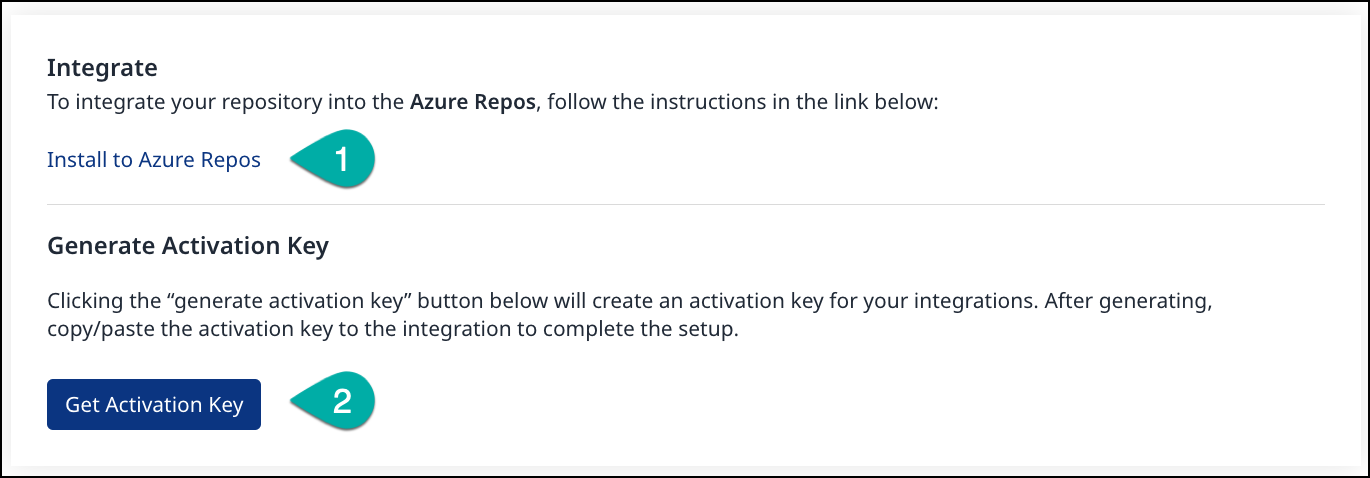
Copy the Activation Key by clicking on Get Activation Key (this will be used in step #10).
-
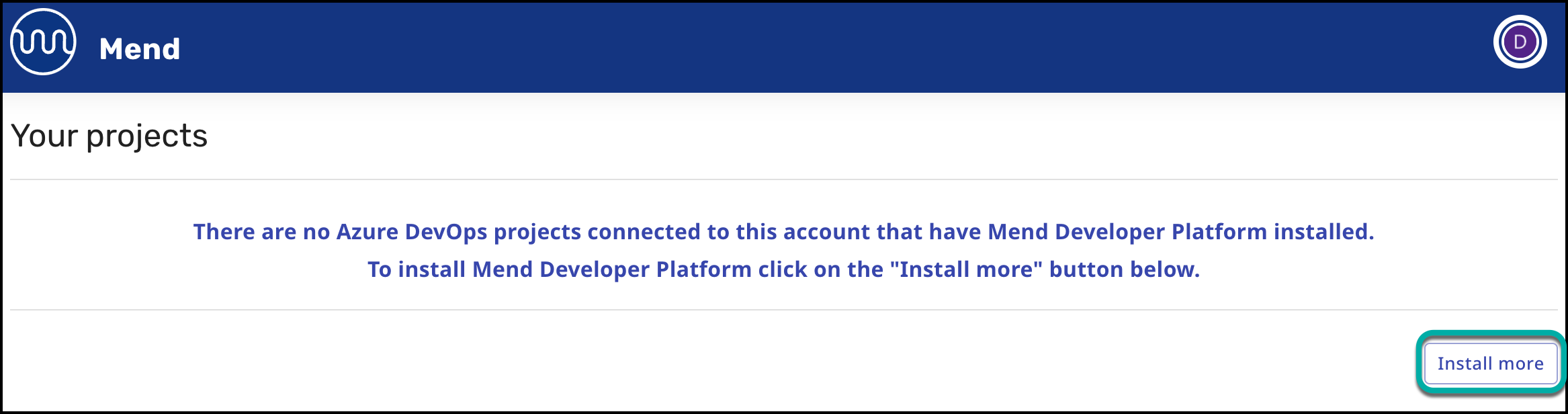
In the Mend Developer Portal, click on “Install more” to install Mend Renovate or Mend Developer Platform in your Azure DevOps Repos project(s):
-
Select the Azure DevOps Repos project(s) that you want to integrate with Mend, and click Next.
Note: Only projects with Third-Party Access Via OAuth enabled in their Azure DevOps Repos Organization will appear in this list. (See instructions below.)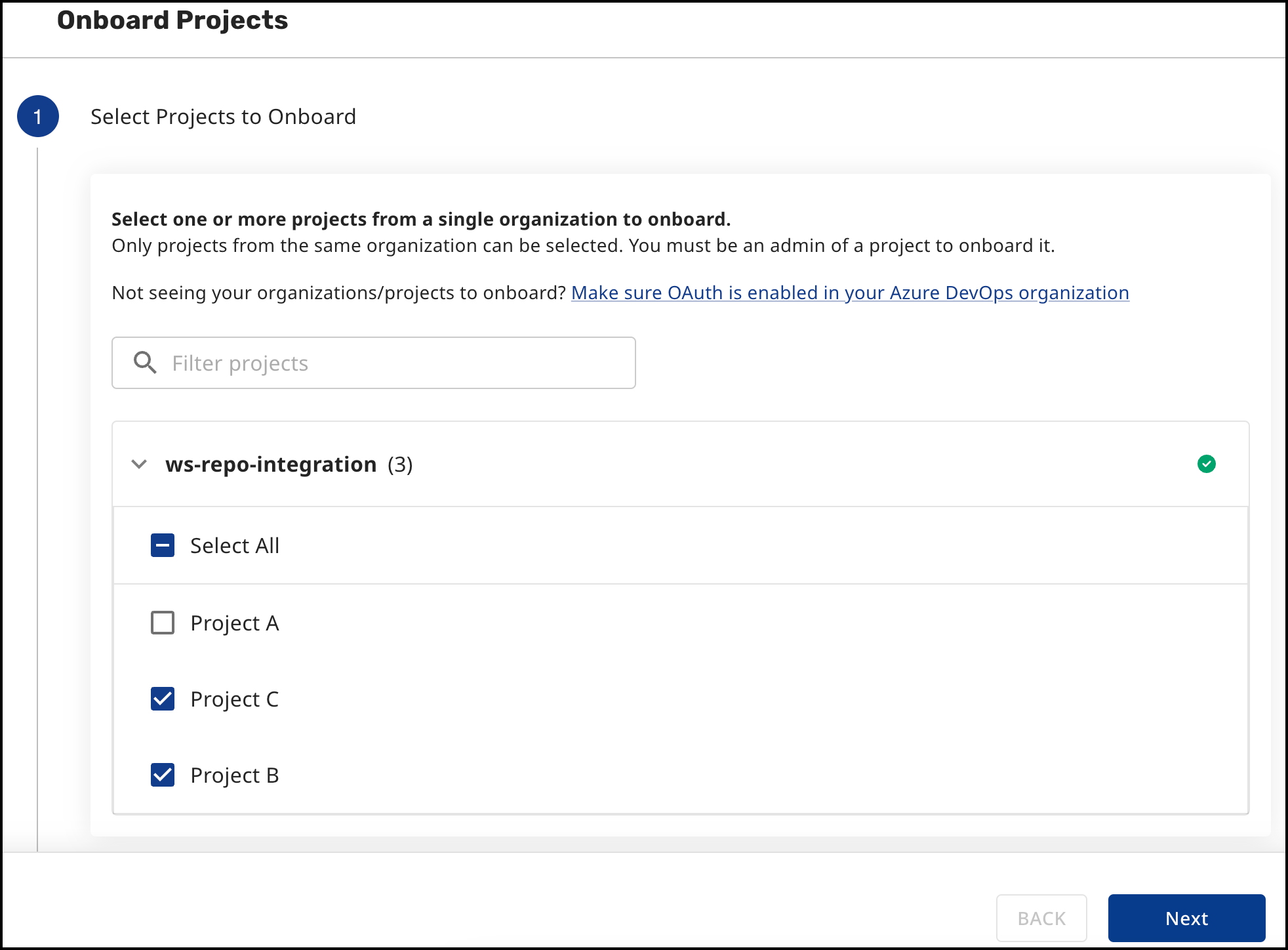
Enable OAuth in Azure DevOps
In order to view the available projects for onboarding, OAuth must be enabled in the Azure DevOps environment. The toggle for enabling OAuth in Azure DevOps is located at: Organization settings → Policies → Application connection policies → Third party application access via OAuth.
-
A pop-up window will appear asking you to accept a redirection to Azure DevOps to authenticate and install the Mend integration for the selected project(s).
Note: You will only need to complete this step once. The user's refresh token will also be used for future onboarding.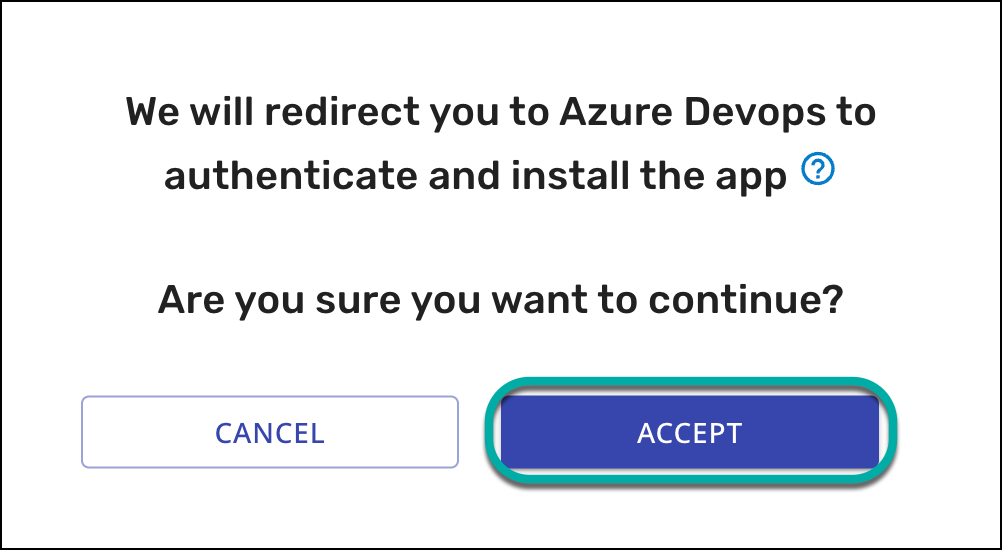
Note: After the integration is set up and operational, a banner in the Developer Platform will alert users when their authentication expires and provide a button to reconnect to Azure.

-
The Setup Wizard will open, where two product options will be presented.
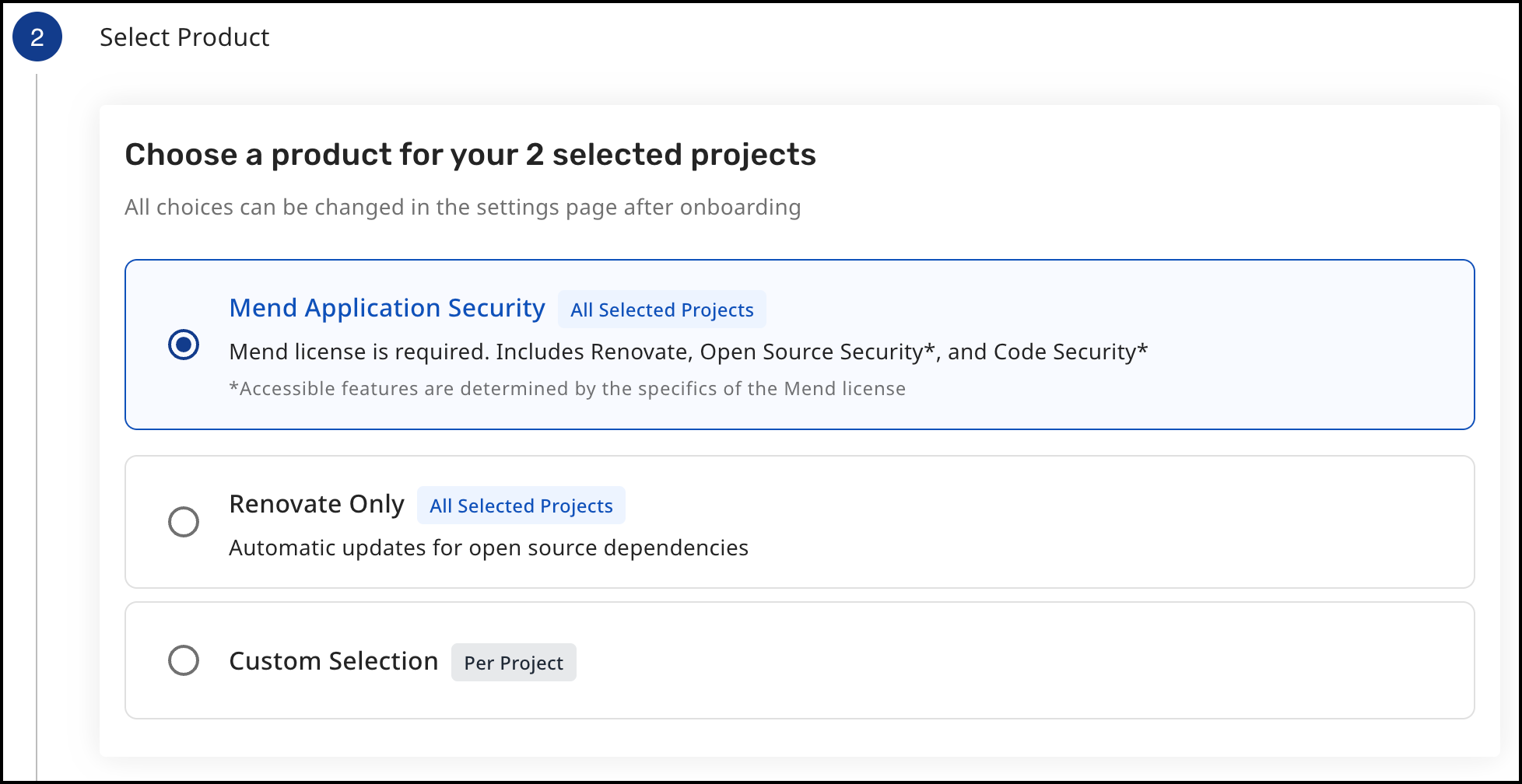
Renovate-only users: Choose Renovate only, then skip to step 12.
Paid Mend customers: Choose Mend Application Security, then continue to follow all steps. -
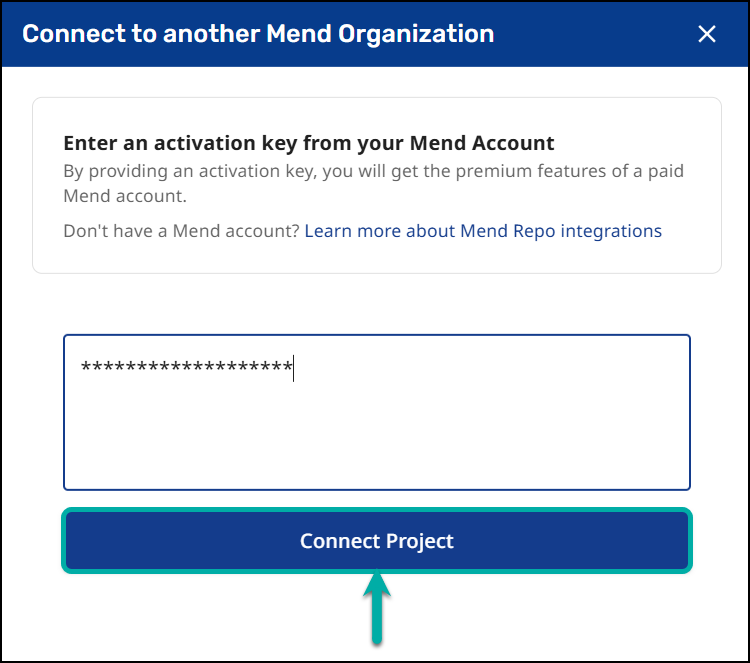
Using the Activation Key copied from the Mend Platform (as described in step #5), paste the Activation Key into the Mend Activation Key box to connect your Azure DevOps organization with your paid Mend account.
-
Click Connect Project, and then Next.
You’ll see the name of the Mend Organization that your organization is now connected to. -
Now you have the option to activate the Mend App for all repositories or only selected repositories. Select your preference, and then click Next.
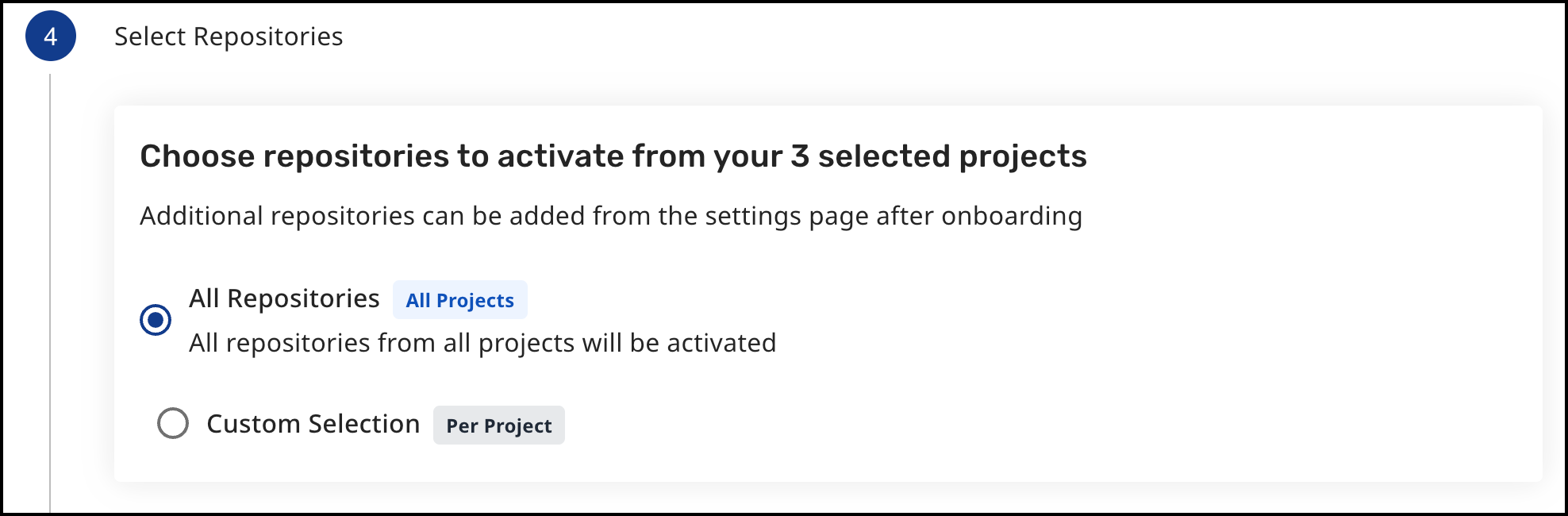
During the installation process, please note that the Mend Developer Platform app is installed for the entire project. This means that it will have access to all repositories within the project, regardless of the repositories selected during installation.
Selecting repositories at this step defines which will have the available engines enabled and activated.
-
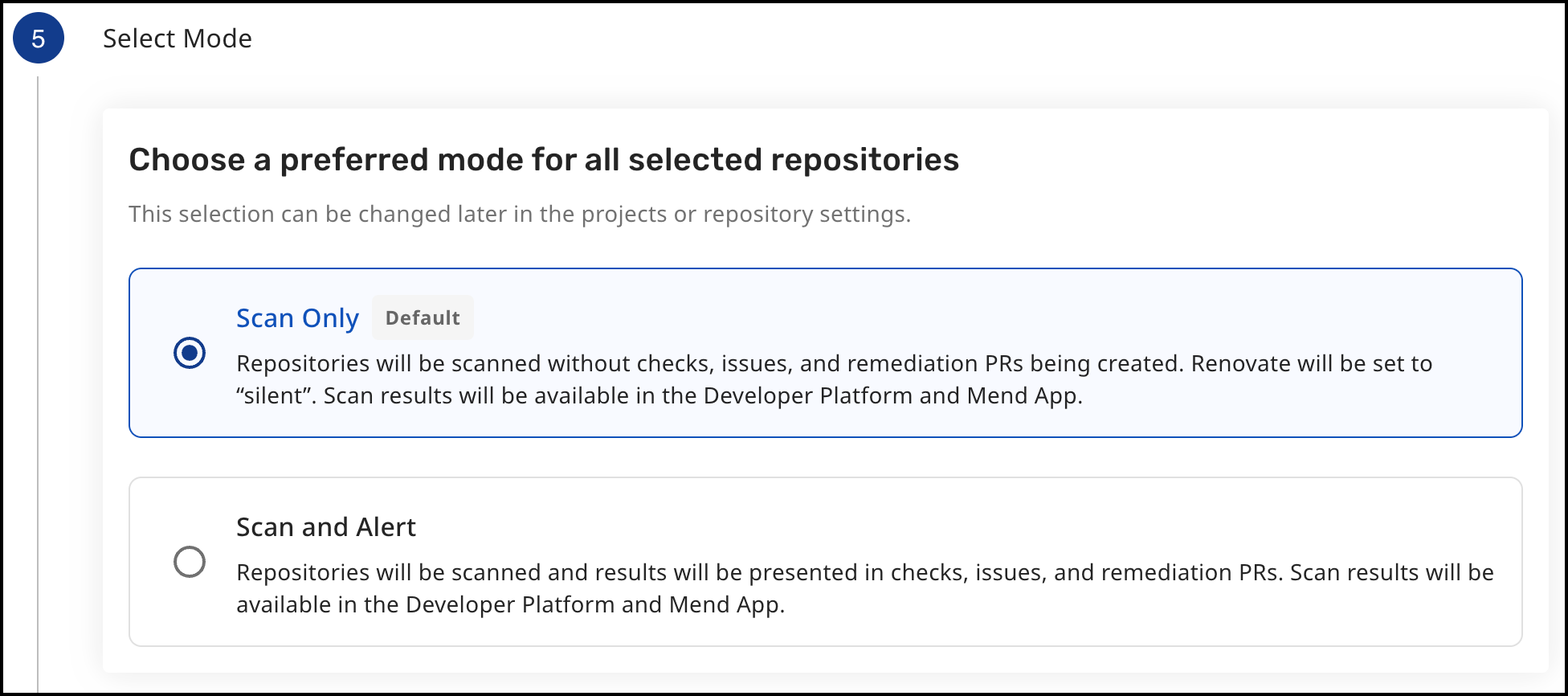
Choose your preferred mode for the selected repositories, and then click Next.
-
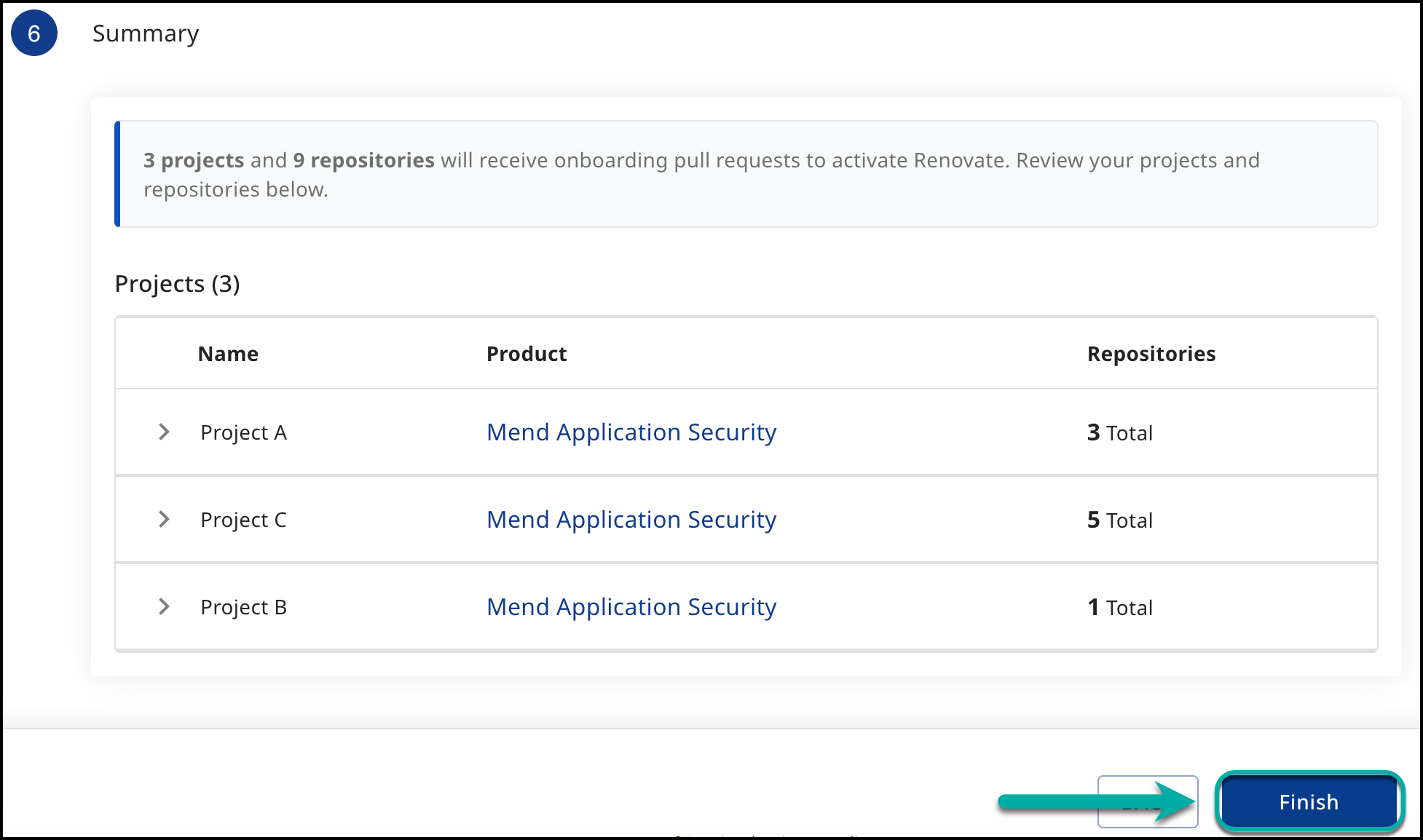
Click Finish to complete the installation steps for Mend Renovate and Mend Developer Platform.
Organization Settings
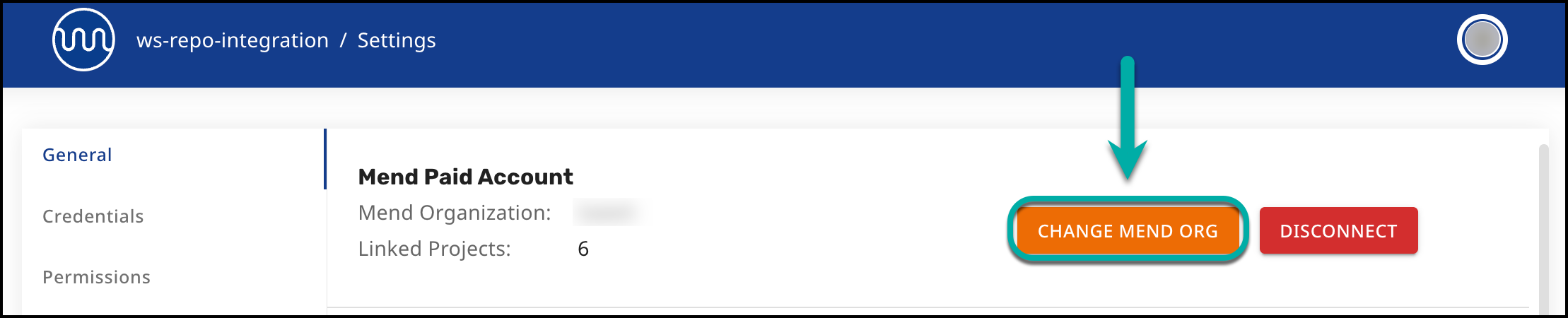
This is the page accessible to the Azure Repos Organization Admin, where you can link or unlink a connection to a Mend Organization.
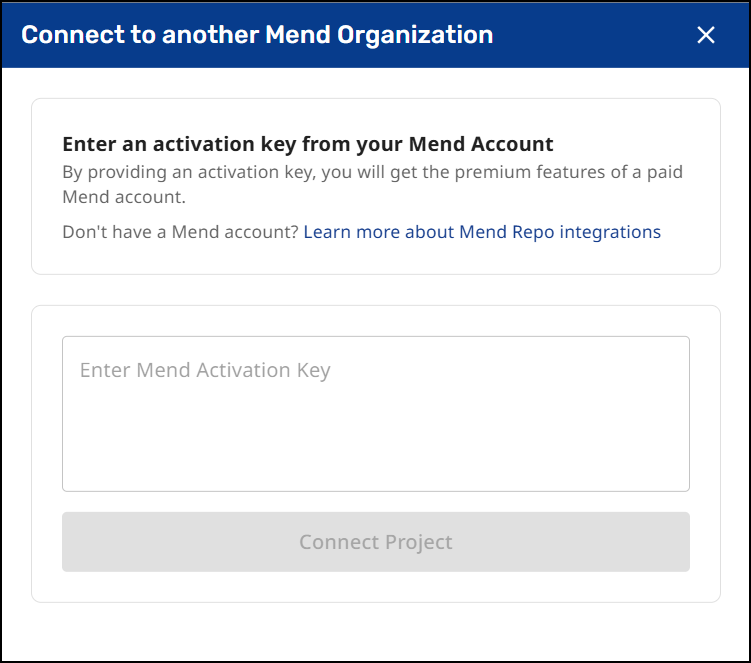
When selecting CHANGE MEND ORG, a pop-up window will appear asking you to insert the activation key of the organization you would like to connect.
Refresh Token
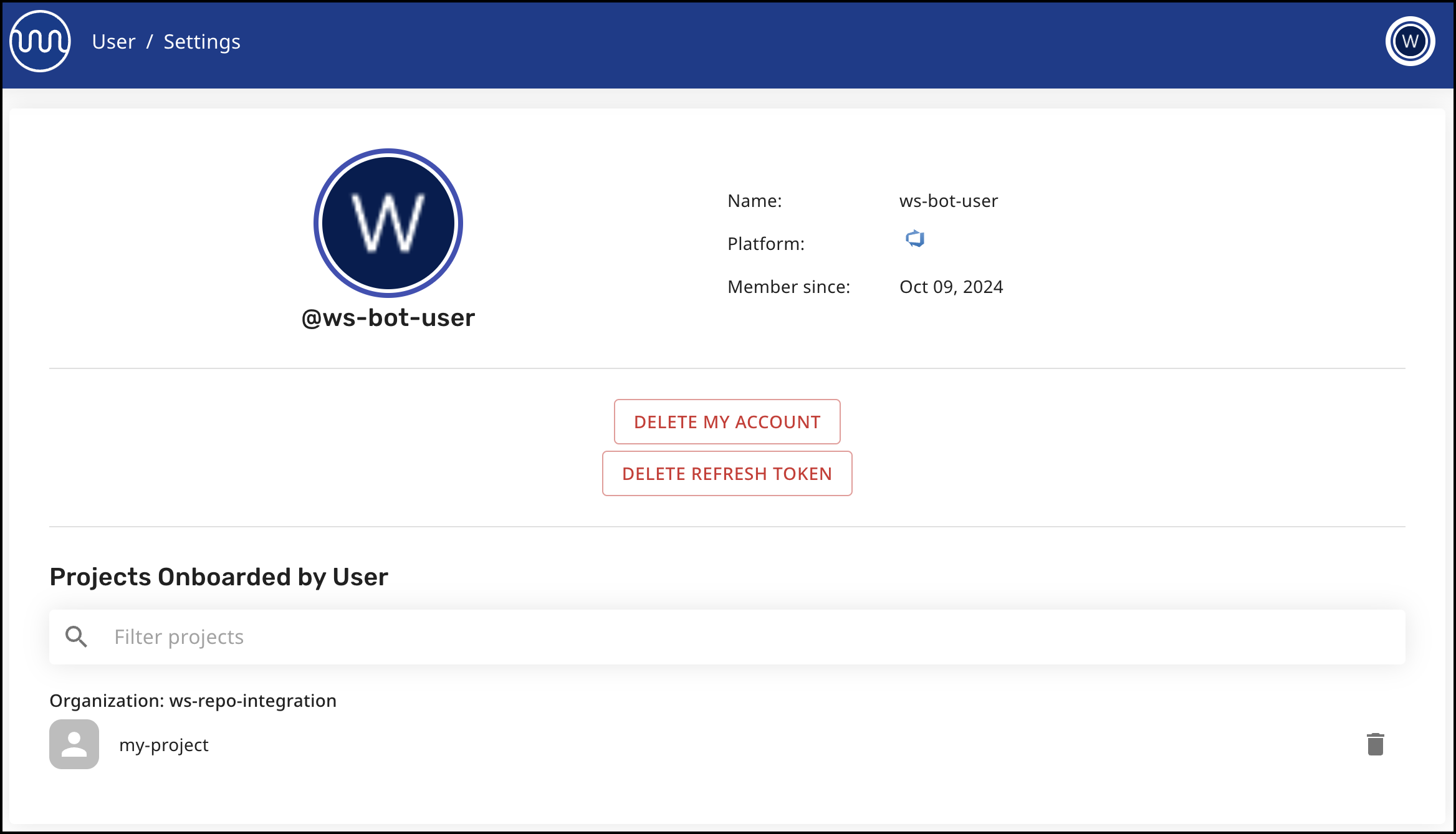
Mend uses the Refresh Token to create items in the repository on behalf of the onboarded user who installed the integration.
In case you are the user who onboarded projects with the Mend Developer Platform integration, you will find in your Profile Settings page the list of those projects.
Notes:
-
You can remove integration for specific projects or delete the refresh token. Note that removing the refresh token will cause all projects that were onboarded with this user to uninstall the integration. The same will happen if this user deletes their account on this page.
-
Azure organization admins can remove any project in their organization from the Mend Developer Platform.
-
If you would like to pass the role of dedicated user to another user, you’ll need to uninstall all or selected projects, and then the new user should re-onboard them. In this case, the project's configuration and repos will be preserved, and the app will continue working under a new dedicated user.
Initiate a merge policy
A merge policy utilizes the app's integration with Azure Repos Branch Policies. It enables the repository's administrator to approve merging a pull request with 'Failed' commit statuses to a target branch in the repository.
For more information on Checks API, see the Azure DevOps Branch policies and settings documentation page.
Note: Mend for Azure Repos integration supports merge policies for PRs created either from a branch in the same repository or originating from a different repository.
Create a branch policy in Azure Repos using Mend checks
To create an Azure project-wide branch policy that will block pull requests to the default branch of each repository when the Mend check fails (using the default Mend configuration):
Within the Mend Developer Platform, you have to configure the following:
SCA:
-
Checks need to be enabled
-
Conclusion status needs to be set to "Failure"
-
Vulnerability range for CVSS threshold
-
Scan Insights / Fail Level
SAST
-
Checks enabled
-
Conclusion status set to failure
-
Severity threshold
...and that they can be set at Org level, then overridden at the Project level and/or the Repo Level (this may be redundant if discussed elsewhere--so maybe a link to that section in lieu of restating it)
-
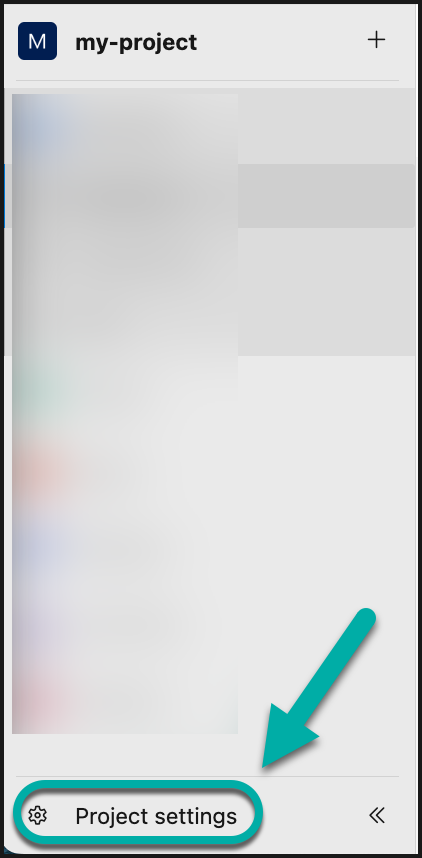
Within Azure DevOps, navigate to your Azure Project → Project settings:
-
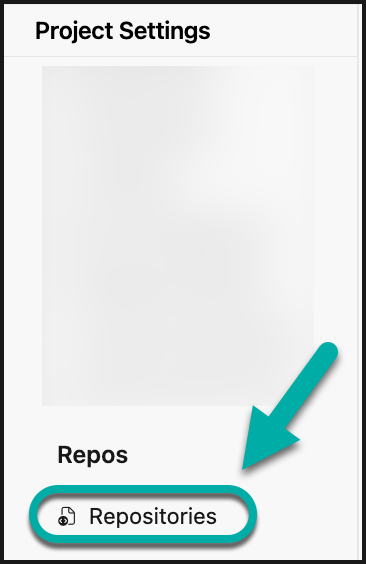
In the Project settings, navigate to Repo → Repositories:
-
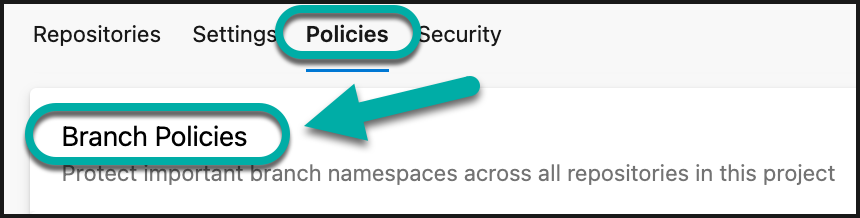
In the Repositories page, navigate to the Policies tab → Branch Policies section:
-
Click on the “+” icon in the Branch Policies section.
-
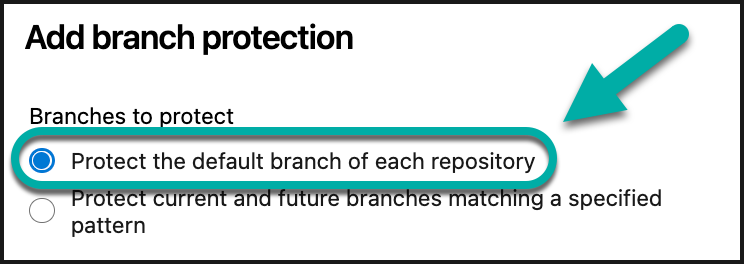
In the pop-up window, select “Protect the default branch of each repository” for the Branches to protect setting:
-
Click on Create. This will redirect you to the next configuration page.
-
Navigate to the Status Checks section → click on the “+” icon:

-
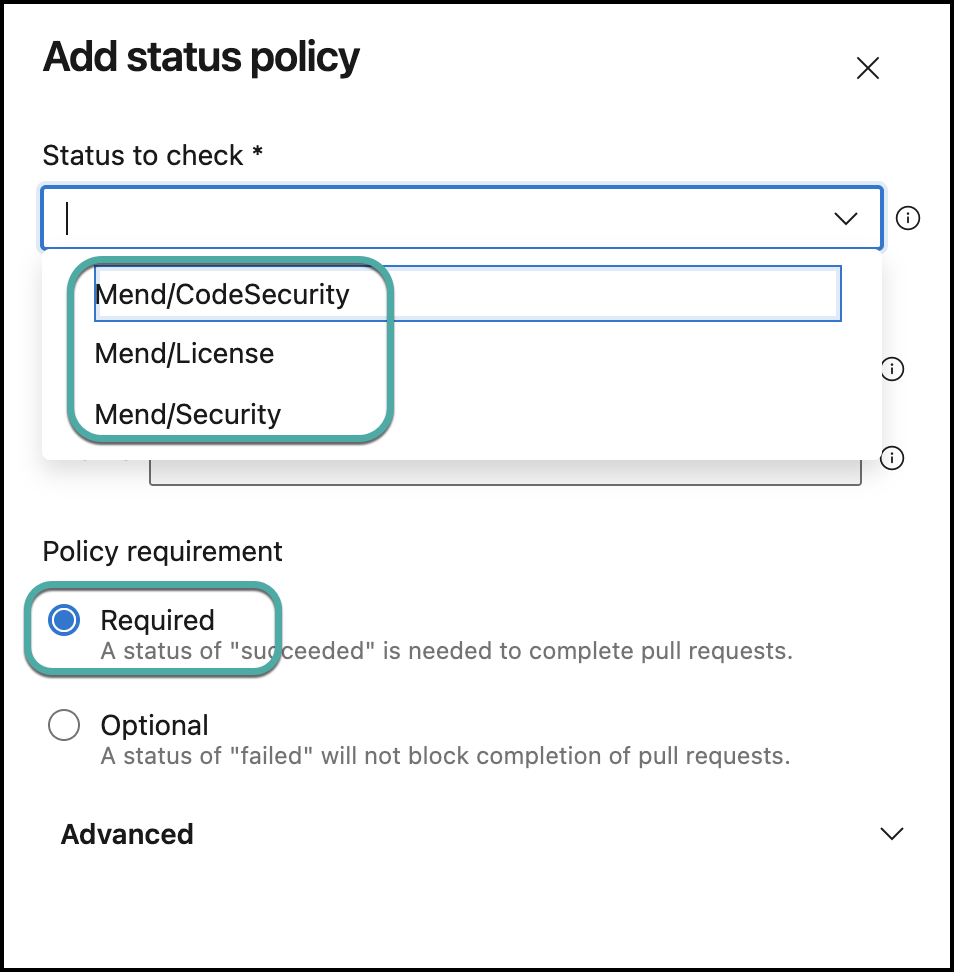
Configure the “Add status policy” view as follows:
-
Status to check:
-
For SCA findings:
Mend/Security -
For SAST findings:
Mend/CodeSecurity -
For license violations:
Mend/License
Note: A status policy will need to be created for each status.
-
-
Policy requirement: Required
-
-
Click on Save to save your configuration.
-
Make sure that your newly created Status Check policy is enabled.
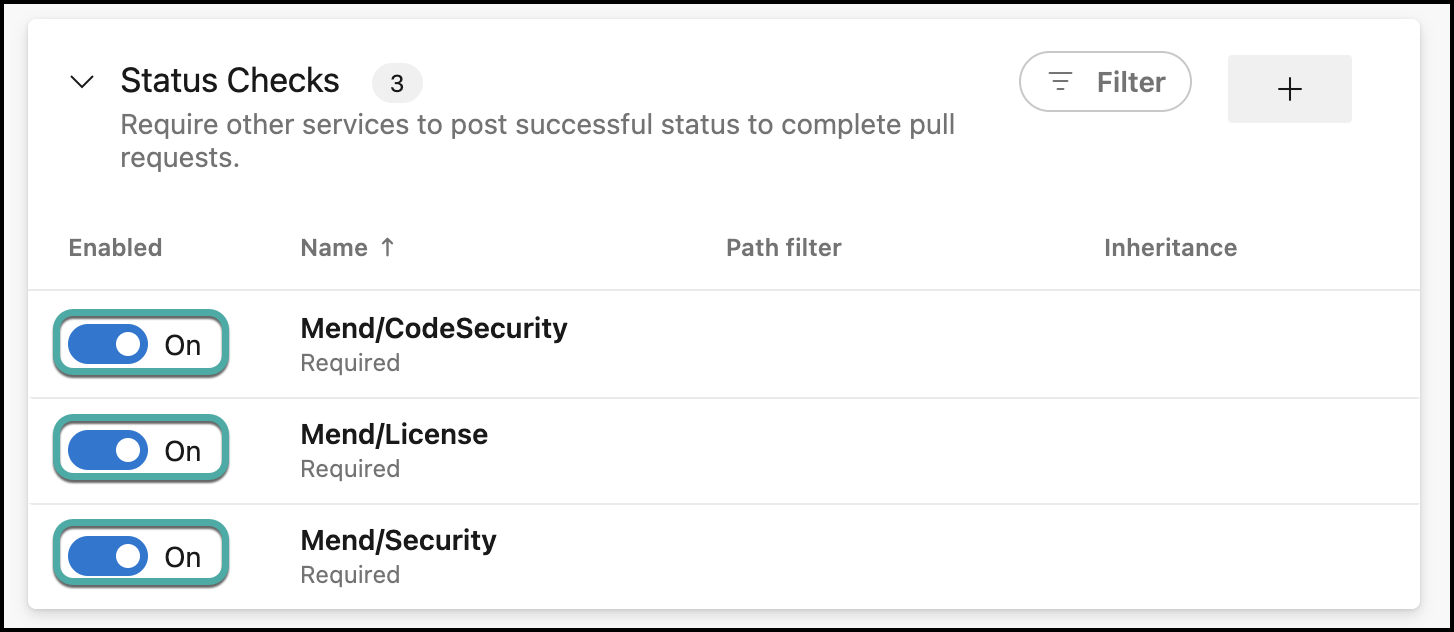
Congratulations, you’ve successfully created a branch policy using Mend checks!
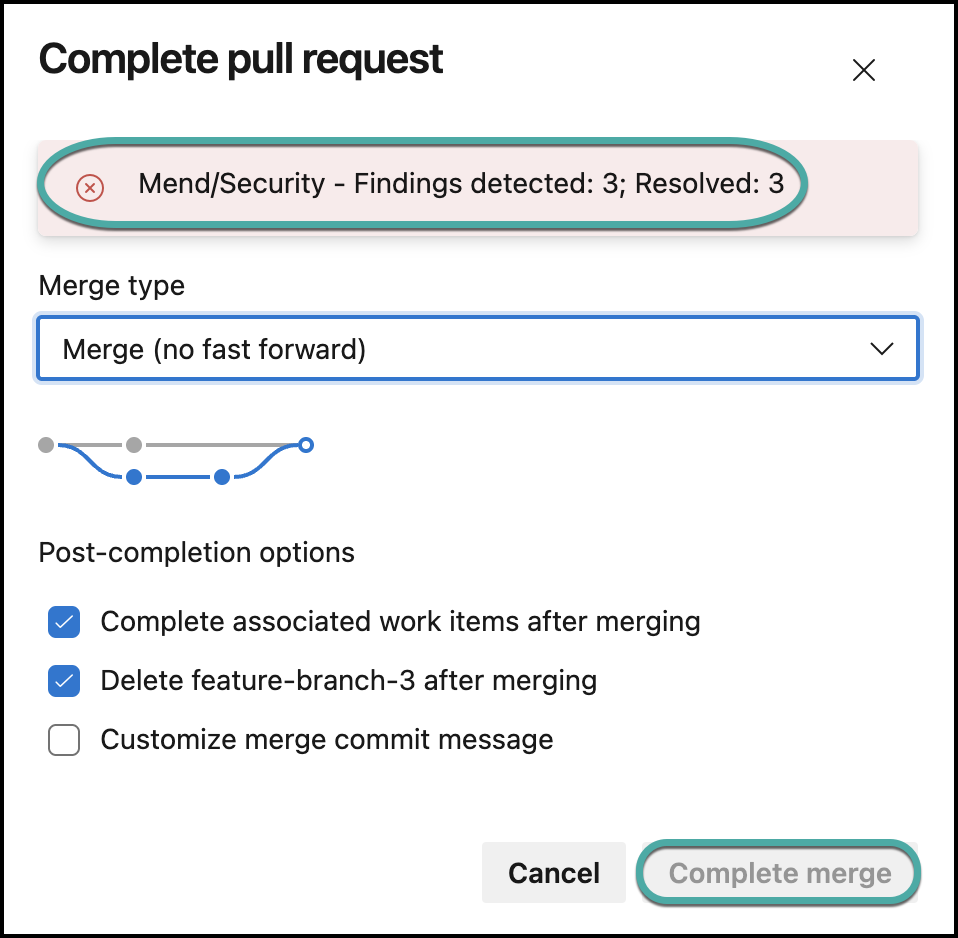
In collaboration with the default Mend configuration, failed Mend checks will block the associated pull request from being merged into your default branch, resulting in the Complete merge option being grayed out and not clickable:
Troubleshooting
My Azure DevOps organization doesn’t appear under “Install more”
Mend lists only those organizations in which the authenticated user holds both permissions described under Required Azure DevOps permissions. If an organization is missing from the list:
-
Confirm that Third-party application access via OAuth is enabled for that organization (Organization settings → Policies → Application connection policies).
-
Verify the user’s effective permissions rather than their group memberships. In Azure DevOps, open Project settings → Repos → Repositories, select the Security tab, then select the onboarding user. Azure DevOps displays the permission as it is actually evaluated, including any Deny inherited from another group — this is what Mend checks, and it may differ from what the user’s group memberships suggest.
-
Remove the user from any group that denies Delete repository or Delete subscriptions.
-
Wait approximately five minutes after changing permissions — Mend caches the permission evaluation — then retry.
-
If the repository permission is correct and the organization still does not appear, contact Mend Support.
Note: az devops security permission namespace show is not a valid way to verify this. That command lists the permission bits available in a namespace, not the ones in effect for a given user, and will appear to confirm permissions the user does not actually hold.
Limitations
-
You can connect multiple source code management (SCM) systems to a single organization in the Mend Platform, with the following caveats:
-
http://developer.mend.io can be connected to any Mend Platform organization regardless of where it’s hosted (EU or non-EU), except Azure DevOps.
-
Azure DevOps can only be connected to a Mend Platform organization as follows:
-
http://developer.mend.io --> Mend organization hosted outside the EU (e.g., saas.mend.io, which is in the US)
-
http://developer-eu.mend.io --> Mend organization hosted in EU (e.g., saas-eu.mend.io)
-
For a full list of regions visit the IP Addresses page.
-
-
-
If you have multiple SCMs connected to your organization in the Mend Platform, to switch between them you must first sign out of the Developer Platform, then select a different SCM on your next sign-in. Example:
-
Sign in with GitHub to see your GitHub organizations
-
Sign out
-
Sign back in with Azure DevOps to see your Azure DevOps projects
-
-
The Developer Platform is currently not supported for organizations hosted in India
-
Basic Renovate configuration is available under the Dependencies section of the Developer Platform. For the full Renovate documentation visit https://docs.renovatebot.com/
-
There is a limitation of one Azure tenant ID per Mend Developer account.