.svg)
Overview
The Mend Developer Platform covers Mend SCA, Mend SAST, Mend Renovate, and IaC engines, ensuring a comprehensive solution for your development needs. With a unified approach, you can seamlessly manage your repositories and access powerful features tailored to enhance your workflow.
You will gain valuable insights into your integration process with logs for all scan jobs available directly within the UI. Also, keep track of the state of scan engines across all repositories, allowing you to stay informed about the health and performance of your integrations.
Main Dashboard
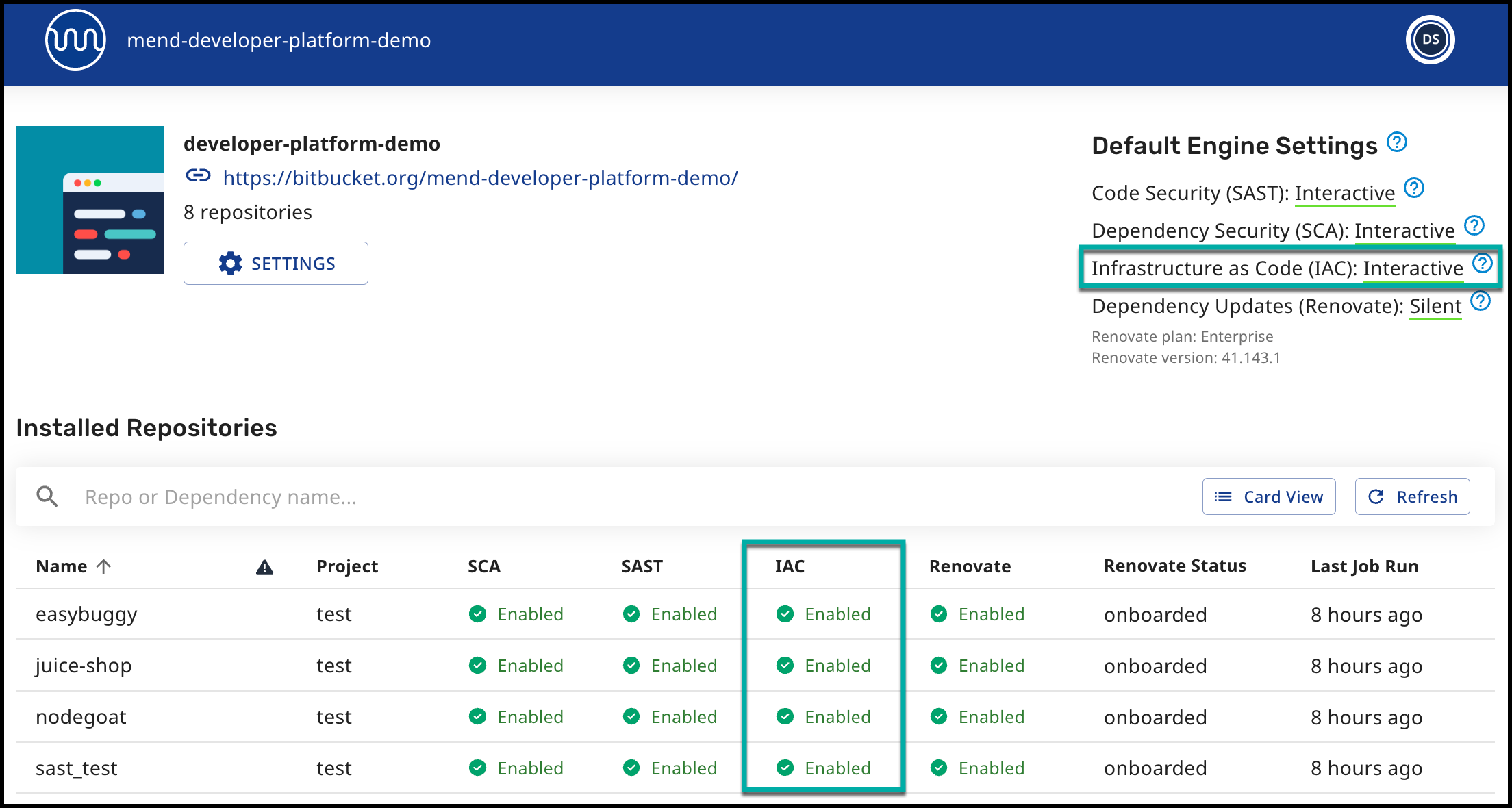
In the main dashboard, you can see the list of all installed repositories, configure the global configuration settings for the entire project/workspace, and also track each engine status.
You can see the default engine setting for Infrastructure as Code (IaC) shown in the top right corner. The engine status of each repo is shown in the IAC column in the Installed Repositories table.
Sorting the List of Repositories
You can sort the list of repositories by any column except “Renovate Status”.

The Errors/Warnings column (Unknown Attachment) displays one of three warning statuses next to the repository name:
-
Error (Unknown Attachment)
-
Warning (Unknown Attachment)
-
No Warnings
Error/Warning icons indicate the repository has an error or warning message in the repository page.
Notes:
-
Sorting by Warnings will list the repositories in the following order, from top to bottom:
Error / Warning / No Warnings -
The secondary sorting order is by Last Updated.
-
Clicking the Warnings sort icon again will restore the default sorting of the repository list.
Engine Status
-
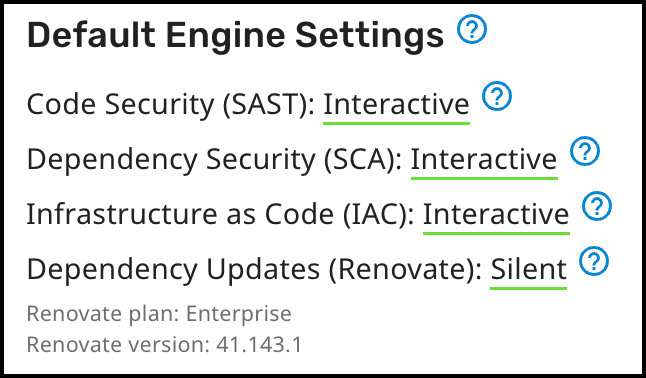
Interactive (On) - This engine is enabled, and scan results will also be presented in the repository based on the configuration.
-
Silent - This engine is enabled, but Checks, Issues, and Pull Requests will not be created or updated in the repository. Scan job logs will be available in the “Recent jobs” table. Scan results will be available in the Mend Platform application.
-
Off - This engine is disabled. To enable it, go to the settings.
-
Unavailable - This engine requires a Mend license, and it was not provided, or the one that was provided doesn’t cover this engine.
Repository Dashboard
The repository dashboard presents a high-level overview of recent engine jobs with their status.
By clicking on each job section, you’ll be navigated to the Job Overview screen, where you can see more information.
Run a manual IaC scan
You can run a Mend scan manually by clicking on Actions → Run IaC scan.
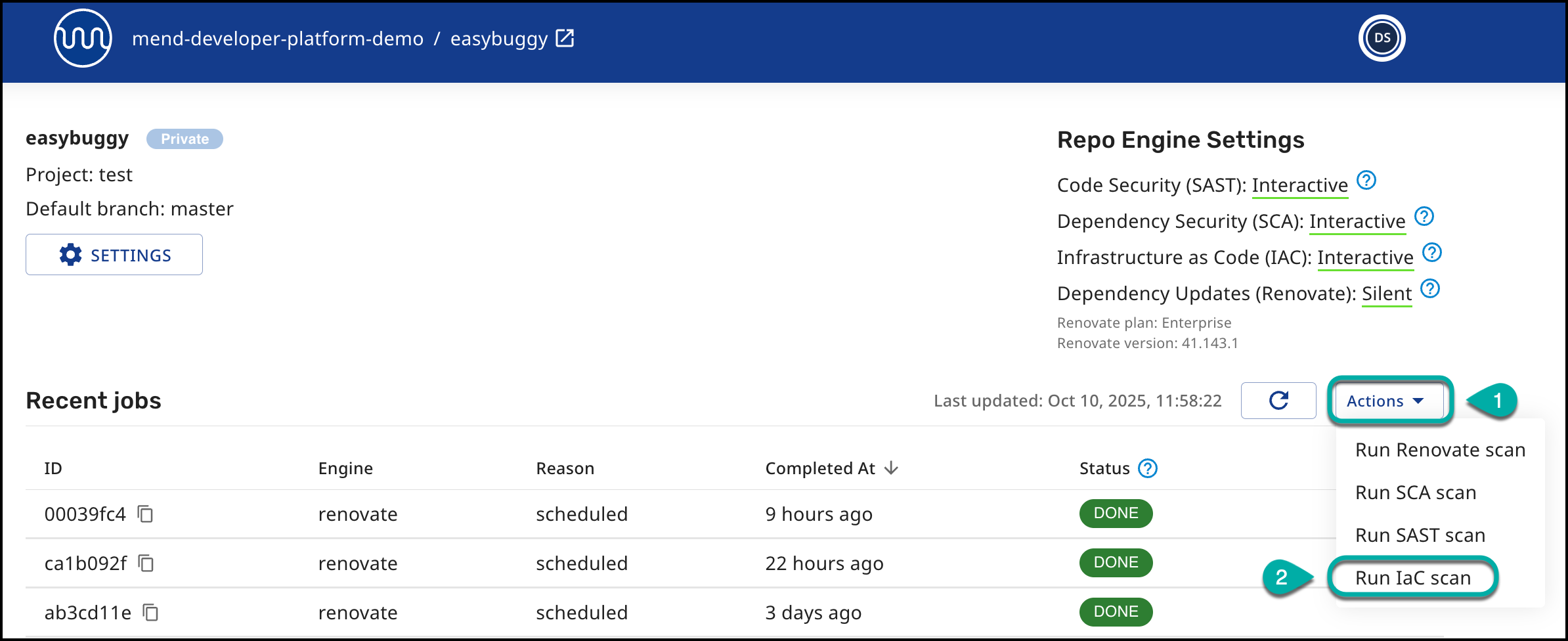
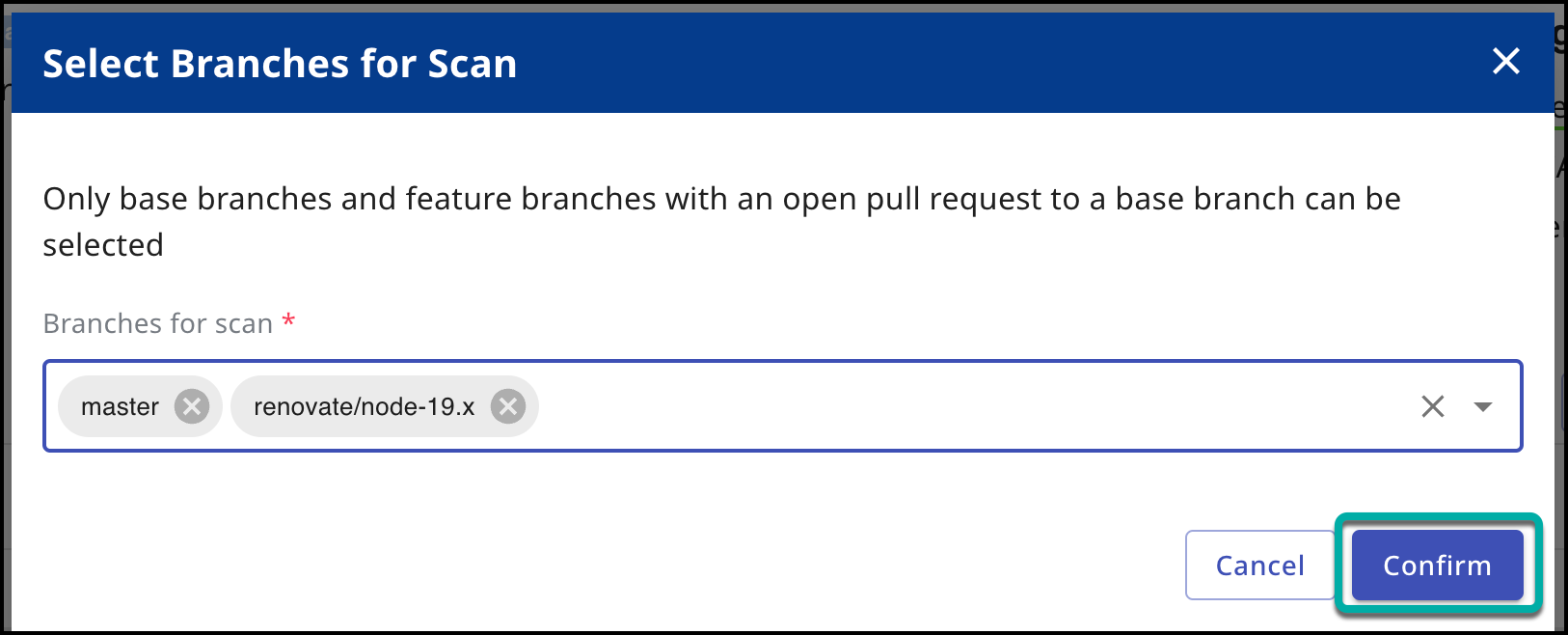
Clicking on "Run IaC scan" will open a pop-up window to select the branches for which the scan should be triggered:
Notes:
-
Only branches with an open pull request to a base branch can be selected.
-
The list of available branches is determined based on the repository’s individual settings if they override the global settings.
-
Selection can be made for up to 10 branches.
-
You can remove selected branches after choosing them.
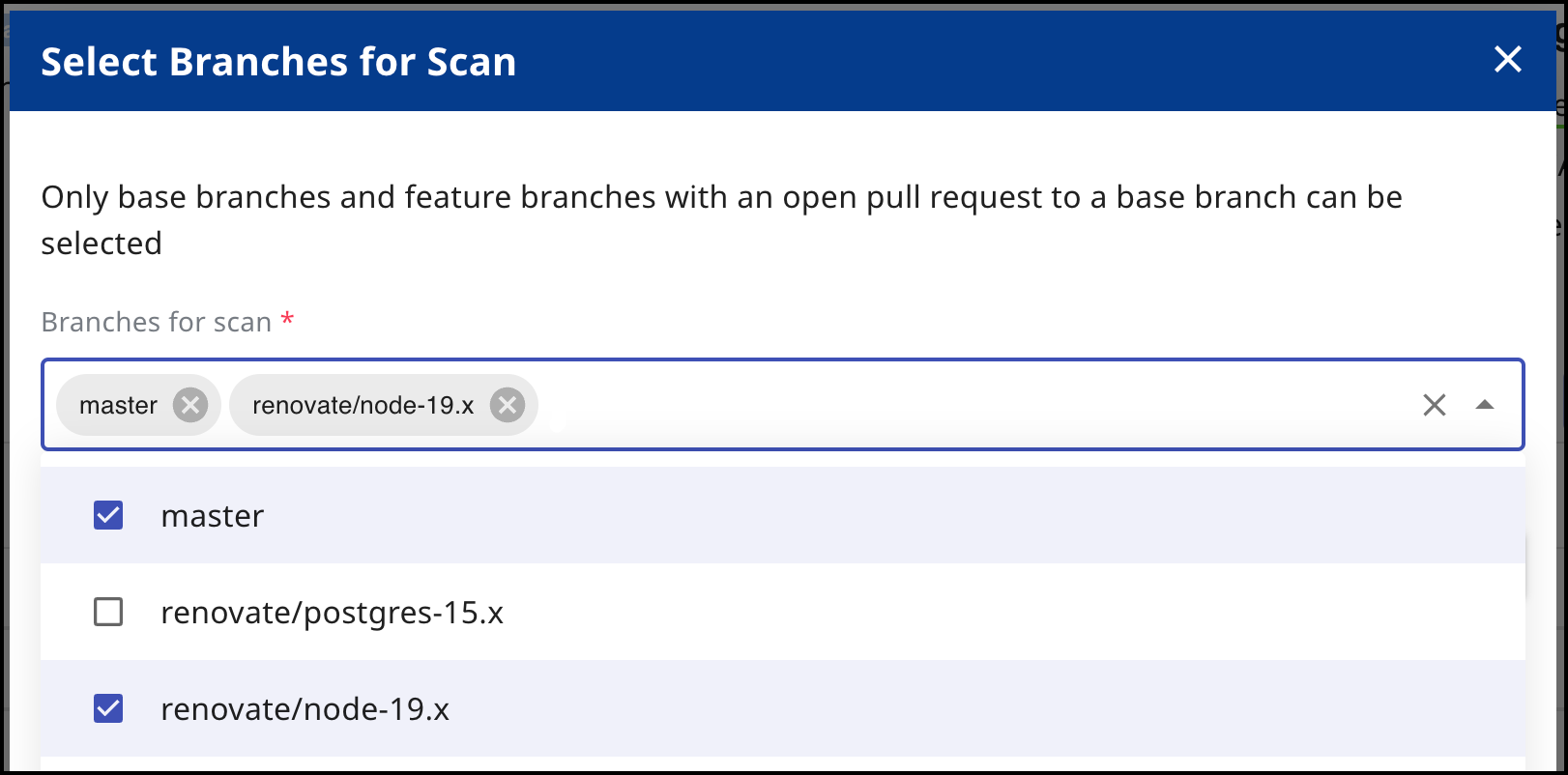
After selecting the branches, click Confirm.
After triggering a manual scan, the Jobs table will display your newly created job at the top of the list. Depending on its current stage in the scanning process, its status will appear as “Pending” or “Running”.

You can click the Refresh button at any time to update the table and check whether the scan has completed. Once the job finishes, its status will automatically change to Done, and the scan results will become available for review.
Job Overview
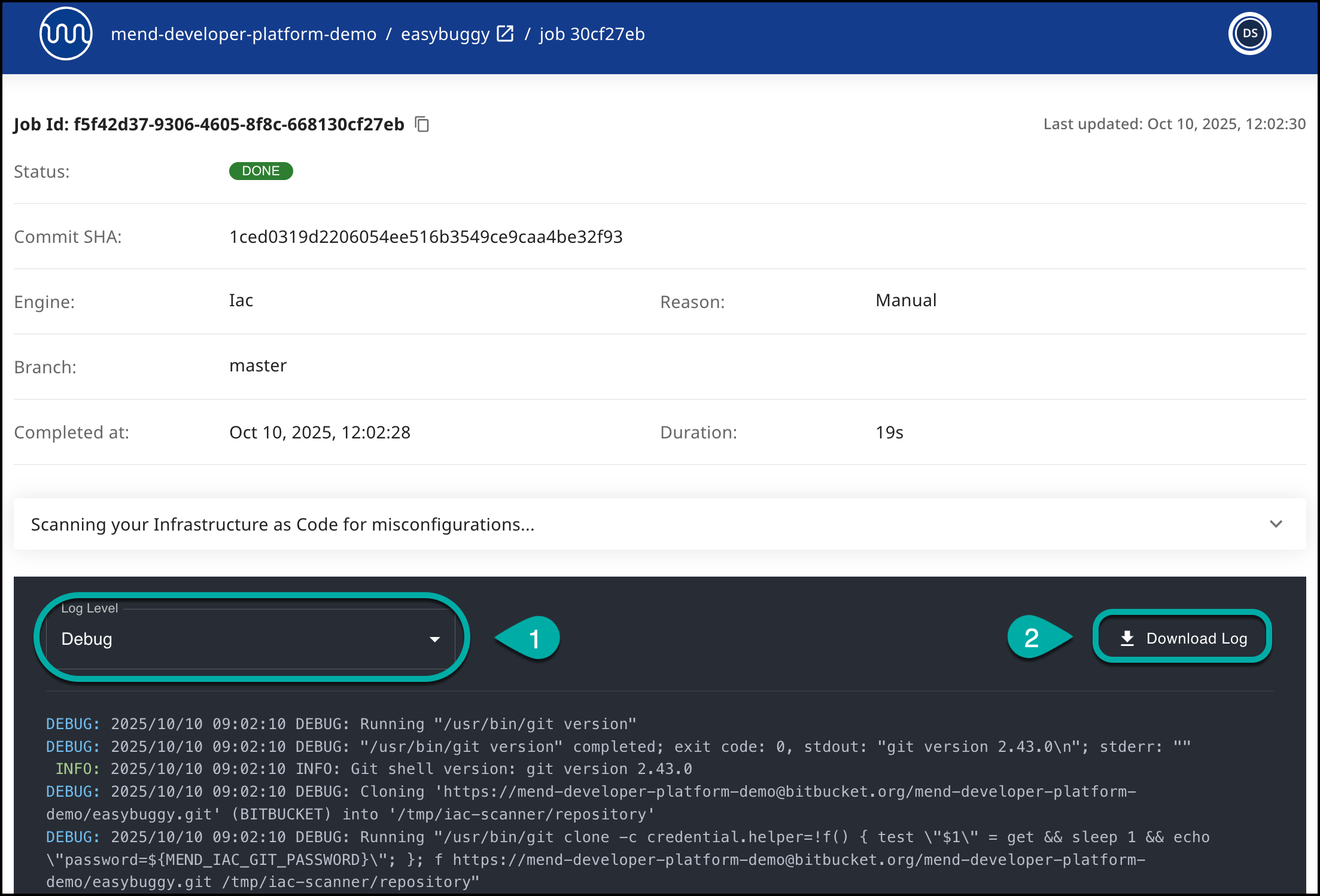
You can expand each engine job by clicking on it to access detailed information about the engine scan. This information includes fields such as the commit SHA, scan duration, and more.
Additionally, you can choose which Log Level (1) you want to view: Debug or Info. This will help you gain insights into the status of scan engines across all repositories and easily view job logs to track progress.
To download the log details, simply click the Download Log (2) toggle.
Job Status
The Mend Developer Platform has several status indicators to track the progress of a job:
-
RUNNING - The scan is currently running.
-
PENDING - The scan was enqueued and is currently waiting to be picked up by a scanner.
-
PENDING_RETRY - Scan was attempted and failed but is going to be retried. It is currently waiting to be picked up by a scanner.
-
FAILED - Scan attempts have failed more times than our retry count. The scan will not be attempted again.
-
DONE - The scan was completed successfully.