.svg)
Overview
To efficiently reduce security risk, developers require security findings and remediation guidance directly within their IDE. The Mend Code Security Tool enables developers to get immediate feedback about their findings within IntelliJ, before the code is committed into an SCM.
Use Case
A developer writes code that introduces a new vulnerability. A scan which reports a new finding and potentially its remediation is triggered so that the vulnerability can be fixed with just one click.
Supported IDE versions
The plugin version you install depends on your JetBrains IDE version:
|
JetBrains IDE version |
Required Mend plugin version |
|---|---|
|
2026.2 and later |
1.5.0 and later |
|
Earlier than 2026.2 |
1.4.0 |
Install
-
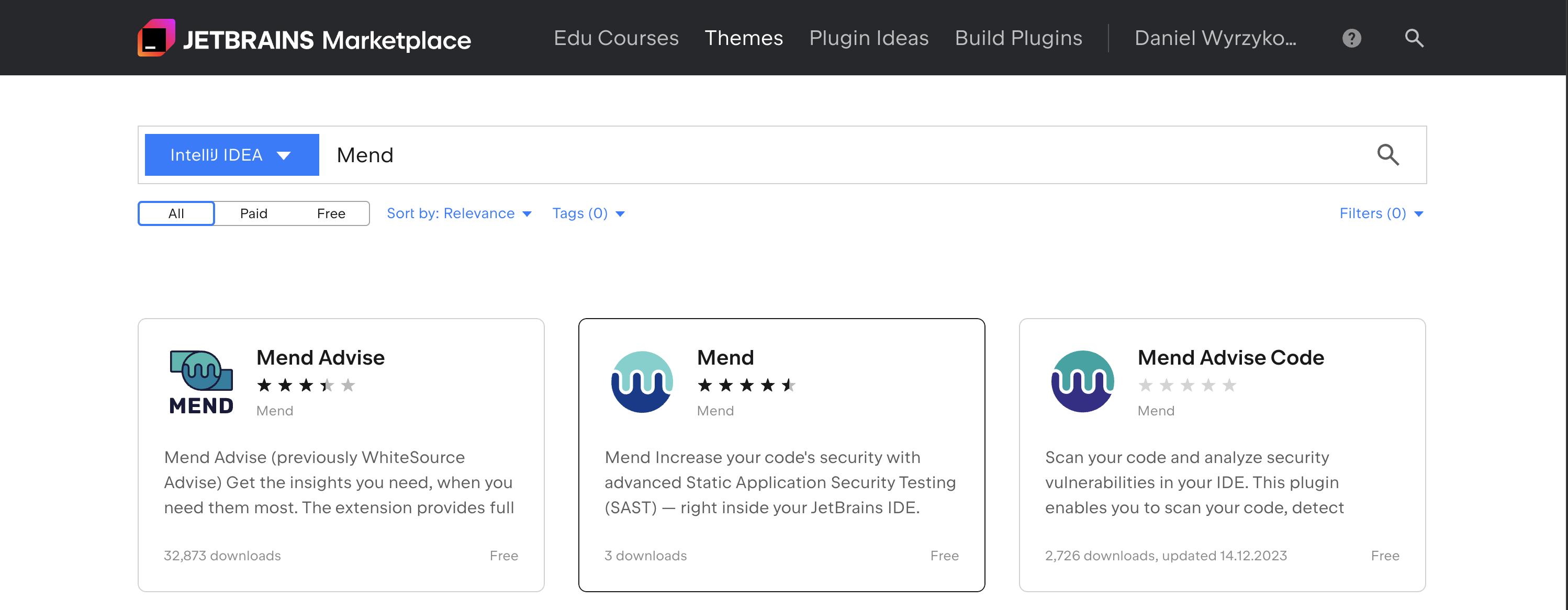
Navigate to the JetBrains Marketplace
-
Type “MEND” in the search
-
Click “Mend”
Onboard
Authenticate
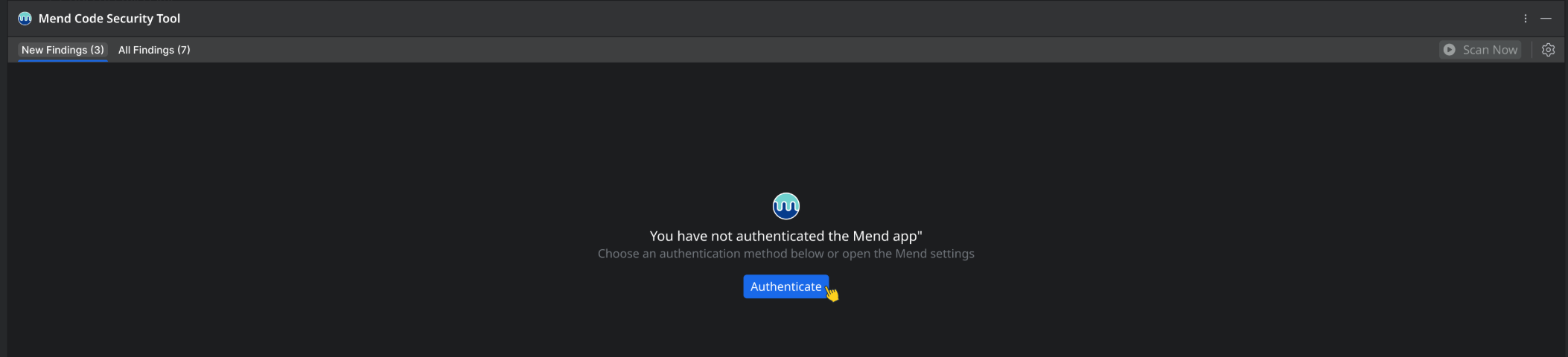
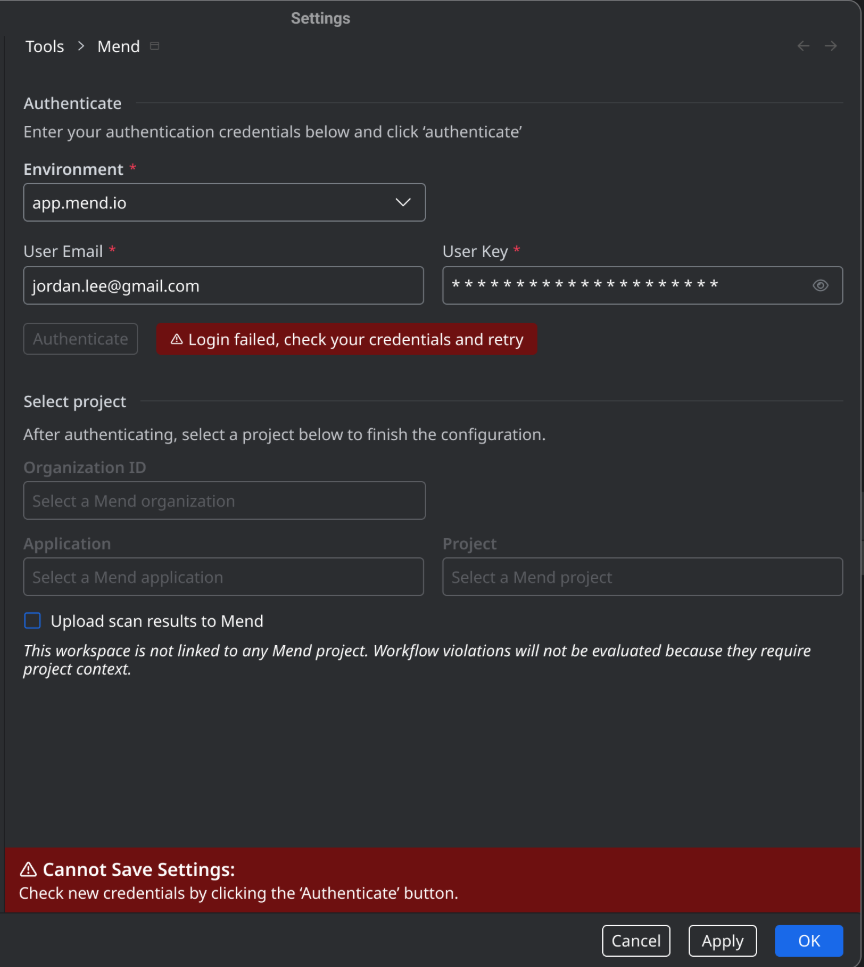
Authentication can be done via Settings or via a fresh installation screen.
-
Click Authenticate to begin the procedure.
-
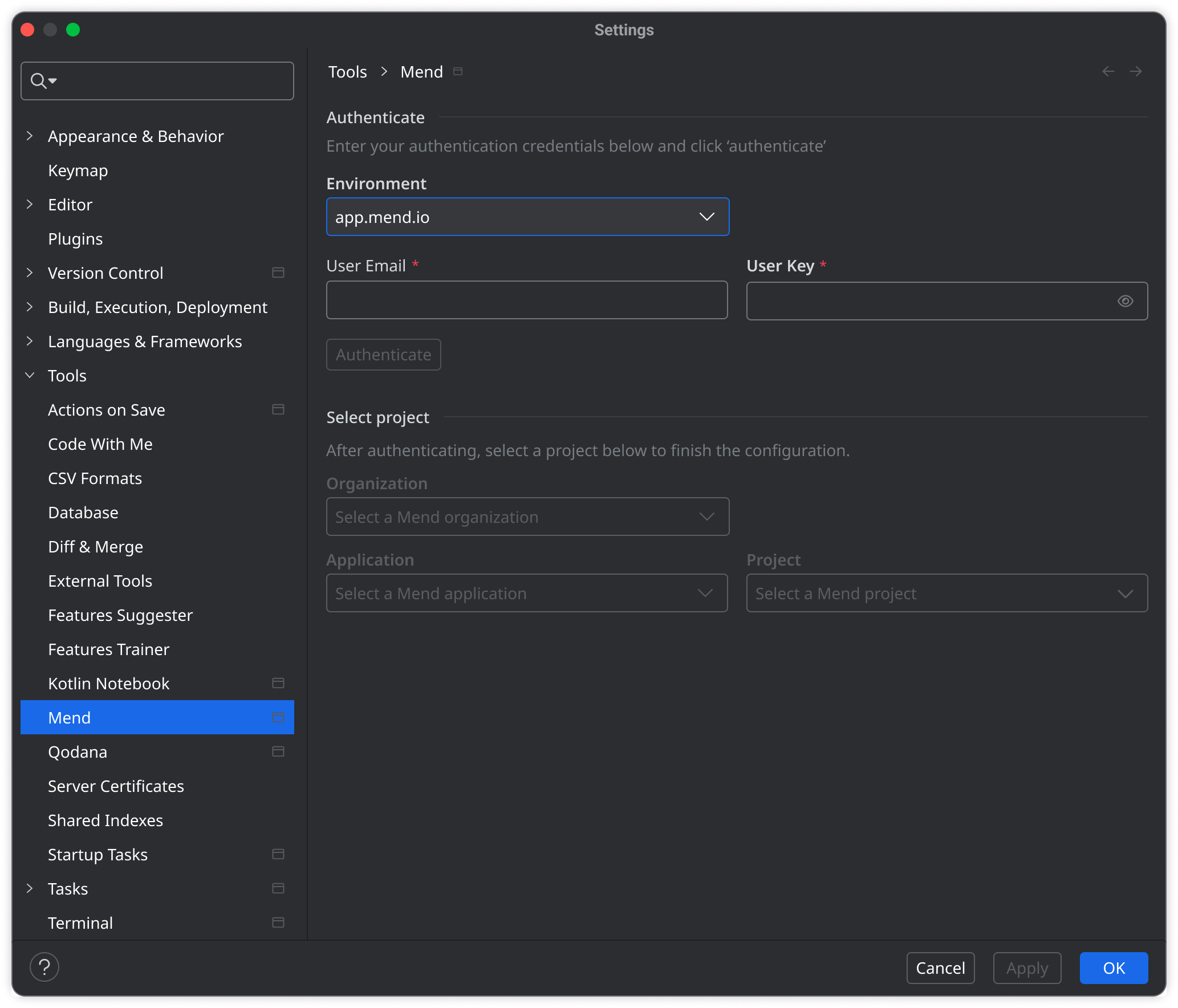
Specify the following, which are obtained via the Mend AppSec Platform:
-
Environment: The enviornment which hosts your Mend AppSec Platform organization.
-
User Email: Your username in the Mend AppSec Platform (visible in your profile)
-
User Key: Your user key in the Mend AppSec Platform (Profile → My Profile → User Keys)
-
-
Click Authenticate
If authentication fails, check your credentials and retry
Select Project
Once authenticated, configure one of the following options:
-
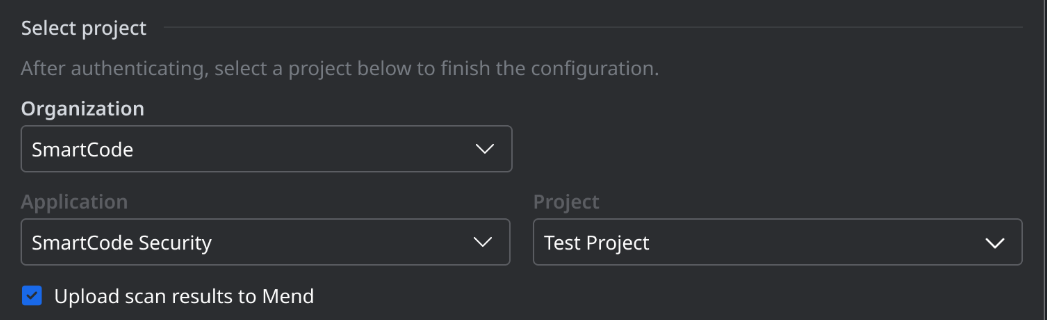
Upload scan results to the Mend AppSec Platform and update the specified project
-
Specify the desired Application and Project in the Mend AppSec Platform and check the Upload scan results to Mend box
-
-
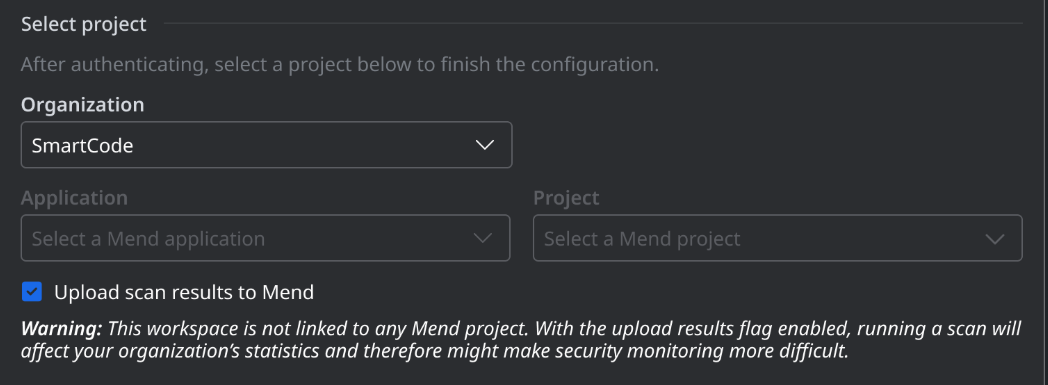
Upload scan results to the Mend AppSec Platform without updating an existing project
-
Check the Upload scan results to Mend box without specifying an application/project
-
-
Don’t upload scan results to the Mend AppSec Platform
-
Leave the Upload scan results to Mend box unchecked
-
Scan
Note:
-
IDE scans do not change the results on project level and are not visible in the scan history of the Mend Platform
-
This plugin supports scanning only with Gen 2 engines.
First Scan
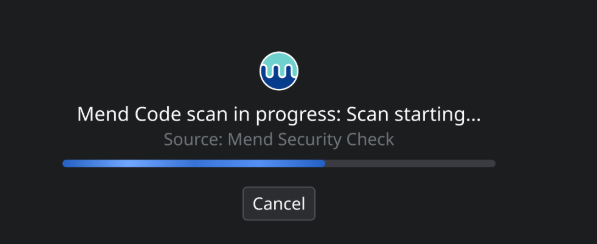
Click Scan Now to trigger your first scan with the Mend Code Security Tool.
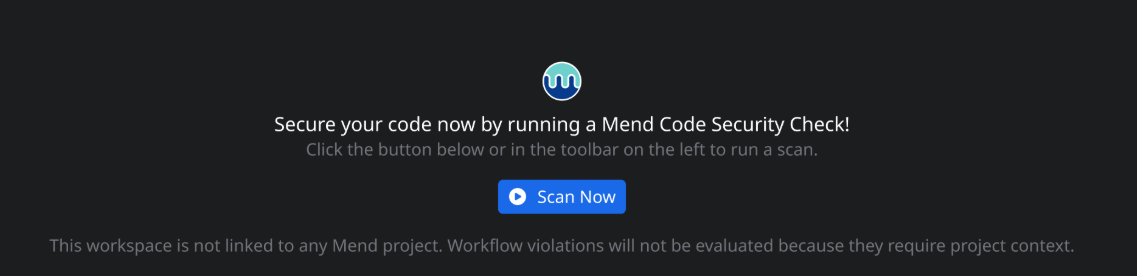
The scan progress will be indicated by a progress bar.
Click Cancel to abort the scan.
Rescan
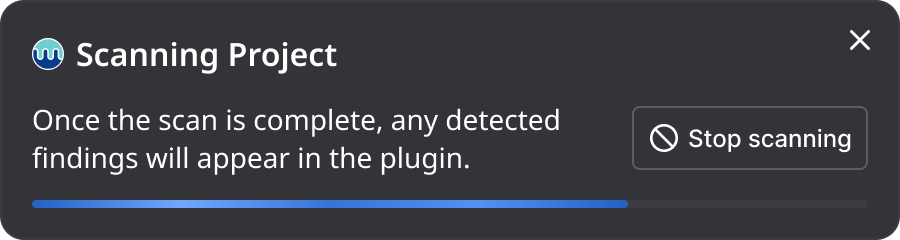
After the inital scan, click the Rescan button on the far-right to trigger new scans

The scan progress will be denoted in a pop-up window at the bottom-right corner of the screen.
Click Stop scanning to abort the scan.
Manage Findings
Note:
-
All results are viewable, including differential results.
-
If no findings are detected in the scan, this will be denoted by the following message:

-
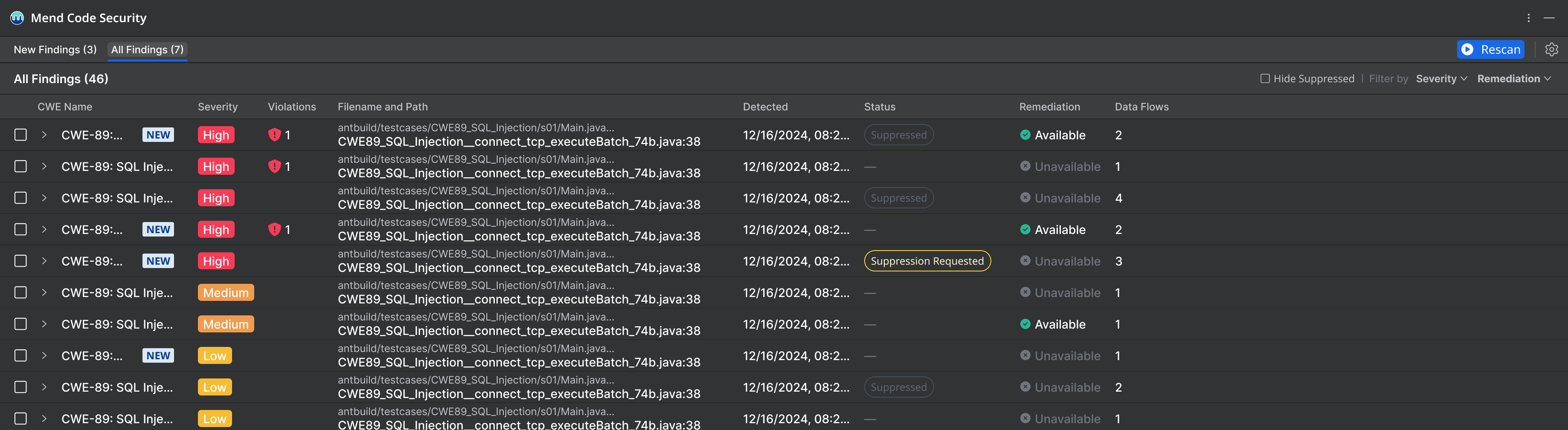
Within your code, the lines that introduce a finding are underlined. Hover over them to display details about the finding (CWE Description and remediation suggestion).
Detected findings will be displayed at the bottom of your IDE screen.
Filter your Findings
On the left, you can switch between the the following views:

-
All Findings
-
New Findings (Feature Branch Findings)
On the right, you can apply the following filters:

-
Hide Suppressed: Check this box to remove suppressed findings from your view
-
Filter by: Severity
-
Filter by: Remediation
Actions
Click a finding or multiple findings to perform one of the following actions:
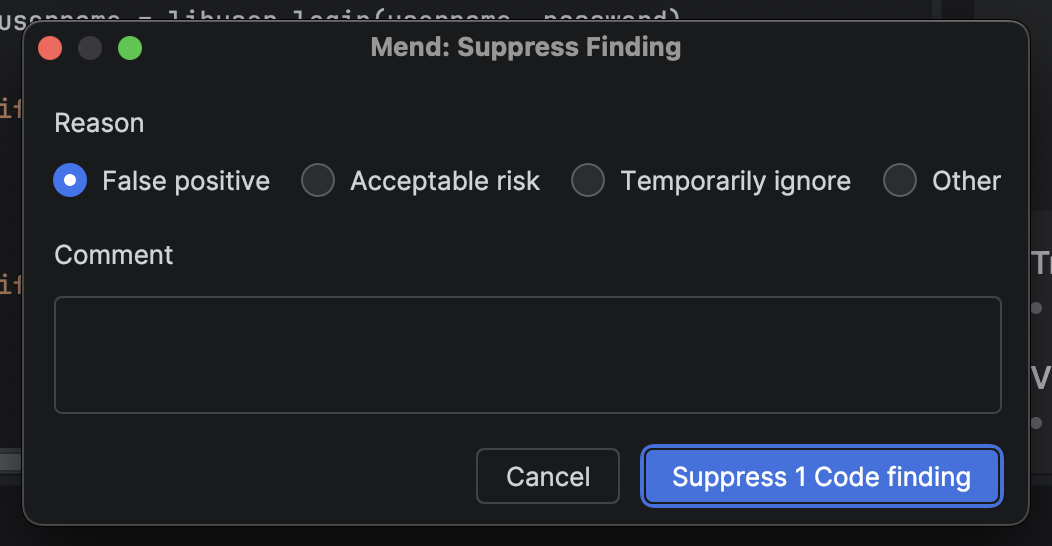
Suppress
-
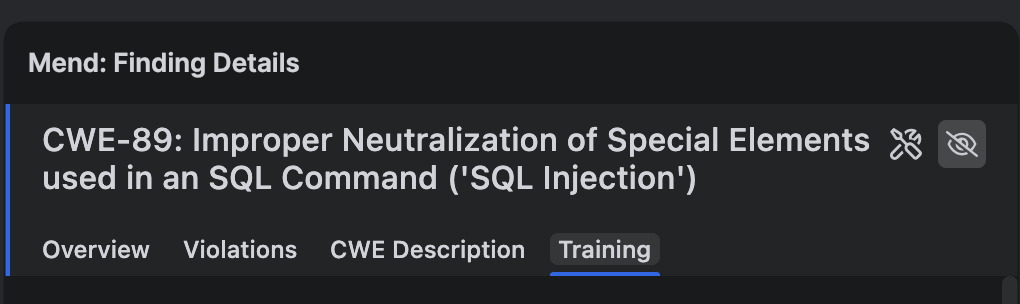
Click the Suppress button to suppress the finding (or request a suppression)
-
Select a reason and click “Suppress 1 code finding”
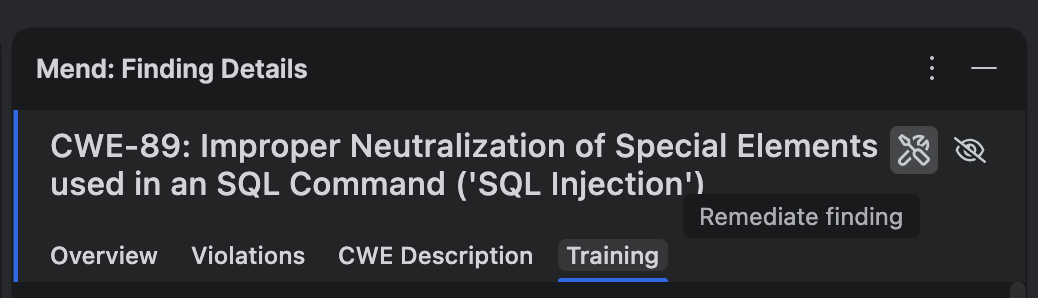
Remediate
-
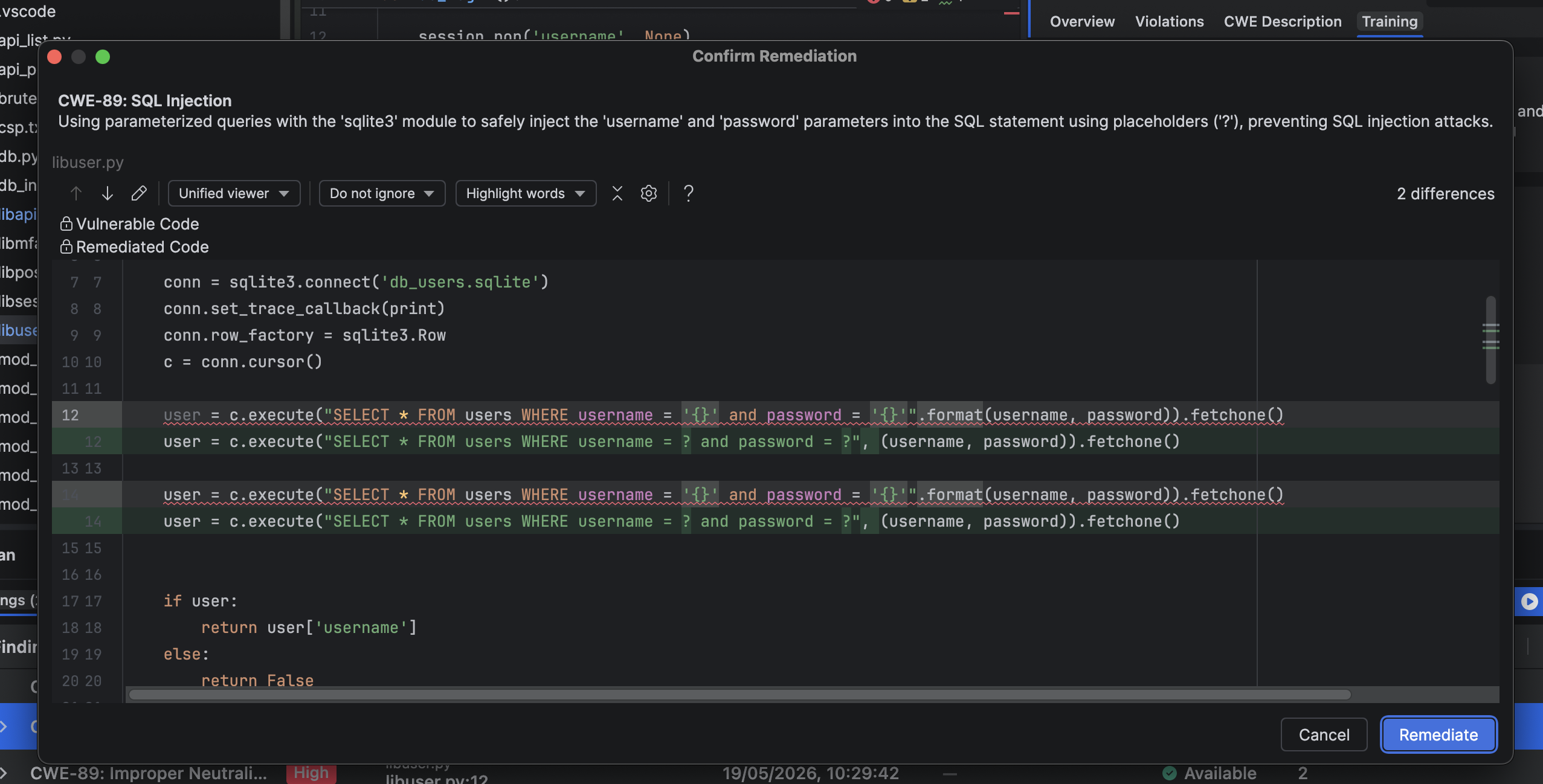
Click the Remediate button to display a modal with code differences for the remediation.
-
Click “Remediate” to perform the code change in the file (the changes in the file remain unsaved)
The Side-Panel
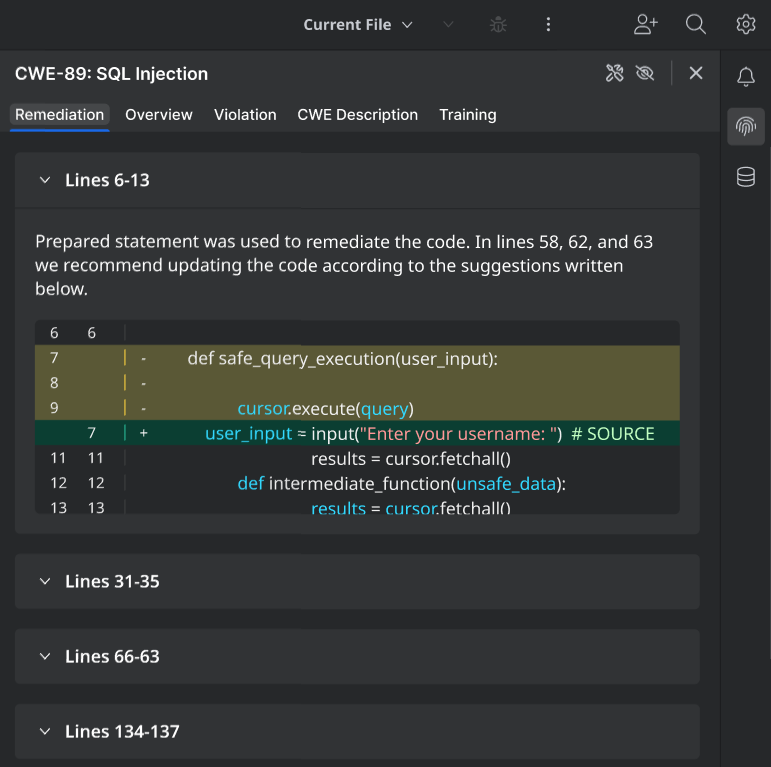
Click a finding to display the finding side-panel.

The side-panel spawns on the right side of the screen, displaying the Remediate tab by default.
Remediation
The Remediation tab displays the specific lines of code detected by the tool as the subject for remediation.
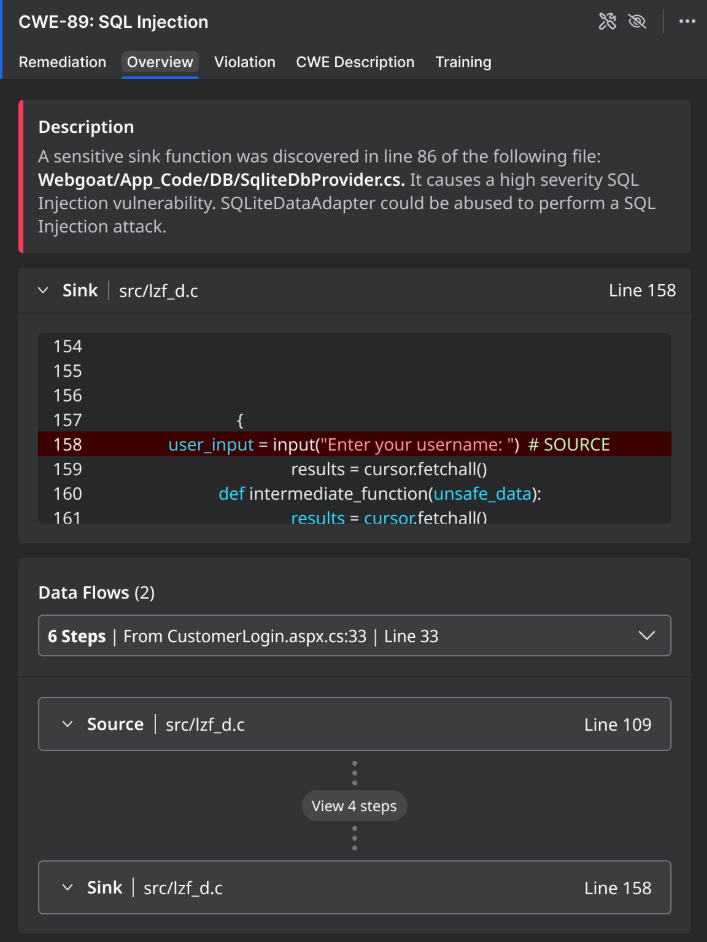
Overview
The Overview tab contains the following details about the finding:
-
Description
-
Sink (expandable)
-
Data Flows (expandable)
Violation
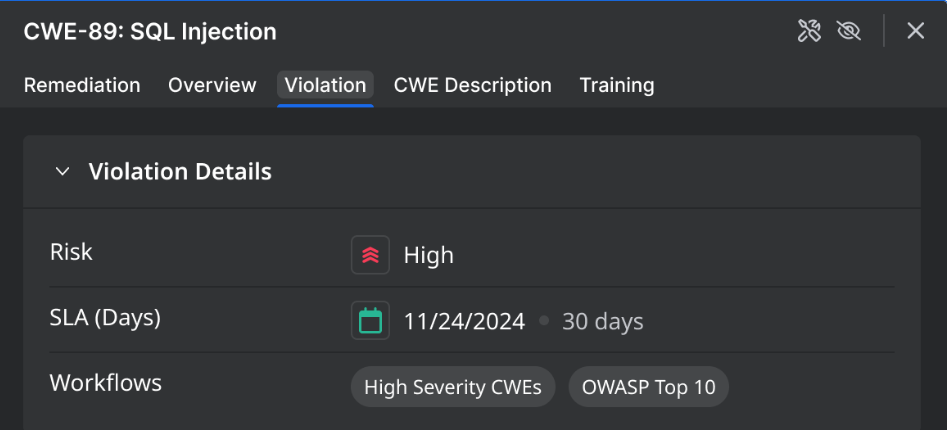
The Violation tab contains details about the violation, if applicable, including:
-
Risk: The violation’s risk level (Low / Medium / High)
-
SLA: The SLA for resolving the violation
-
Workflows: The automation workflows in the Mend AppSec Platform that triggered the violation
CWE Description
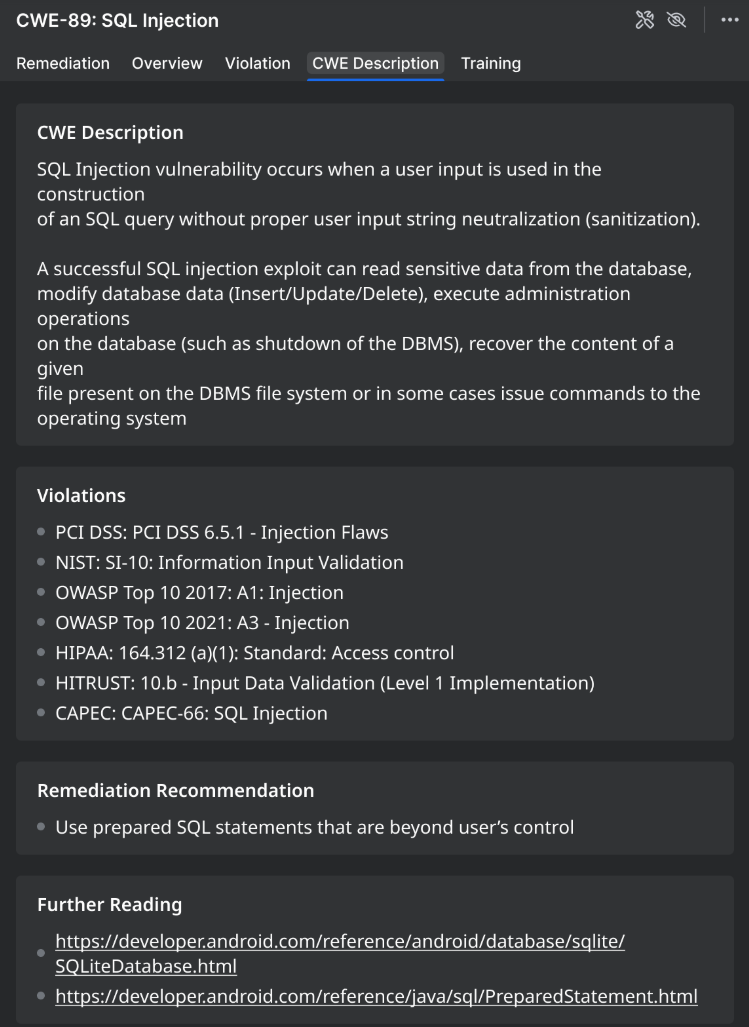
The CWE Description tab contains the following details about the CWE:
-
CWE Description
-
Violations
-
Remediation Recommendation
-
Further Reading
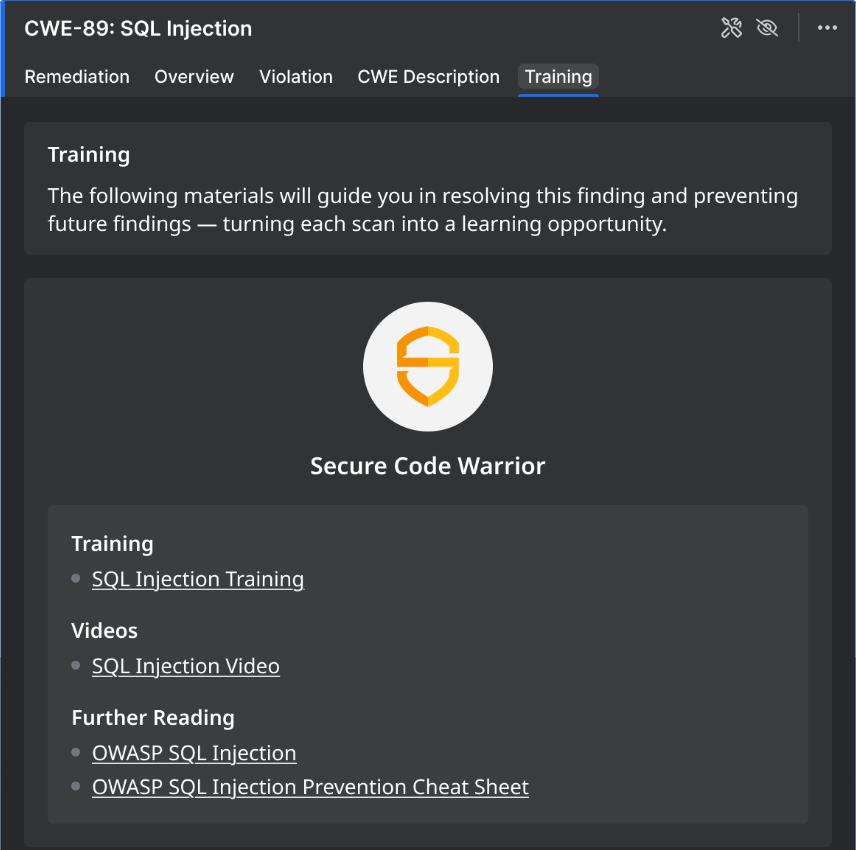
Training
The Training tab provides Secure Code Warrior materials to guide you in resolving the finding and preventing future findings.