.svg)
Note: The Mend Advise for IDEs family of SCA integrations is in maintenance mode.
Overview
Mend Advise is a family of SCA integrations based within the IDE UI alerting developers on vulnerable open source components and malicious packages, negating the need to switch between applications or wait until they’ve committed the code.
Managing User Access for Mend Advise
You can manage access to any Mend Advise IDE integration through the use of a Mend license key. This key can be generated either by a Mend Admin via the Mend Application, or alternatively, by developers themselves if they have access to the Mend Application.
Generating License Keys
Generating a Global License Key
As a Mend admin, you can generate a license key that can be used by all your organization's developers in order to activate their Mend Advise installation.
Do as follows:
-
Go to the Mend application, and in Integrate > Mend for Developers > Advise for IDE, click Generate License Key.
-
Copy the license key and share it with your organization's relevant developers.
Note: By default, the Enforce User Level Activation setting is not activated when generating a Global License Key. The generated key is a global key that can be shared among all users within the Mend Organization.
Enforcing Personal License Keys
As a Mend admin, you can enforce the use of personal (individually-used) license keys. However, this should only be enforced if all of your organization's developers have access to the Mend application.
Do as follows:
-
Go to the Mend application, and select Integrate > Mend for Developers > Advise for IDE.
-
Click the Enforce user level activation button. The Are you sure? popup is displayed.
NOTE: This action is irreversible - the global license key will be disabled when clicking Yes. -
Click Yes.
Once activated, this configuration will be denoted by the “User level activation is enforced” message in the UI, and the option to generate a global license key will no longer be available.
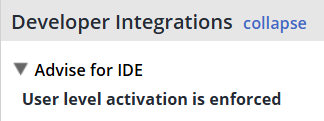
At this point, every user can generate a personal key for Mend Advise by following these steps:
-
Log into the Legacy SCA application
-
Navigate to your profile
-
Scroll to the “Mend Advise - IDE Integration” section
-
Select the relevant organization
-
Generate a Personal License Key
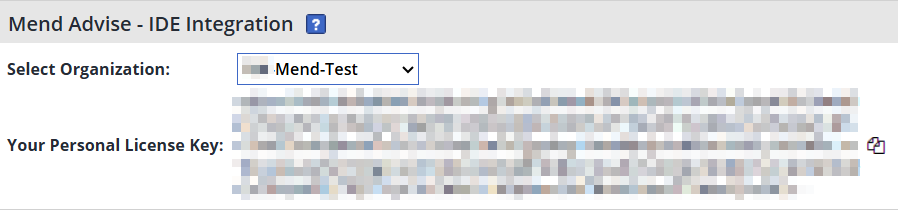
You can copy the key to the clipboard using the button on the right, to be used in Mend Advise.