.svg)
Overview
Mend Agentic Integration allows the AI agent within the IDE to interact with the Mend.io tools via the Mend.io MCP server.
When the agent generates code or attempts to add a new dependency, it can call the Mend.io MCP server to run an immediate security check. The MCP server analyzes the proposed code for CWEs and the requested libraries for known CVEs, then returns actionable guidance for the agent to address any discovered issues.
This feature integrates smoothly into the workflow, provides clear, intelligent security guidance and ensures security best practices are followed during AI-assisted development.
This guide shows how to integrate Mend's security tools (mend-code-security-assistant and mend-dependencies-assistant) with VS Code Copilot using Model Context Protocol (MCP) and custom .instructions.md files.
Key Capabilities
-
Automatic Security Scanning: Every time code is generated or a dependency gets added, the IDE’s AI agent will automatically invoke the Mend.io tools to analyze it for security vulnerabilities.
-
Real-time Vulnerability Detection: Immediate identification of Common Weakness Enumerations (CWEs) in your code and CVEs in your dependencies.
-
Automated Remediation: Automatic suggestions and fixes for detected security issues.
Prerequisites
Note: This feature uses AI. The use of the service indicated under this page is subject to the terms and conditions set forth under our AI Supplemental Terms-of-Service.
-
VS Code 1.99+ with GitHub Copilot
-
Mend.io account with Mend Agentic Integration access.
-
Valid Mend.io user credentials (email and user key).
-
Access to your Mend environment URL.
Limitations (SCA)
-
The automated remediation suggestions are currently based on agent research to identify a secure version of a vulnerable library.
-
The SCA (dependencies) tool reports vulnerabilities in transitive (indirect) libraries for the following ecosystems only:
-
.NET
-
Java
-
JavaScript / TypeScript
-
Python
For all other ecosystems, the SCA tool reports vulnerabilities in direct libraries only.
-
Step 1: MCP Server Setup
The MCP server setup can be performed via the Mend AppSec Platform UI or via command line.
Setup via the Mend AppSec Platform UI
Notes:
-
Setup via the platform UI must be performed by an organization administrator.
-
If your account belongs to more than one organization, also set the X-OrgId field; it is not required for single-organization accounts.
-
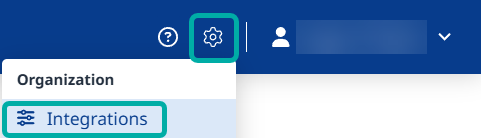
Navigate to the Integrations catalog in the Mend AI Native AppSec Platform UI:
-
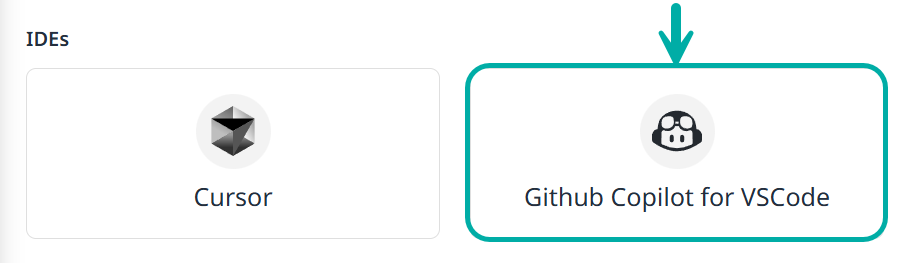
Click the Copilot button:
-
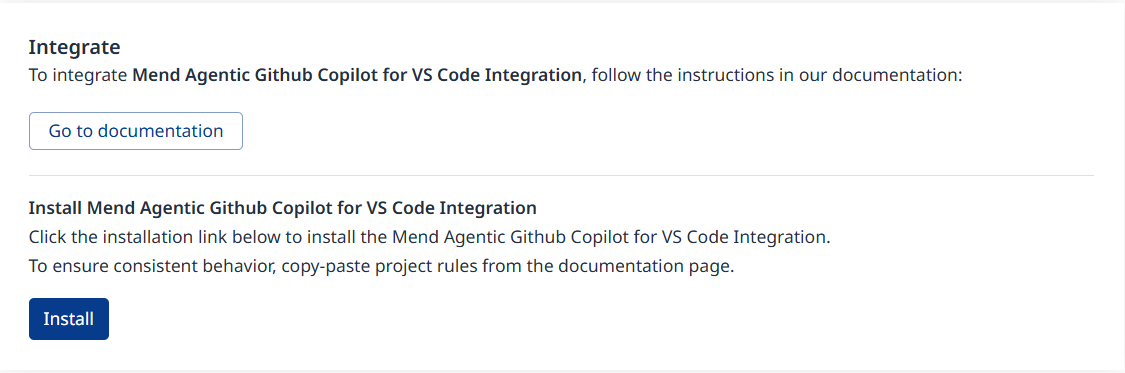
Click Install
-
This will take you to the relevant configuration page in VS Code, where the X-UserEmail and X-UserKey fields should automatically be populated with key and email of the user who initiated the action in the Mend AI Native AppSec Platform.
Setup via Command Line
Quick Installation Command
Replace YOUR_USERKEY and YOUR_EMAIL with your actual Mend credentials:
code --add-mcp '{"name":"mend-mcp-server","type":"http","url":"http://localhost:8998/mcp","inputs":[{"type":"promptString","id":"userkey","description":"Mend User Key","password":true},{"type":"promptString","id":"useremail","description":"Mend User Email"},{"type":"promptString","id":"orgid","description":"Mend Org ID (optional - only if your account belongs to multiple organizations)"}],"headers":{"X-UserKey":"${input:userkey}","X-UserEmail":"${input:useremail}","X-OrgId":"${input:orgid}"}}'
Production Server Installation
For production Mend server deployment:
code --add-mcp '{"name":"mend-dependencies-assistant","type":"http","url":"https://saas.mend.io/mcp","inputs":[{"type":"promptString","id":"userkey","description":"Mend User Key","password":true},{"type":"promptString","id":"useremail","description":"Mend User Email"},{"type":"promptString","id":"orgid","description":"Mend Org ID (optional - only if your account belongs to multiple organizations)"}],"headers":{"X-UserKey":"${input:userkey}","X-UserEmail":"${input:useremail}","X-OrgId":"${input:orgid}"}}'
Note: The X-OrgId header is optional. It is only needed if your Mend account belongs to more than one organization. If you belong to a single organization, you can leave the Org ID prompt blank, or remove the orgid input and the X-OrgId header from the command. You can find your Org ID in the Mend AppSec Platform under My Profile (or your organization settings).
Verification
-
Restart VS Code after running the command
-
Open Copilot Chat (Ctrl+Alt+I)
-
Switch to Agent mode
-
Verify tool availability: Look for "mend-dependencies-assistant" in tools panel
-
Input credentials when prompted (first use only)
Step 2: Create Security Instructions Files
Method 1: Using VS Code UI
-
Open Chat view in VS Code
-
Select Configure Chat > Instructions
-
Select "New instruction file"
-
Choose location: Workspace (
.github/instructions/) or User profile -
Enter filename (e.g.,
security-sast.instructions.md) -
Author the instructions using the templates below
Method 2: Manual File Creation
Create files directly in .github/instructions/ folder of your workspace.
Step 3: Security Instructions Templates
SAST Security Instructions
File: .github/instructions/security-sast.instructions.md
---
description: "SAST security scanning for code generation"
applyTo: "**/*.{js,ts,py,java,go,php,rb,cs,cpp,c,jsx,tsx}"
---

# SAST Security Analysis Rules

## Mandatory Security Scanning
- **ALWAYS** use `mend-code-security-assistant` tool to scan code before providing implementation
- **NEVER** generate code without security analysis when handling:
  - Authentication & authorization systems
  - Input validation & sanitization
  - Cryptography & password hashing
  - Database queries & API calls
  - File operations & system commands
  - Network communications & HTTP requests

## Security Implementation Standards
- Follow secure coding practices for the target language
- Implement proper input validation and output encoding
- Use parameterized queries for database operations
- Avoid hardcoded credentials or sensitive data in code
- Implement proper error handling without information disclosure
- Use established security libraries instead of custom implementations

## Security Verification Process
1. Generate secure code implementation following best practices
2. Use `mend-code-security-assistant` to scan for vulnerabilities
3. Address any security findings before presenting final code
4. Document security considerations in code comments
5. Explain security measures taken in response

## Response Format Requirements
When security issues are found:
- Explain the vulnerability type, severity, and potential impact
- Provide secure alternative implementation
- Include detailed code comments explaining security measures
- Reference relevant security standards (OWASP, CWE, etc.)
SCA Dependency Instructions
File: .github/instructions/security-dependencies.instructions.md
---
description: "SCA vulnerability scanning for dependency management"
applyTo: "**/*.{json,txt,yml,yaml,gradle,xml,lock,toml}"
---

# SCA Dependency Security Rules

## Mandatory Dependency Scanning
- **ALWAYS** use `mend-dependencies-assistant` tool before recommending dependencies
- **NEVER** suggest adding libraries without vulnerability analysis
- **VERIFY** all dependency versions for direct security vulnerabilities
- **SCAN** existing dependencies when updating or auditing projects

## Dependency Management Standards
- Prioritize well-maintained libraries with active security updates
- Use specific versions instead of version ranges when possible
- Document the purpose and necessity of each dependency
- Suggest security-focused alternatives when vulnerabilities are found
- Consider licensing implications alongside security findings

## Vulnerability Response Process
1. **Before adding dependencies**: Scan proposed packages using `mend-dependencies-assistant`
2. **If vulnerabilities found**:
   - Report vulnerability details (CVE ID, severity, description)
   - Suggest secure alternative libraries or updated versions
   - Provide clear upgrade path if newer secure version exists
   - Explain the risk if no alternatives available
3. **For bulk scanning**: Analyze all dependencies in package files
4. **Document findings**: Include vulnerability summary in response

## Tool Usage Guidelines
- **Java packages**: Always include `groupId` parameter
- **Bulk scanning format**: `[{"library":"name","version":"1.0.0","language":"LANG","groupId":"optional"}]`
- **Supported languages**: JAVA, RUBY, PYTHON, NPM, NUGET, GO, PHP, COCOAPODS, HEX, R, OPAM, CRATE, CABAL, SWIFT
- **Focus**: Direct vulnerabilities (not transitive dependencies)

## Response Format Requirements
When vulnerabilities are discovered:
- List vulnerable packages with CVE IDs and severity levels
- Provide specific remediation steps and commands
- Suggest secure alternatives with clear justification
- Include package manager upgrade commands
- Summarize overall security posture of dependencies
Step 4: Testing and Verification
Test Security Instructions
-
Test SAST Integration:
Create a secure user authentication system with password validationShould trigger
mend-code-security-assistantdue to authentication context. -
Test SCA Integration:
Add the express framework to my Node.js projectShould trigger
mend-dependencies-assistantdue to dependency file context. -
Test Combined Workflow:
Build a secure file upload API endpoint with proper validationShould trigger both security tools for comprehensive analysis.
Step 5: Management and Updates
View Instructions Files
-
Command Palette:
Chat: Configure Instructions -
Chat View: Configure Chat > Instructions
-
File Explorer: Navigate to
.github/instructions/
Modify Instructions
-
Open existing
.instructions.mdfile -
Edit content using Markdown format
-
Update
applyTopatterns as needed -
Save changes (takes effect immediately)
Remove Instructions
-
Delete the
.instructions.mdfile from.github/instructions/ -
Or use VS Code UI to remove through Chat configuration
Suppress Findings
Developers may suppress queried findings directly from the IDE or AI agent workflow.
-
The suppression is by finding ID
-
Supported suppression types (with an option to add a comment):
-
False Positive
-
Accepted Risk
-
Other
-
-
Bulk suppression is supported
-
Suppression applies across SAST and SCA findings
Troubleshooting
MCP Connection Issues
-
Run
MCP: List Serversfrom Command Palette to verify server registration -
Check VS Code Output panel → "MCP" for connection errors
-
Verify server URL accessibility
Instructions Not Applied
-
Check file location:
.github/instructions/for workspace instructions -
Verify YAML frontmatter syntax and
applyTopatterns -
Use
Chat: Configure Instructionsto validate file recognition -
Test with simple prompts matching
applyTopatterns
Authentication Issues
-
Verify Mend User Key and Email credentials
-
Check organization capabilities in Mend platform
-
Test MCP server connectivity manually
Best Practices
-
Environment-Specific Configuration: Use the correct Mend environment URL for your organization
-
Regular Testing: Periodically test the integration with known vulnerable code patterns
-
Rule Customization: Adjust the SAST rules based on your organization's security requirements
Support
For issues related to:
-
Mend MCP Server: Contact Mend.io support.
-
VS Code Integration: Contact Microsoft support.
-
Configuration Issues: Refer to this guide or create a support ticket.
Security Considerations
-
Keep your Mend.io credentials secure and rotate them regularly.
-
Use environment-specific configurations for different deployment stages.
-
Review and approve all automated security fixes before deploying to production.
-
Regularly update your Mend.io subscription to access the latest security rules and vulnerability databases.
This integration ensures VS Code Copilot automatically follows enterprise security standards using Mend's comprehensive security analysis tools through targeted instruction files.