.svg)
Overview
This guide will help you fix the 'customfield_xxxxx' cannot be set issue in Jira Cloud Plugin, which prevents Jira issue creation:
Field 'customfield_xxxxx' cannot be set. It is not on the appropriate screen, or unknown.
This error message might pop up for new projects created after a new Jira integration is established.
Getting it done
-
Determine the name of the customfield by navigating to
https://<jira-url>/secure/admin/EditCustomField!default.jspa?id=xxxxx
This will take you to the Custom Field screen, where its name is specified: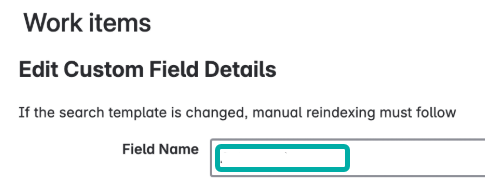
At this stage, it is recommended to copy the Field Name to your clipboard.
-
Navigate to
https://<jira-url>/secure/admin/ViewIssueFields.jspa -
Search for the (missing) Custom Field from step 1 and verify that Default Screen is listed in the screens column:
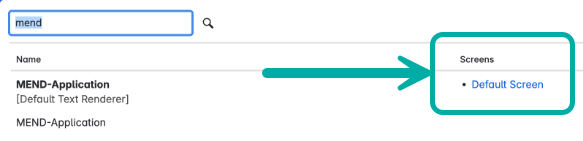
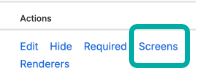
If it isn’t, click the Screens button under the Actions column to add it.
-
Navigate to
https://<jira-url>/secure/admin/ViewCustomFields.jspa -
Search for the missing field and verify that it has both a screen and a context listed under the Screens and contexts column:

Note: It’s important to verify that the relevant Issue type is configured in the context.
If it isn’t, click onCreate, edit or delete contexts→Edit Context.
Then, under Choose applicable issue types, select relevant issue types and apply the change.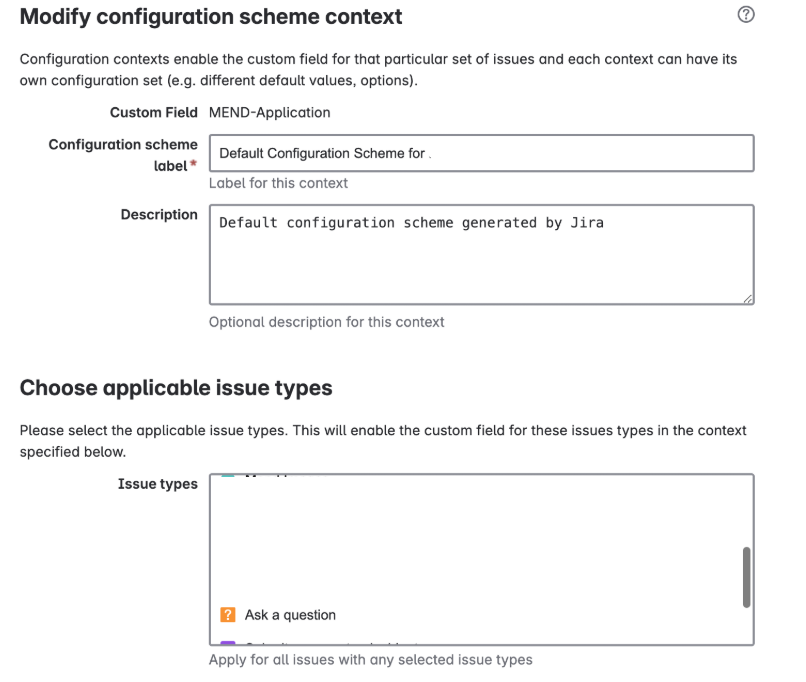
Note: Repeat the steps above for each missing custom field.