.svg)
Overview
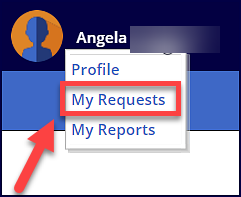
The My Requests option takes you to the User Request History page.
The User Request History page provides details about all requests where your user is/was the Approver:

Getting it done
Filter the User Request History page
You can filter the User Request History data table. To do so:
-
Expand the Filter area, select a property, and enter the value by which to filter.
The property options are Library (default), Requester, Approver, Status, Date, Product, or Project. -
Click Filter.
After defining all the relevant filters, the User Request History data table is displayed showing all the requests in the organization.
Reference
User Request History table
|
Column |
Description |
|---|---|
|
Library |
Name of the open-source library. Click the library name in order to be forwarded to its Library Details page. |
|
Approver |
Name of the person assigned to approve the request.. |
|
Approvers Group |
The group of people assigned to review the request. |
|
Approved By |
The person that approved/rejected the request. This information is most relevant when a request is assigned to a group of approvers, as this column displays the person in the group that actually approved the request. |
|
Status |
The status of the request (e.g., Open, Pending, Closed). |
|
Date |
The date the request was made. |
|
Product |
The product in which the library is located. |
|
Project |
The project in which the library is located. |
|
Details |
Clicking the details link forwards you to the Details page of the request. |